.4UVmK5aw_1uGpNi.svg)
.AzQB9McO_PVSYK.svg)
.DjhlE8MO_Z1DYVxU.svg)
.DM2pllEO_1cxFXE.svg)
.CvN5042A_Z10D5qc.svg)
.Dcqs_gC__NRL3p.svg)

Table of Contents
Browser fingerprinting is a tracking method that collects a combination of signals, settings, and details of your device. Together with your IP address, these data points serve as the main online identifiers, in turn, creating a unique device ID that allows third parties to identify and track you across the web. Here is what makes up your digital ID:
- IP address: numerical IP, Internet Service Provider (ISP), Autonomous System Number (ASN), connection type
- Geographical location: country, state, city, approximate postal/ZIP code, timezone
- Operating system (OS)
- Browser engine type
- Browser extensions and add-ons
- Language settings
- Hardware details: graphics card, device memory size, GPU model, CPU cores, drivers, battery level
- Software: system fonts, installed emoji set, plugins
- Screen details: resolution, device orientation, color/brightness settings
- Canvas/WebGL fingerprinting: audio signals and video graphics
- Interaction patterns: heatmaps of cursor movements, scrolling behavior, and click acceleration.
- Connected devices: cameras, microphones, headphones
- Circumvention tool detection: proxy, VPN, Tor signals
Although fingerprinting trackers were invented to enhance browsing experience by sharing the user’s device specs with the destination website so that it knows how to display content correctly, nowadays their application has surpassed this simple use case. Most often, companies use browser fingerprints for:
- Advertising
- User tracking
- Bot prevention
- Fraud detection
- Personalization
• Device ID tracking is, in a way, the evil successor of traditional cookie tracking. While their data acquisition goals are similar, the methods differ wildly – websites track your fingerprint in the background, leaving you unaware of the data you’re constantly sharing. Thus, browser fingerprinting is impossible to opt out of, erase, or hide with Incognito mode.
• To check what your browser reveals about you, use Iphey.com – an audit tool that runs an extensive real-time browser fingerprinting test to detect tracking risks and hidden leaks.
• Some anti-fingerprinting tools don’t solve the problem the way they claim to do, while some only make matters worse.
• The best method for spoofing device ID and modifying browser fingerprint is to use anti-detect browsers, such as Gologin or 1browser, designed specifically for this use case. Pairing these services with top-notch proxies from Floppydata provides unmatched performance and success rates.
Main Challenges – Browser Fingerprinting vs Cookies
In a way, browser fingerprinting is an evolved (and, perhaps, more sinister) cookie. However, while their core objective is identical, there are a couple of crucial differences that explain why fingerprinting is so much harder to bypass.
Cookie Tracking
Websites are legally obliged under GDPR to ask for your consent to use cookies because the system has to physically write a file inside your browser’s memory. This simple consent pop-up already gives you an opportunity to opt out of being tracked. Additionally, by placing cookies on your device, websites give you control: you can clear your cache, delete your cookies, or switch to Incognito mode, and traditional cookie tracking completely breaks.
Browser Fingerprinting and Device ID Tracking
Fingerprinting is a different beast by all parameters. There is no option to opt out because it happens via silent background scripts. The security system simply calculates your identity based on configuration parameters your computer naturally broadcasts when loading a page, while the most advanced anti-fraud software is now able to inspect your data even before the browser downloads the HTML page via the ClientHello packet.
Websites are not forced to ask for your consent because they don’t need to access or store anything on your device – fingerprinting is just calculated hash that happens and remains on the website’s end. This is why it’s impossible to erase or hide with Incognito mode. To change your digital ID, you would have to change your device or its parts physically, which is frankly mental. Thankfully, there are other methods to bypass it. Let’s learn more about them.
How to Check Browser Fingerprint?
To fight effectively, you must know your enemy. The statement is equally true for your fight against privacy-infringing software and services. To protect your online identity and anonymity, first, you need to know exactly what you’re dealing with – what your browser already knows about you and is willing to share with any platform that requests this information. You might be amazed or, perhaps, alarmed when you see the full picture.
To run extensive browser fingerprint and device ID tests, I use IPhey – an audit tool that examines your digital ID and IP in real-time, detects tracking risks and hidden leaks, as well as runs an IP blacklist check. Using the service is as easy (and free) as can be. Simply go to Iphey.com and wait for the results, no manual entry required. Once the test is completed, you might see something like this:
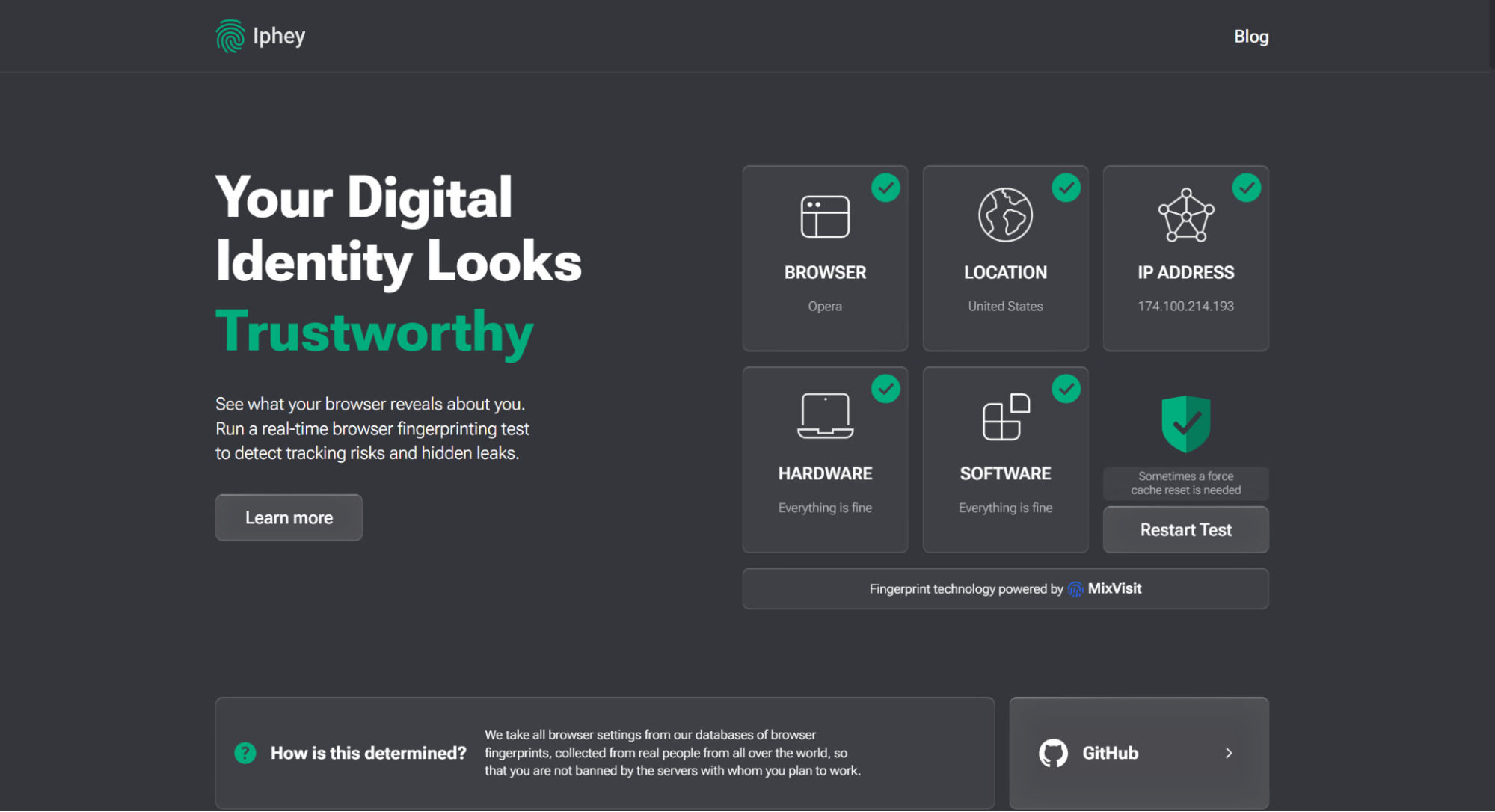
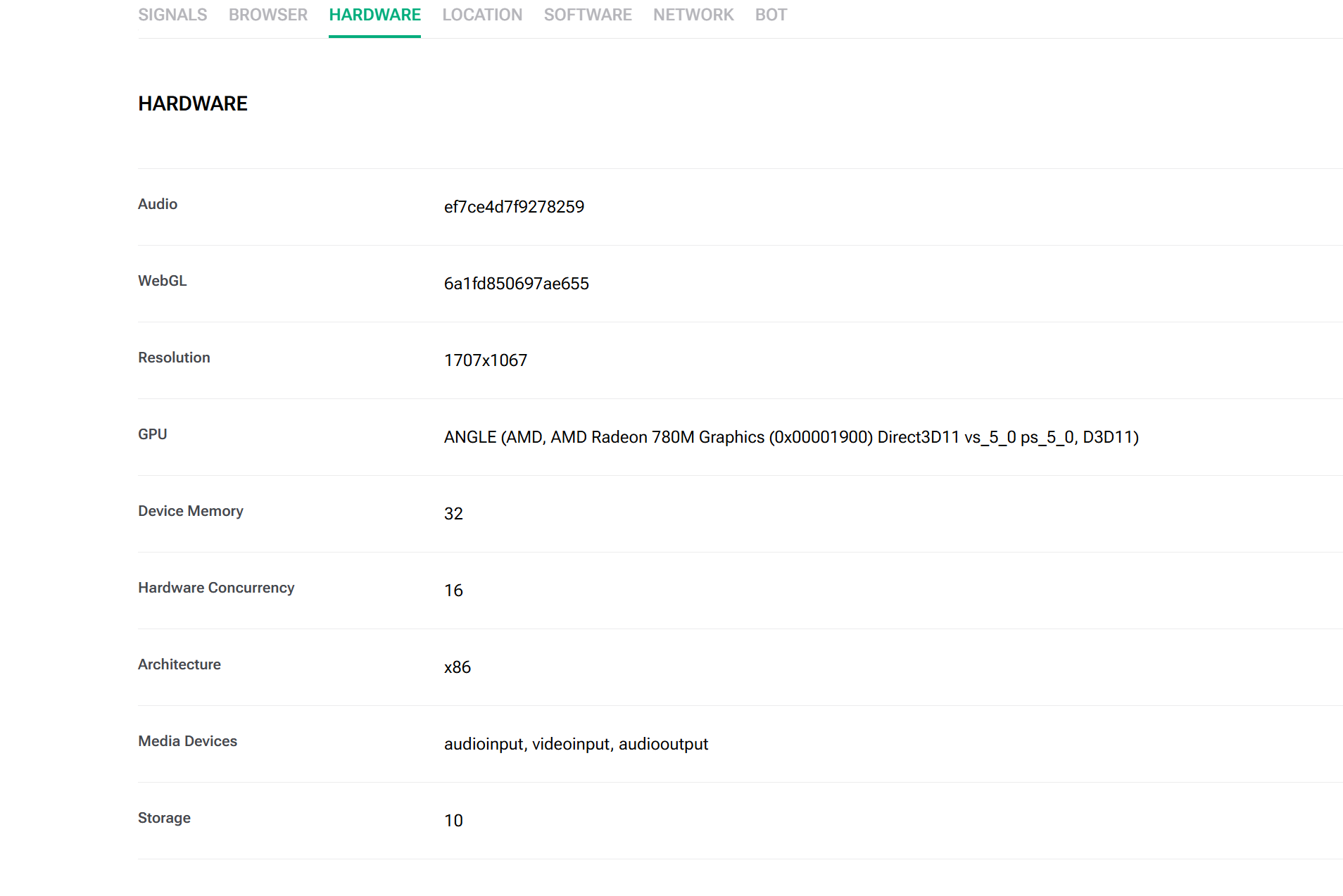
To see the full list of details Iphey was able to detect, click on “Learn more” or scroll down. For example, here are my hardware parameters (remember them for later):
Weak Practices to Spoof Device ID
Not all anti-fingerprinting tools are created equal. Because browser fingerprinting is such a complex tracker, some services either aren’t able to defeat it entirely or create a “cobra effect,” where the solution to a problem creates consequences that make the problem worse. In our case, it’s a so-called “fingerprint paradox,” where the tactic invented to hide you becomes your main identifier.
That being said, this section is not intended to bash any of these methods – each has its own appropriate use case or can be used as a complementary tool for your privacy endeavors. Just exercise caution and stay aware of exactly how they operate.
-
Incognito mode
As we’ve already established in the “Main Challenges” section, Incognito mode does not hide you from browser fingerprinting or spoof your device ID in any capacity. This tactic remains one of the most common mistakes beginners make – many people assume that because a mode is labeled “private,” it shields them from tracking.
Incognito mode (or any other Private Browsing mode) is designed only to hide your local data – search and browsing history, as well as form data such as login credentials, autofillable personal info, and internal search queries. While it does stop other people using your physical computer from seeing what you were doing in your Incognito session, it is not even close to enough for complete fingerprint protection.
-
Anti-fingerprinting extensions
Because browser extensions are a part of data points tracked by fingerprinting, each new add-on becomes yet another identifier, making you look even more unique to websites. Additionally, many generic anti-fingerprinting extensions don’t “camouflage” your personal details, but disable them entirely.
Typical internet users do not disable canvas data or block essential hardware rendering. Showing blank or completely blocked hardware parameters makes your browser footprint incredibly unique and suspicious, causing anti-fraud systems to flag you as a high-risk bot immediately.
-
Fingerprint randomization technology
The method employed by the privacy-focused browser Brave states its primary protection practice right in the name. With each new session, the browser randomizes or modifies certain signals to create a new browser fingerprint. While this tactic does prevent fingerprint tracking, real users are expected to have one consistent device ID that may change slightly as time goes by but not in its entirety overnight.
Advanced security and anti-fraud systems are aware of this, so the constant change of device specs might trigger bot-detection software on platforms that use device consistency for fraud detection and account trust and, in turn, result in IP and/or account bans.
-
Fingerprint uniformity technology
A simpler method used by well-known browsers like Tor and Firefox (through ‘resistFingerprinting’ mode), where all users are given generic, standardized fingerprint values, making them look identical to websites. This method seems like a good fix: when all users wear the same mask, it’s impossible to find out who was under that mask at any given point.
However, it’s quite naive to assume that modern anti-fraud systems aren’t aware and specifically trained to recognize this fixed set of parameters. The main problem here is that this mask is worn by so few internet users that it still makes you stand out from the majority and, in turn, raises suspicion of security software. The only difference is that you’re being tracked by the mask, not your real face.
-
Changing only your IP address or location
Many users think of circumvention tools, such as proxies or VPNs, as a cure-all for online privacy and anonymity. While your IP address is part of the signals being tracked, it’s just one data point of many that make up your device ID.
When you change your IP, the browser can still see the unique configuration of your entire device and deduce that the connection comes from you, only with the help of circumvention tools. Let me prove this claim with a quick experiment: running an Iphey test while connected to a proxy.
Evidently, while my numerical IP and geo-location did change, the hardware specs were left untouched. You can compare them for yourself if you go back to my “How to Check Browser Fingerprint?” section.
That said, modern premium proxy services and VPN providers offer dedicated solutions with enhanced encryption for safer browsing and/or browser fingerprint protection, which makes them worthy of consideration. Still, be aware that any circumvention tool works best when paired with specialized anti-fingerprinting software.
How to Hide Device ID?
Your device ID is a compound problem, so the best way to solve it is to employ a similarly compound method. As we’ve established, your tool has to blend your fingerprint in with many others, not strip you of it completely. On top of this, the parameters have to be customizable and switch upon request, not randomly. Lastly, for full protection of your digital ID, you need top-notch IP defense.
In my own workflow, I use anti-detect browsers paired with reliable proxies. Let me explain why this method works like a charm and recommend some services that have been working especially well for me.
Best Anti-Detect Browser for Modifying Browser Fingerprint
Anti-detect browsers are made specifically for fingerprint protection, so you best believe that each of the potential issues has been accounted for. To this day, they remain the best way to hide device ID as their fingerprint modification technology looks completely natural to trackers, making it harder to spot. In their operation, these services employ a method similar to that of a virtual machine, creating a virtual profile (or several) for your device while leaving every detail of your fingerprint customizable.
Gologin
My go-to anti-detect browser is Gologin, as the platform offers a full suite of fingerprint-protection features, such as multi-accounting, native proxies, cloud profiles, and API frameworks, while keeping the service fairly affordable. Gologin’s starter plan goes for $9/month, and what’s even better – you can try the service for yourself using a 7-day free trial before making a commitment.
On top of providing utmost speed and connection stability, Gologin browser is easy to set up and use. After registering at Gologin.com, you can either install the client or use a web version of the dashboard, whichever works for you. There, you can create separate profiles, set unique fingerprints, and assign proxies to each account individually. Every detail is completely up to you.
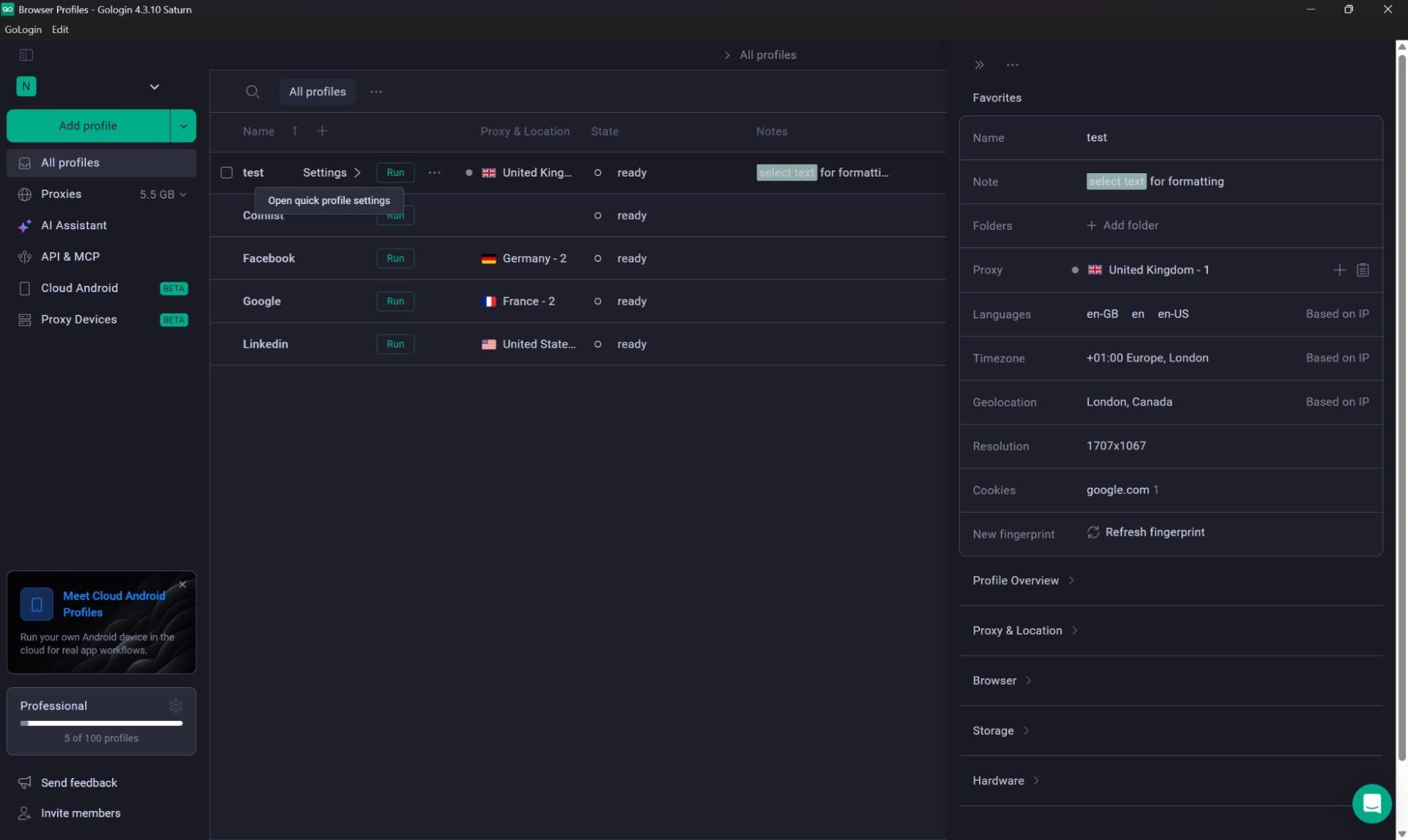
When ready, simply click the “Run” button next to your profile, and a separate browser window will pop up with your new fingerprint embedded.
While Gologin offers built-in proxies that provide amazing performance, I personally like to combine it with custom IPs for better control over my connection.
Best Proxy Provider for Spoofing Device ID
In tandem with an anti-detect browser, well-configured proxies do wonders for hiding your IP and, in turn, help with device ID spoofing.
Due to the lack of heavy processing (necessary for VPN and Tor connections), proxies are able to maintain high internet speeds and handle massive amounts of user traffic simultaneously. Additionally, proxies perform better at bypassing strict censorship models and advanced firewalls: because these models are trained to look for distinct signatures of VPN protocols specifically, proxies rarely get on their radar.
Floppydata
For the longest time, my favorite proxy provider has been Floppydata. Its unique selling point is the “Rotating proxy” plan, which includes three types of IPs (residential, mobile, and datacenter) you can switch between at your own discretion, paying only for bandwidth at $1/GB.
Floppydata’s proxies provide consistent 99.99% uptime and high trust scores, offering uninterrupted connection and making it look like regular residential browsing to anti-bot systems. Another advantage is the provider’s full suite of advanced proxy configuration options: deep geo-targeting with city, state, and ASN levels available; flexible rotation from per-request to Keep-Alive; full protocol support, including UDP.
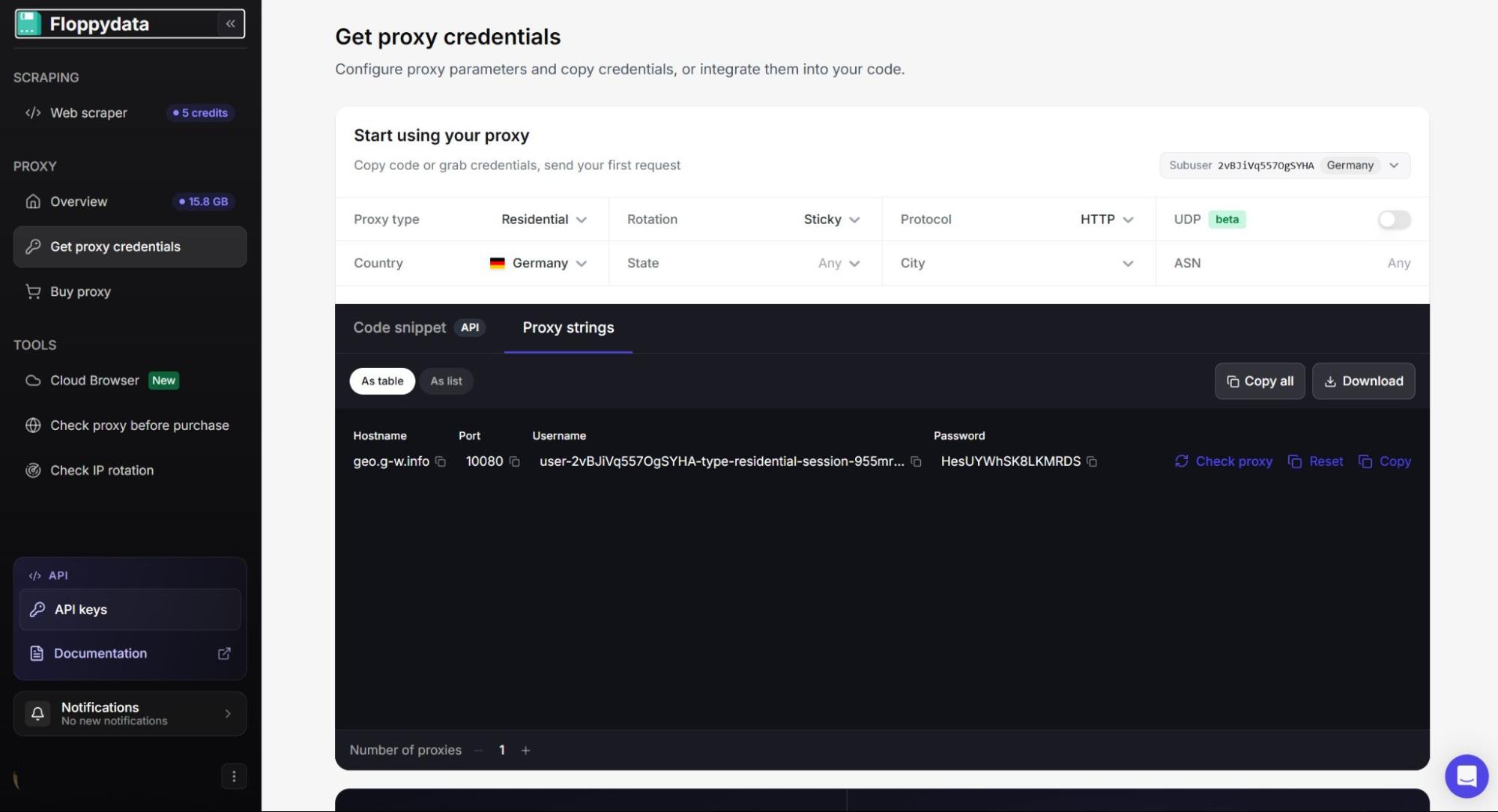
On top of an extremely easy-to-navigate dashboard, the service integrates seamlessly with Gologin, which greatly streamlines your workflow. To connect a custom proxy to your Gologin profile, first, go to Floppydata’s dashboard, click on “Get proxy credentials,” and configure your proxy exactly how you need it using convenient drop-down lists. Once it is ready, click the “Copy” icon next to your proxy.
Then, go to Gologin’s dashboard and click the “Paste” icon next to the desired profile.
And you’re all done. As easy as that!
How to Modify Browser Fingerprint for Free?
If paid options don’t fit your budget, or if you only need a few accounts and precise geotargeting is not at the top of your priority list, there is an alternative for you.
1browser
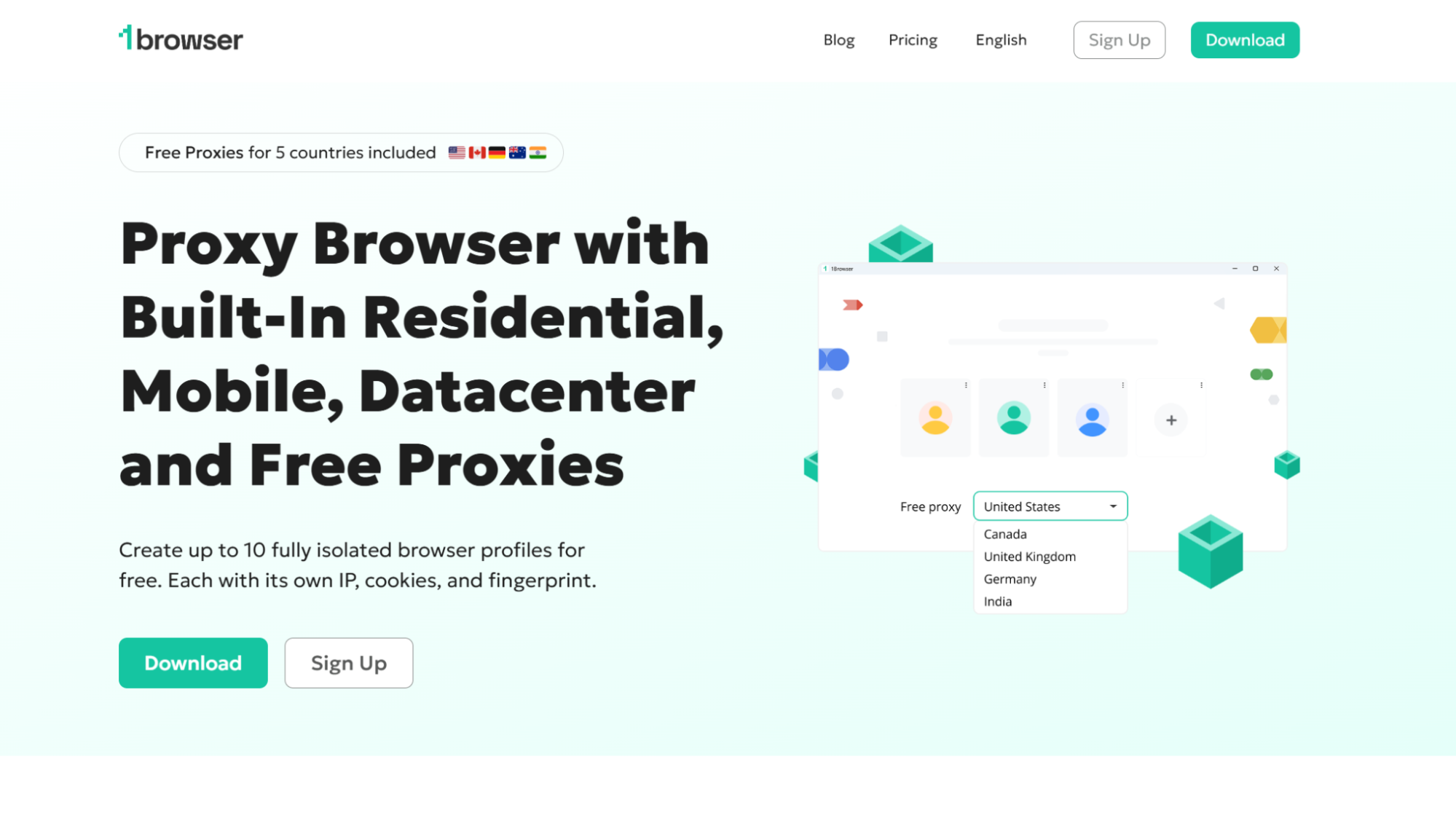
1browser is another masking tool that offers anonymous browsing and fingerprint protection for both desktop and mobile devices. Like Gologin, 1browser is a powerful anti-fingerprinting tool that allows you to create separate accounts as well as assign an individual browser fingerprint and proxy to each of them.
The key difference here is that 1browser can be used completely free of charge. Once you sign up for the service and download the client, you are able to create up to 10 unique profiles with a full set of customization features. Moreover, the service provides a total of 10 free proxies (5 regular and 5 Tor IPs) from popular countries such as the USA, Canada, or Germany. If you’re already using Floppydata, a custom proxy connection is also available.
Despite its extensive toolset, 1browser keeps its interface simple and comprehensive, perfect even for beginners. Let’s do a quick demo.
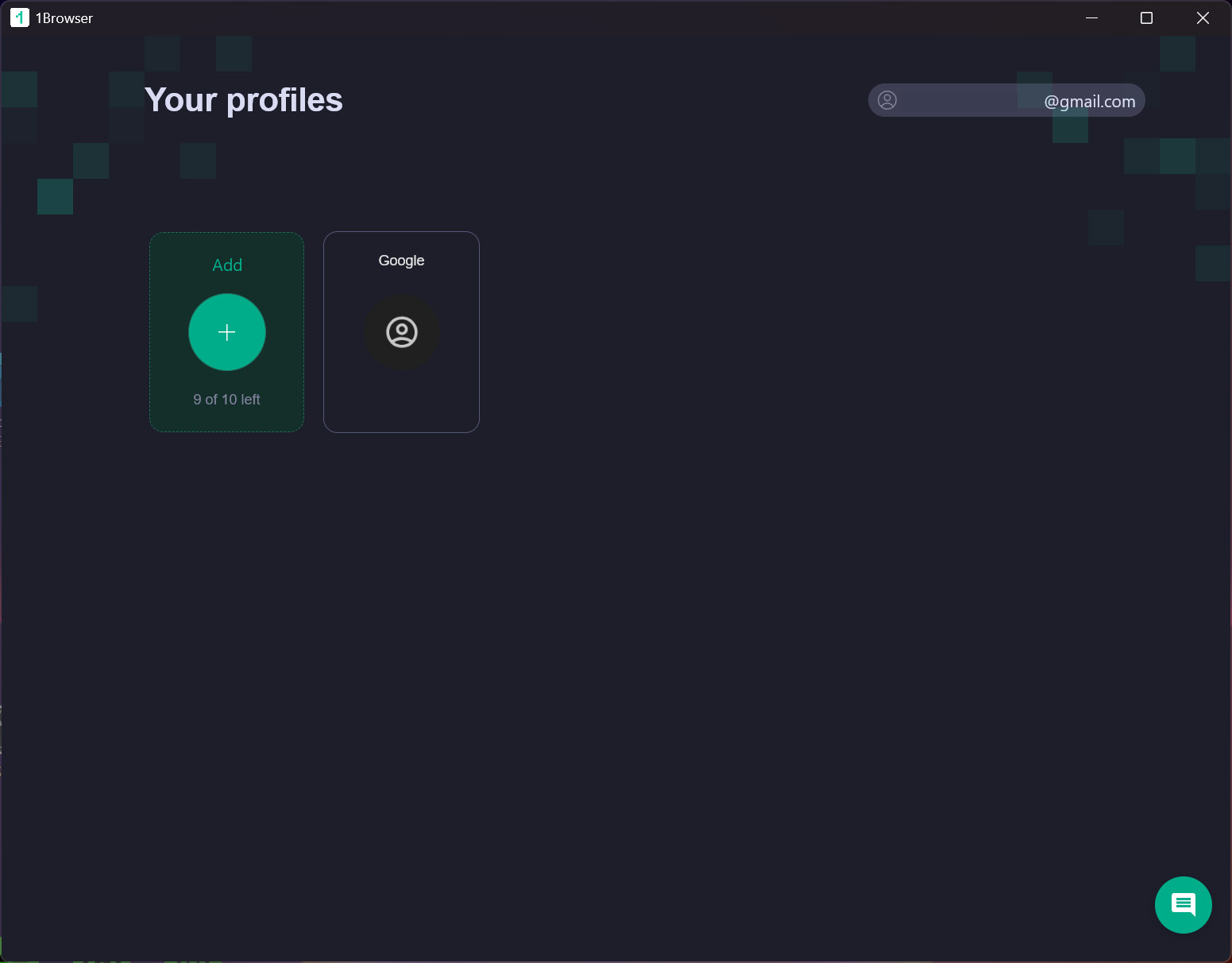
First, download the application and install it on your device. When done, you will be met with a clean dashboard window where you can add and manage your profiles. Create a new one by clicking the big green button labeled “Add.”
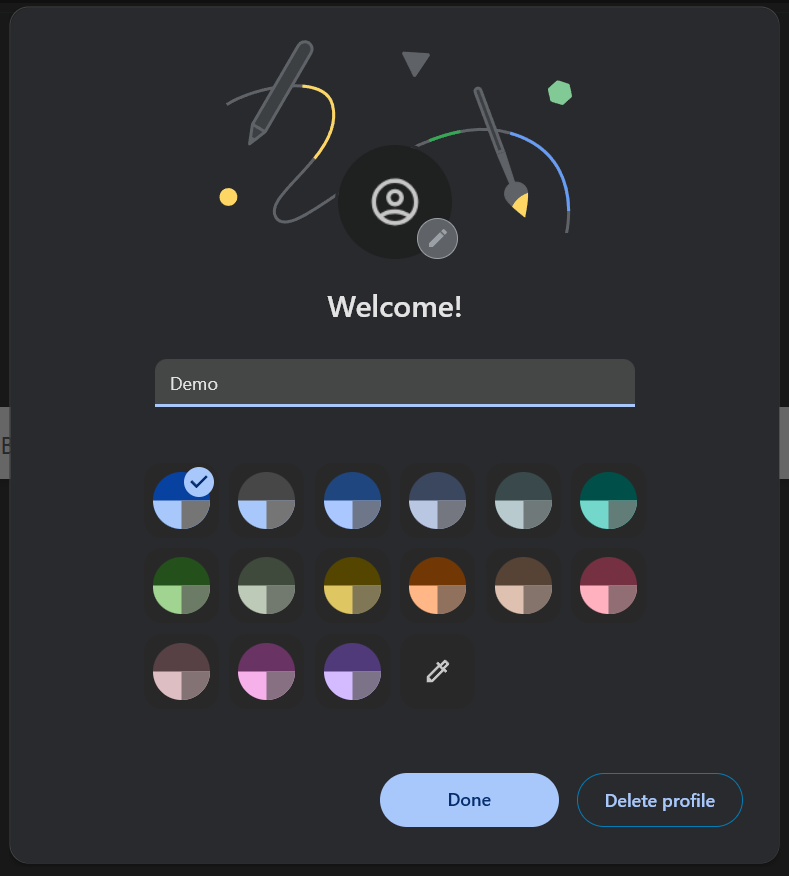
Right after, a window will pop up asking you to name your profile and, optionally, customize the browser’s appearance. This will greatly help you tell your accounts apart later.
From there, your browser is ready to use. If you want to manage your proxy connection or customize the profile’s fingerprint, go to the pre-opened “Settings” tab. In the sidebar, click the “Proxy” tab to access your IP options. Here, I’m connecting a custom proxy that was previously configured and copied from Floppydata. Just like with Gologin, an effortless copy-and-paste method applies. Next, click on the “Fingerprint” tab and choose the details from the convenient drop-down lists.
With that, you’re ready to browse.
Conclusion
Device ID spoofing isn’t as easy as it may seem. When dealing with modern tracking systems, the underlying threats to your anonymity are significant. As developers find new ways to protect users from surveillance, security software quickly learns how to exploit and bypass each method. In these circumstances, anti-detect browsers paired with proxies remain the best solution for modifying and hiding your browser fingerprint.