Table of Contents
- How to Turn On the Proxy in WhatsApp (Quick Steps)
- Where Is WhatsApp Blocked? Countries and Dates
- How to Get Proxy for WhatsApp from Floppydata
- How to Access WhatsApp Using a Floppydata Proxy on Mobile
- How to Get WhatsApp Web Unblocked via Floppydata Proxy (Windows)
- What About WhatsApp’s Built-in Proxy Feature?
- What Does “Proxy” Mean in WhatsApp?
- How to Use WhatsApp’s Built-in Proxy Setting (iOS & Android)
- Where to Get a Proxy Host for WhatsApp
- WhatsApp Proxy Not Connecting? What to Check
- Keep WhatsApp Unblocked Anywhere With Floppydata
- FAQ
WhatsApp has become the primary point of contact for millions, including both individuals and businesses. When WhatsApp is blocked in certain regions of the world, using a proxy is a solution that helps users maintain communication globally.
So when access gets restricted, blocked, or just randomly stops working, it can seriously disrupt your day or business. WhatsApp blocked situations can occur anywhere in the world, but with the ability to use proxies, users can maintain communication even when direct access is unavailable. This kind of issue isn’t limited to residents in restricted countries either. Even tourists traveling to regions where WhatsApp is banned often find themselves locked out without an alternative. But luckily, you don’t have to stay stuck in that loop—WhatsApp proxies serve as a solution to bypass restrictions and maintain communication, reducing the risk of being cut off.
In this guide, we’ll show you exactly how to unblock WhatsApp on your phone or through a browser. You’ll also learn how Floppydata proxies can get the job done reliably. Let’s begin!
How to Turn On the Proxy in WhatsApp (Quick Steps)
If you already have a proxy host for WhatsApp, this is all it takes:
- Update WhatsApp to the latest version.
- Open Settings (on Android, tap the three-dot menu first).
- Go to Storage and Data > Proxy.
- Tap Set Up Proxy and enter the proxy host (an IP address or a domain name).
- Save, turn on Use Proxy and wait for WhatsApp to show that the proxy is connected.
Keep in mind that this field only accepts a WhatsApp proxy server, not a regular HTTP or SOCKS proxy. If you don’t have a host yet, see where to get a proxy host for WhatsApp. If you want to use a regular proxy instead, set it up in your phone’s Wi-Fi settings as shown below.
Where Is WhatsApp Blocked? Countries and Dates
WhatsApp isn’t blocked the same way everywhere. In some countries the whole app is unavailable, in others only voice and video calls are cut while messages still work, and many countries switch WhatsApp off for a few days during protests or elections. Here are the best-known cases as of November 2026:
| Country | What is restricted | Since / when |
|---|---|---|
| China | Fully blocked | Since 2017 |
| North Korea | Not accessible | The internet is closed to most people |
| Russia | Calls restricted, then the app blocked | Calls since August 2025, the whole app since February 2026 |
| Iran | Blocked, then unblocked | Blocked in September 2022, unblocked on December 24, 2024; access disrupted again in June 2025 |
| United Arab Emirates | Voice and video calls blocked, messages work | Since 2017 |
| Qatar, Egypt, Jordan | Calls restricted or throttled, messages work | Ongoing |
| Cuba | Temporarily blocked during protests | July 12–18, 2021 |
| Uganda | Blocked together with other social media | 2021 |
| Venezuela | Reported restrictions, along with X and Telegram | Late 2024 – January 2025 |
The situation changes quickly, so if WhatsApp suddenly stops connecting, a temporary block is a likely reason. A proxy helps when WhatsApp itself is blocked but the rest of the internet works. During a full internet shutdown, no proxy will help.
How to Get Proxy for WhatsApp from Floppydata
The thing is, some proxy providers make big promises and then leave you hanging when it matters most, putting your server and data safety at risk if they are not trusted or supported.
So what should you do? You should make sure that you buy proxies from a trusted and supported proxy provider with a great track record to ensure your security and safety. And that’s exactly where Floppydata can help your cause.
Floppydata masks your real IP, you get a little extra digital camouflage. Note: Using untrusted proxies can put your server at risk of malware, data interception, or spying threats, so always choose proxies that are supported by WhatsApp and prioritize your online security and safety. While using a proxy, remember that the proxy owner can see your IP address, so trust is essential. A proxy server can also enhance the privacy and safety of your WhatsApp communications by preventing data interception and reducing the risk of malware introduction, providing an additional layer of security.
Now, let’s walk through how you can grab your own proxy address for WhatsApp from Floppydata. It’s simple and won’t take you more than a few minutes:
- First, head over to the Floppydata website.
- Click on the Get Started button in the top right corner.
- Fill in your basic info, like your name and email address.
- You’ll get a verification link in your inbox. Click that to activate your account.
- Once you’re in, go to the Create Proxy Pool section.
- Pick your preferred location (where WhatsApp is not banned, like in the US), specify other details, and get your proxy details.
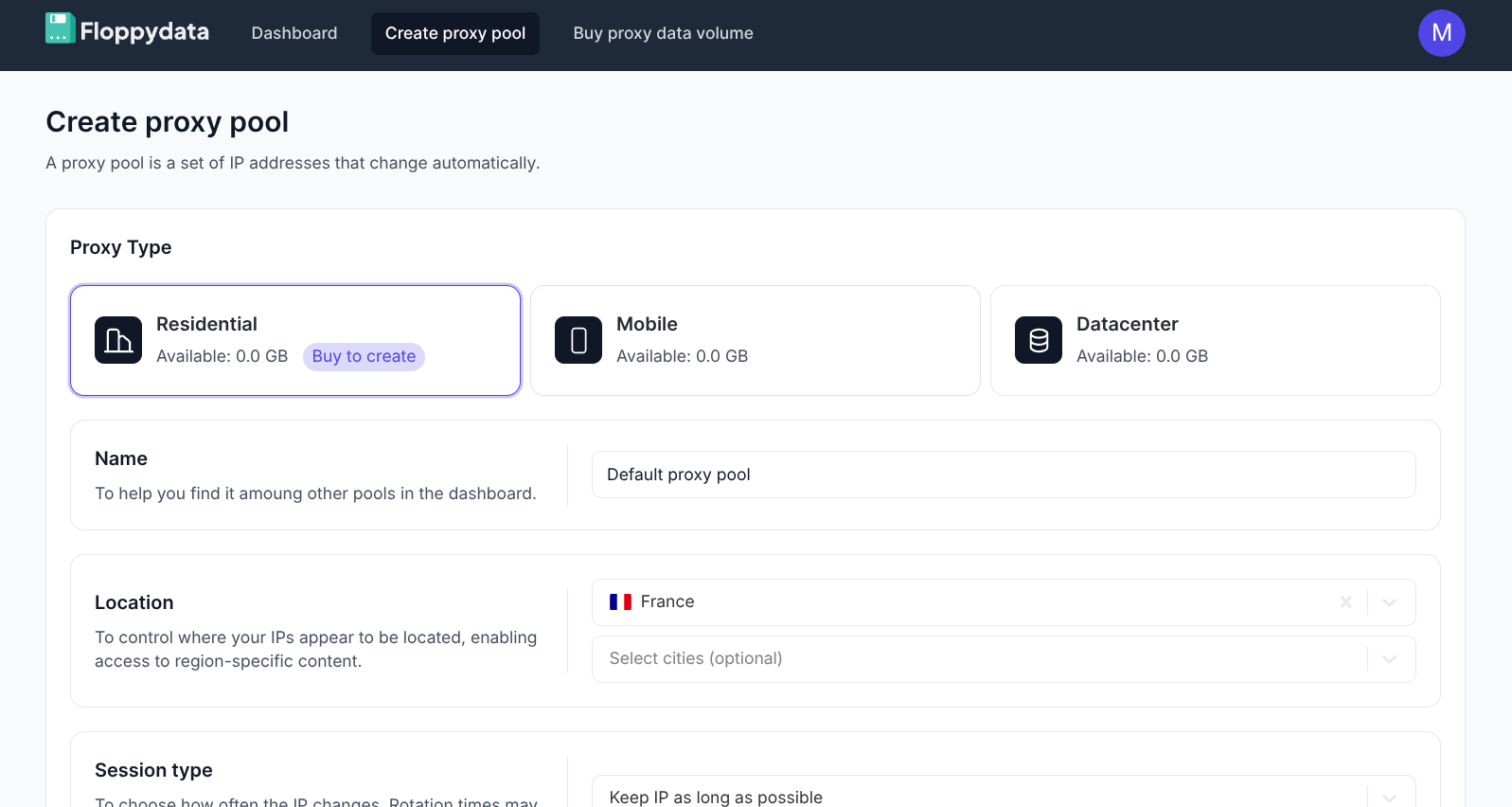
7. You’ll get proxies right off the bat.
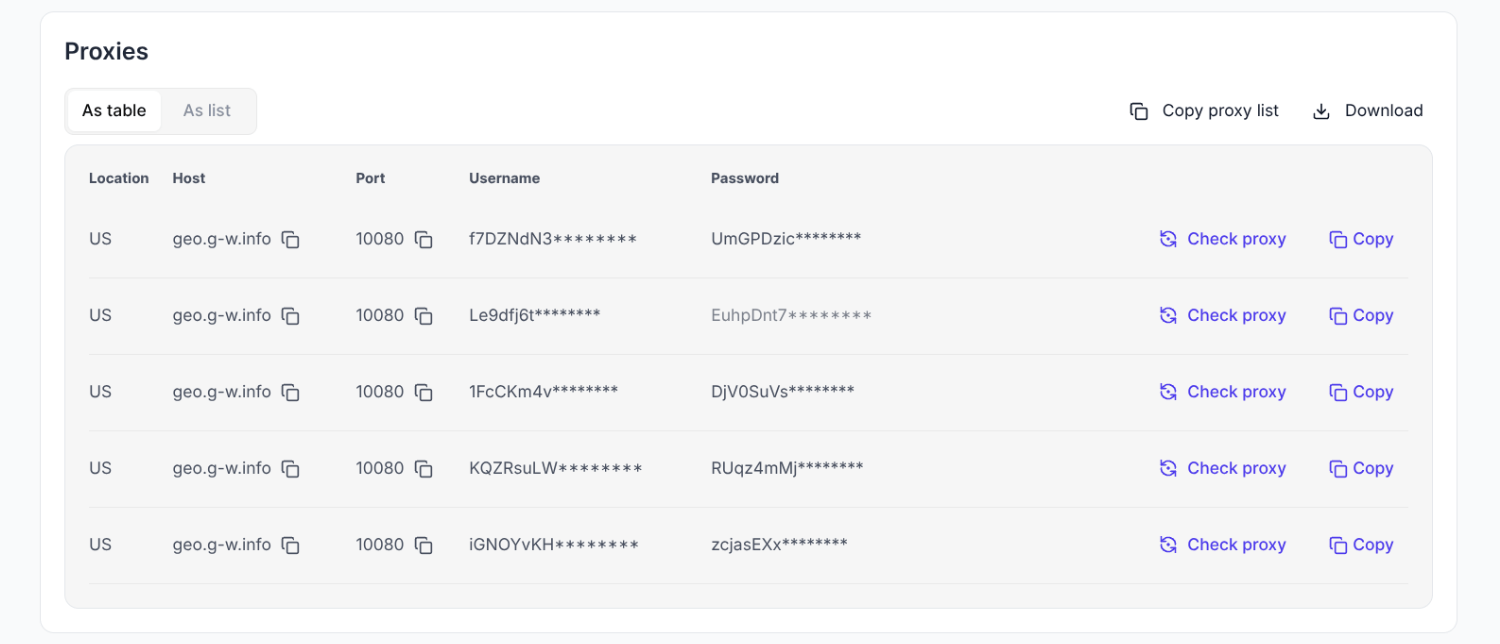
8. Go to your dashboard and copy the proxy list or individual host, port, username, and password shown on your screen and use it anywhere.
How to Access WhatsApp Using a Floppydata Proxy on Mobile
Since most of us use WhatsApp on phones, let’s learn how to unblock WhatsApp on mobile. If you are unable to access WhatsApp or if the service is unavailable in your region, using a proxy allows you to access WhatsApp securely and reliably.
You can unlock access by configuring the Floppy Data’s proxy address for WhatsApp directly from your phone’s network settings. Proxies help maintain stable connections and uninterrupted access to WhatsApp during internet outages or restrictions, especially in regions with unreliable internet or high network congestion. This method also keeps you connected to other restricted services while staying secure. Here’s how to set it up on both Android and iOS.
Android
To apply Floppydata’s proxy settings on your Android device:
- Open your Settings app, then tap on Network & Internet (the wording might vary slightly depending on your device).
- Tap WiFi and locate the network you’re currently connected to.
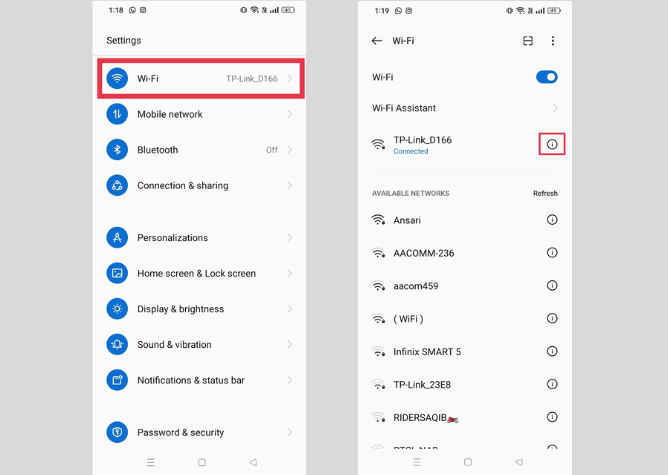
- Long-press the network name (or tap the gear/info icon next to it), then select Modify network.
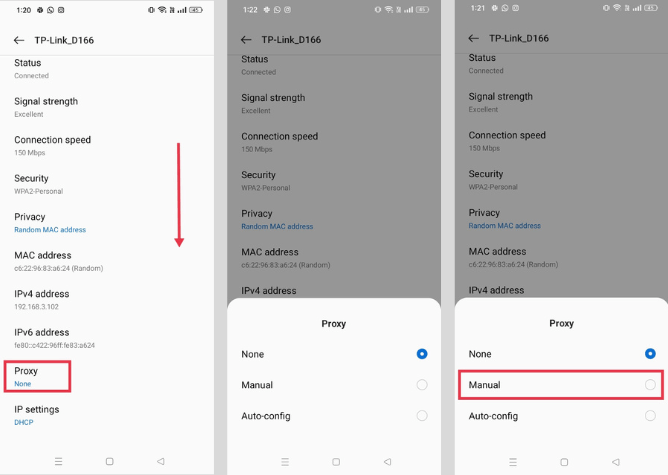
- Scroll down and expand the Advanced options.
- Under Proxy, choose Manual.
- Enter the proxy address for WhatsApp (you’ll get this from your Floppydata dashboard) and the matching port number.
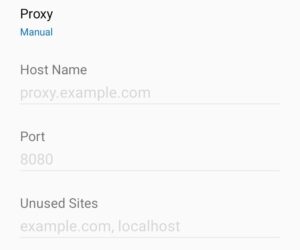
- Optionally, enter any domains you want to bypass the proxy, though for most users, leaving it blank is fine.
- Hit Save and reconnect to the WiFi if needed.
iOS
For iPhone users, setting up the proxy is just as easy:
- Go to Settings > WiFi, and tap the “i” icon next to your active network.
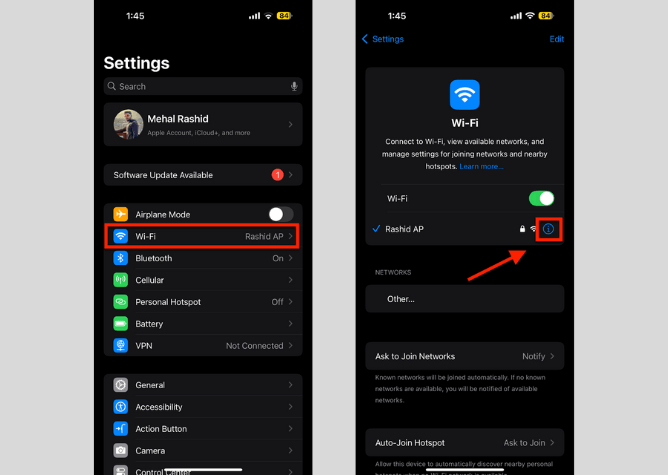
- Scroll down to the HTTP Proxy section, and tap Configure Proxy.
- Select Manual.
- Enter the Floppydata proxy details and port you received earlier.
- If the proxy requires authentication, toggle it on and enter your username and password provided by Floppydata.
- Once everything’s filled in, tap Save in the top right corner.
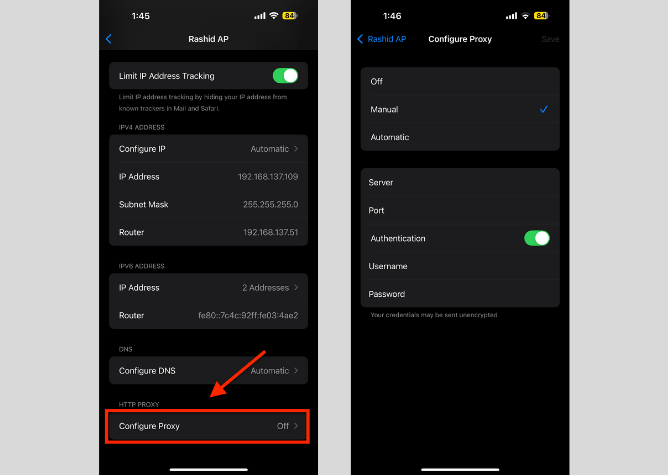
And that’s it. Your phone traffic, including WhatsApp, will now be routed through the Floppydata proxy, and you can unblock WhatsApp.
How to Get WhatsApp Web Unblocked via Floppydata Proxy (Windows)
WhatsApp’s built-in proxy support only works on Android and iOS. That means if you’re using WhatsApp Web and trying to stay connected in a restricted region, you’ll need a slightly different workaround.
You can still make it work using the proxy address for WhatsApp from Floppydata, just not through the app directly.
Instead, you’ll set it up at the system level on your computer. Once the proxy is active, your browser traffic, including WhatsApp Web, will pass through that connection.
Now let’s show you how to get WhatsApp Web unblocked on Windows.
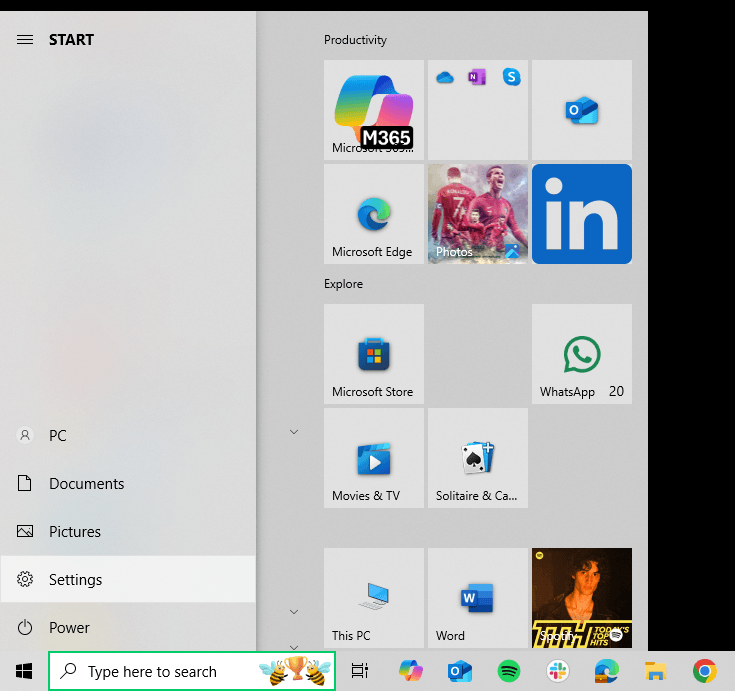
- Press the Start button and open Settings.
- Click the Network & Internet option in the menu.
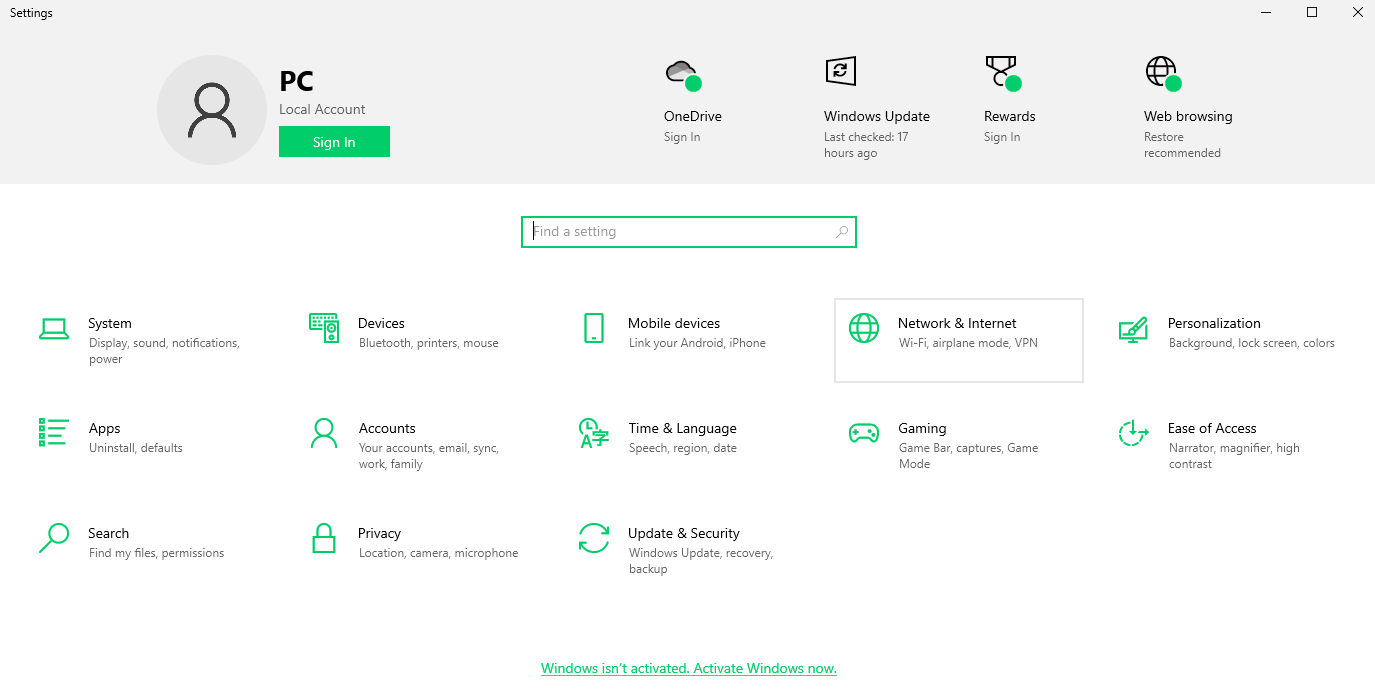
- Select Proxy from the left-hand panel.
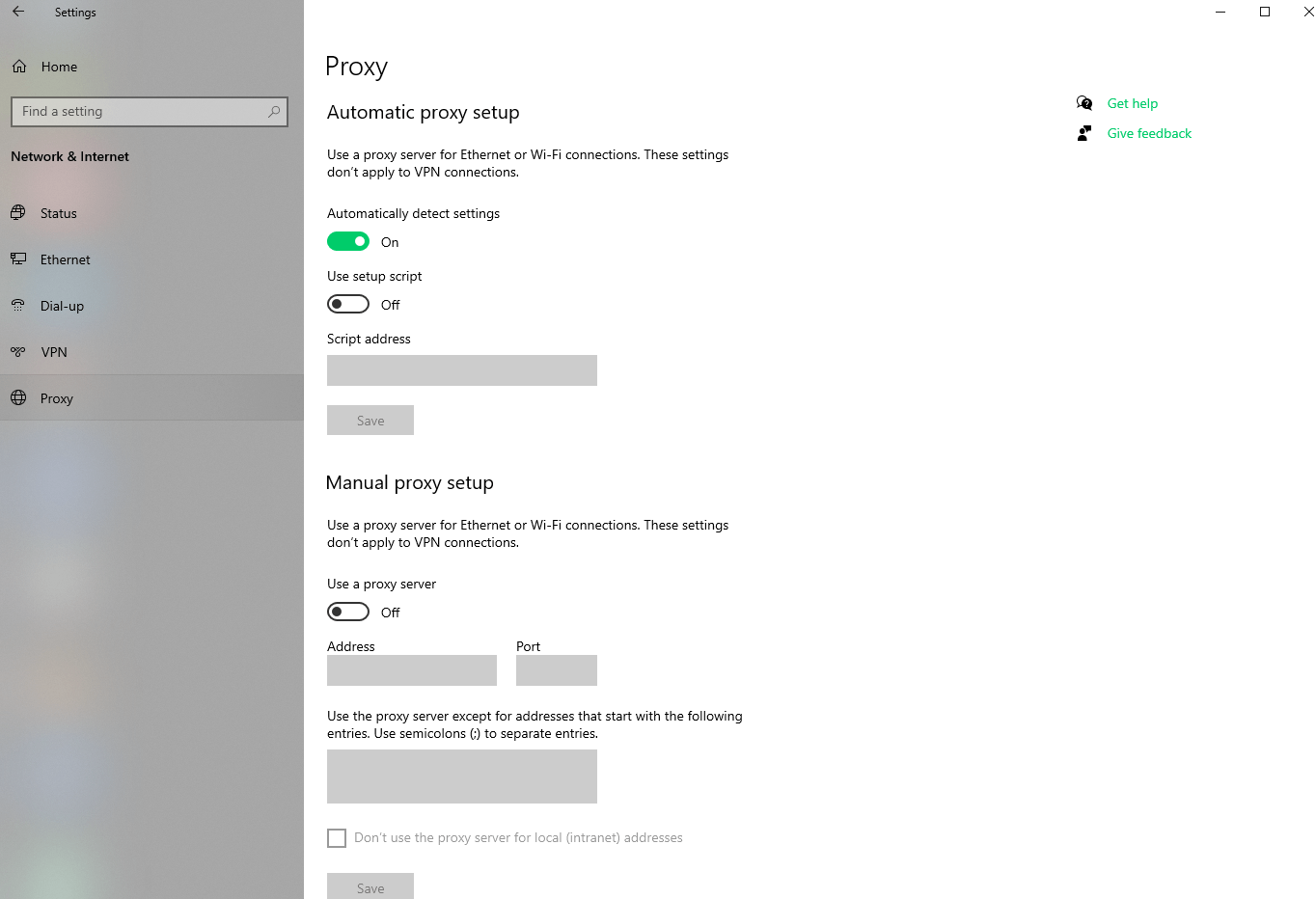
- Under Manual Proxy Setup, switch on the toggle for Use a proxy server.
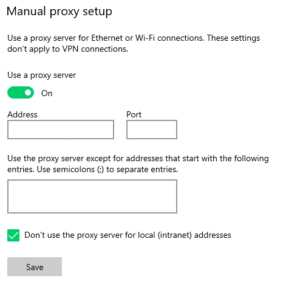
- You’ll now see fields to enter your proxy details.
- The Address bar is for the Host value in your Floppydata list, and in Port field, enter the port number provided with that host.
- Click Save to apply the settings.
Once that’s done, you’ll want to confirm everything is working correctly:
- Open your browser and head to whoer.net or ipinfo.io.
- Check if your IP address has changed. If it has, congrats, you’re now browsing through the Floppydata proxy.
In case you have a different OS, you can go through our guides to set up a proxy on your device:
- How to set up Floppydata proxy on Windows 10 & 11
- How to set up Floppydata proxy on macOS
- How to set up Floppydata proxy on Android
- How to set up Floppydata proxy on iOS
What About WhatsApp’s Built-in Proxy Feature?
Starting January 5, 2023, WhatsApp officially rolled out support for third-party proxy connections for Android and iOS users.
Since then, the app has a built-in setting where you can set up proxies.
The platform termed this move a response to those all-too-frequent internet shutdowns in certain regions. You know the ones.
However, many users have reported that this feature doesn’t work.
And here’s the not-so-surprising reason why: WhatsApp’s proxy is a simple containerized relay server (WhatsApp publishes its code on GitHub) that forwards your traffic to WhatsApp’s servers on standard ports like 443.
This is the kind that corporate firewalls and censorship-happy governments have years of experience sniffing out and blocking.
While it’s commendable that WhatsApp made an official move to support proxies, the implementation lacks effort.
That said, we’ll still show you how to set it up because in some cases, it may just get the job done.
One more thing many guides get wrong: the Proxy field in WhatsApp doesn’t take a regular HTTP proxy or SOCKS proxy. According to WhatsApp’s own documentation, it only supports plain TCP proxying through a WhatsApp proxy server, and there are no fields for a username or password. A regular proxy with a login goes into your phone’s or computer’s network settings instead, as shown in the sections above.
What Does “Proxy” Mean in WhatsApp?
The Proxy option in WhatsApp’s settings lets the app connect to its servers through another server instead of directly. When the proxy is off, WhatsApp connects as usual. When it’s on, your phone talks only to the proxy host, and the proxy passes the traffic on to WhatsApp. If your network blocks WhatsApp’s own servers but not the proxy, the app starts working again.
Your chats stay end-to-end encrypted: the proxy only relays traffic it can’t read. What the owner of the proxy server does see is your IP address and the fact that you are connecting to WhatsApp, so only use hosts you trust.
How to Use WhatsApp’s Built-in Proxy Setting (iOS & Android)
Now you’ve got what you need to connect through a third-party proxy and unblock WhatsApp anytime it gets restricted. Users can enable proxy settings in WhatsApp by entering a trusted proxy address under Settings > Storage and Data > Proxy.
Next up, we’ll walk you through how to actually set up this proxy inside WhatsApp so it knows where to connect. Note that WhatsApp supports connections via proxy using ports 80, 443, or 5222, which helps bypass restrictions in regions where WhatsApp is blocked.
Once connected, you can join WhatsApp and send text, images, videos, files, and voice notes. Using a proxy also masks your actual IP address, enhancing privacy and anonymity by hiding your location and identity from local authorities. Only the participants can view the message content, ensuring confidentiality.
For more details about proxy setup and troubleshooting, check the WhatsApp FAQ.
Let’s show you both Android and iOS’s way of configuring the proxy for WhatsApp
WhatsApp Proxy Setup for Android
- First, double-check that your WhatsApp is updated to the latest version. That’s important because older versions may not support proxy settings.
- Open WhatsApp, go to the Chats tab, and tap the three-dot menu.
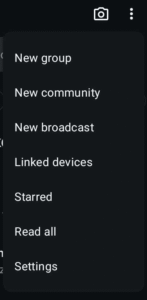
- Select Settings, then go to Storage and Data.
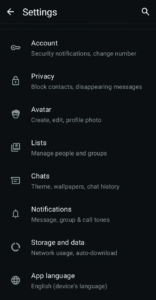
- Tap on Proxy, then hit Set Up Proxy.
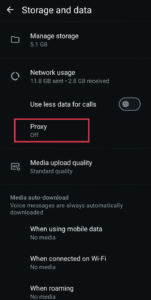
- Enter the proxy host — the IP address or domain name of a WhatsApp proxy server, for example proxy.example.com.
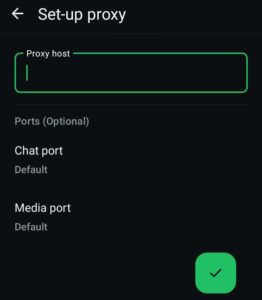
- You can customize the chat port (for sending texts) and the media port (for sending voice messages, videos, and images).
- Tap the check mark to save your settings.
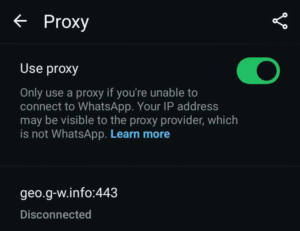
- If the connection is successful, WhatsApp will show a confirmation message.
WhatsApp Proxy Setup for iOS
For iPhone users, the process is slightly different but just as easy:
- Make sure your WhatsApp is updated. Again, this is necessary.
- Open WhatsApp and go to Settings.
- Tap on Storage and Data, then go to Proxy.
- Choose Set Up Proxy, then tap on Proxy Address.
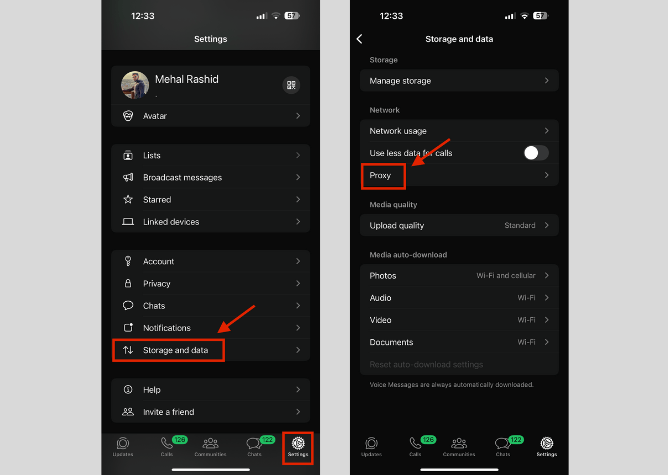
- Enter the proxy address — the IP address or domain name of a WhatsApp proxy server.
- Just like with Android, you can tweak the chat and media ports if needed.
- Tap Save to lock in your settings.
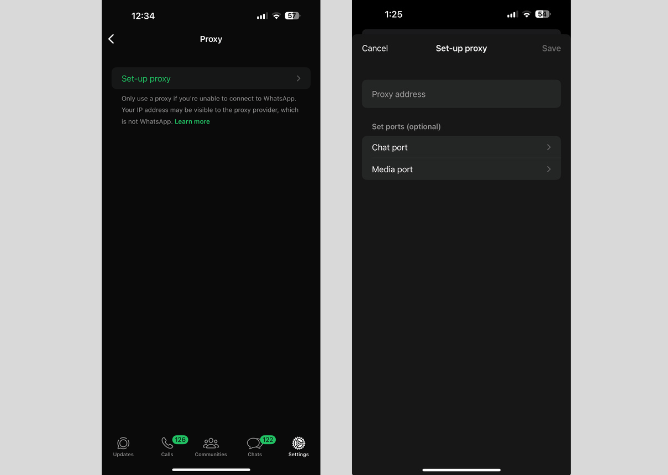
- Now toggle on the Use Proxy button to enable the connection.
- You’ll see a status message letting you know if it worked.
Where to Get a Proxy Host for WhatsApp
This is the part most people get stuck on: WhatsApp asks for a “proxy host” (sometimes called a proxy address or proxy code), but doesn’t give you one. There are two ways to get it.
Set up your own WhatsApp proxy server
The most reliable option is to run WhatsApp’s official proxy on a small cloud server (VPS) located in a country where WhatsApp isn’t blocked. You’ll need a server with a public IP address and Docker installed. Then:
- Download the official image:
docker pull facebook/whatsapp_proxy:latest - Start it:
docker run -d -p 80:80 -p 443:443 -p 5222:5222 -p 8199:8199 facebook/whatsapp_proxy:latest - Open ports 80, 443 and 5222 in your server’s firewall (and in your cloud provider’s firewall, if it has one).
- Check that it works: open
http://<your-server-ip>:8199in a browser — you should see the proxy statistics page. - In WhatsApp, enter your server’s IP address as the proxy host. If you only enter the host, WhatsApp connects to port 443 by default.
You can share this host with family or friends — it works the same for everyone.
Use a proxy host someone shared
People also share their WhatsApp proxy hosts publicly, for example in a dedicated thread in WhatsApp’s GitHub repository. They are free, but they often stop working without warning, and you don’t know who runs them. Your messages stay encrypted, but the owner sees your IP address. That’s why searches for a “free WhatsApp proxy” so often end with a host that doesn’t connect.
If you don’t want to deal with a WhatsApp proxy server at all, use a regular Floppydata proxy in your phone’s or computer’s network settings, as described in the first part of this guide.
WhatsApp Proxy Not Connecting? What to Check
- Update WhatsApp. Older versions don’t have the proxy setting or handle it badly.
- Check the host. Enter only the IP address or domain — no
http://, no slashes, no username or password. - Check the ports. WhatsApp proxies work on ports 80, 443 or 5222. If the default doesn’t connect, try another one in the chat port field.
- Make sure it’s a WhatsApp proxy. A regular HTTP or SOCKS proxy won’t connect in this field.
- Try another host. Shared hosts go offline or get blocked often.
- Switch networks. Try mobile data instead of Wi-Fi or the other way round — some networks block the proxy itself.
- Running your own server? Make sure the container is running and ports 80, 443 and 5222 are open; the statistics page on port 8199 shows whether the proxy is alive.
Keep WhatsApp Unblocked Anywhere With Floppydata
So now that you’ve seen how to get WhatsApp Web unblocked and set up a reliable proxy for WhatsApp across both mobile and desktop, one thing’s clear: Floppydata makes it easy for WhatsApp users to maintain communication with their contacts and friends, even if WhatsApp is blocked in their region.
And the benefits go beyond convenience. Using a WhatsApp proxy ensures secure communication and privacy for users and their contacts, even in regions where WhatsApp is blocked. You get customizable locations that let you control how and where your traffic routes.
If you run into connection issues, the Floppydata support team is available to help.
Floppydata also offers flexible proxy plans for WhatsApp. You’ve also got mobile proxies, residential proxies, or data center options.
And with a ton of global proxy locations to choose from, you’re never tied to one spot.
Get started with Floppydata today!
FAQ
How do I get a WhatsApp proxy from Floppydata?
Visit the Floppydata site, click Get Started, register your account, then go to Create Proxy Pool. Choose a location where WhatsApp isn’t blocked, and copy your host, port, username, and password from the dashboard.
How can I unblock WhatsApp on mobile or desktop using a proxy?
Mobile (Android/iOS): Set your Floppydata proxy in your phone’s Wi-Fi settings, or enter a WhatsApp proxy server host in WhatsApp under Settings → Storage & Data → Proxy.
Windows (WhatsApp Web/Desktop): Configure a system-wide proxy in Settings → Network & Internet → Proxy, using your Floppydata credentials.