eBay is sitting on a goldmine of public pricing data. Millions of live listings across collectibles, electronics, discontinued parts, you name it — all useful for price tracking, market research, or competitive analysis. The problem is getting to that data reliably. A simple Python script will get you maybe a few pages in before eBay starts throwing CAPTCHAs at you.
So in this guide I’ll walk you through how to scrape eBay properly using Floppydata’s Web Unlocker and actually get results.
How to scrape eBay listings without wasting time on CAPTCHAs and broken selectors
• eBay blocks basic scrapers fast — CAPTCHAs, rate limits, bot detection, the whole thing. A plain Python request won’t cut it.
• The easier route is Floppydata’s Web Unlocker — it handles the anti-bot layer and hands you back clean HTML.
• From there, Python and BeautifulSoup are all you need to pull listing data for price tracking, research, and analysis.
• Most scraping tutorials out there are already broken — eBay moved from li.s-item to li.s-card and many selectors were never updated.
• New Floppydata accounts get five free scrapes, so you can follow this guide without spending anything upfront.
So what actually is eBay scraping?
It’s pretty straightforward honestly. You’re just pulling publicly available listing data off eBay pages and turning it into something you can work with — a CSV, a JSON file, whatever. Instead of clicking through listings one by one, a scraper grabs all of that in bulk.
There are two page types worth knowing about before we get into the actual code:
- Search results pages, the summary view with title, price, condition, shipping, and a link to the listing.
- Item detail pages, the
/itm/ITEM_IDURLs, where the deeper stuff lives like full descriptions, seller feedback, item specifics, and variant options.
In this tutorial we’ll focus on search results pages since that’s where most people start.
Why scrape eBay data?
So, once you’ve got this data pulling there’s honestly a ton you can do with it. The ones I actually use:
- Price tracking. You get to see what stuff is really going for across thousands of active and sold listings in one shot, and the sold ones are the gold, because that’s what people actually paid, not some wishful number a seller slapped on and hoped for.
- Competitor research. You can see exactly what’s selling, what condition it’s moving in, who’s moving it, and what they’re charging, so instead of guessing where to price, you just know.
- Reselling and arbitrage. This is the part that pays the bills, because the underpriced listings are out there right now, and the data lets you find them and snap them up before the next person even spots them.
- Product research. Before you drop real money stocking a category, you can pull the numbers and tell in a couple of minutes whether there’s genuine demand or you’d just be parking cash in stuff that never sells.
- Seller monitoring. And when you want to watch one specific seller, it’s the same exact move, you just aim it at their store URL instead of a search and suddenly their whole catalog and pricing is sitting right in front of you.
If your work touches resale, ecommerce, or pricing at all, this kind of data saves you a ridiculous amount of time and helps you make smarter calls way faster.
Why not just use the official API?
It’s not a bad option for simple stuff honestly. The Browse API handles moderate volume queries on active listings well enough. But it has an approval process you have to go through first, rate limits that kick in pretty quickly, and it just doesn’t give you everything.
Sold listings aren’t there, reviews aren’t there, full variant data isn’t there the way it shows up on the actual page. So when you need the complete picture, the kind of data a real user sees when they load the page, scraping is just the more practical route.
If you’re new to this whole space, Floppydata has a good primer on what a web unlocker actually does.
What makes eBay hard to scrape?
It’s not impossible but there’s definitely stuff working against you. Two things specifically that most people run into.
One is the anti-bot detection. eBay uses CAPTCHAs and rate limiting and a low trust IP is gonna get you 403s really fast. They also tightened things up in early 2026 so just be responsible about it: public data only, keep request rates normal, nothing that touches orders or anything like that. You need residential IPs and something that actually looks like browser behavior or you’re not getting clean responses.
Two is the markup and this one is sneaky. While I was putting this together I realized eBay had already moved from li.s-item to li.s-card and all the .s-card__title, .s-card__price, .s-card__subtitle stuff inside it. Most guides online are still pointing at the old structure so they’re just broken now. Your selectors will go out of date at some point, it’s just how it is with eBay, so build in some defensive checks for missing fields from the start.
Anyway that’s why I route everything through Floppydata’s Web Unlocker rather than fighting eBay directly.
Prerequisites
Three things:
- Python 3.10 or above
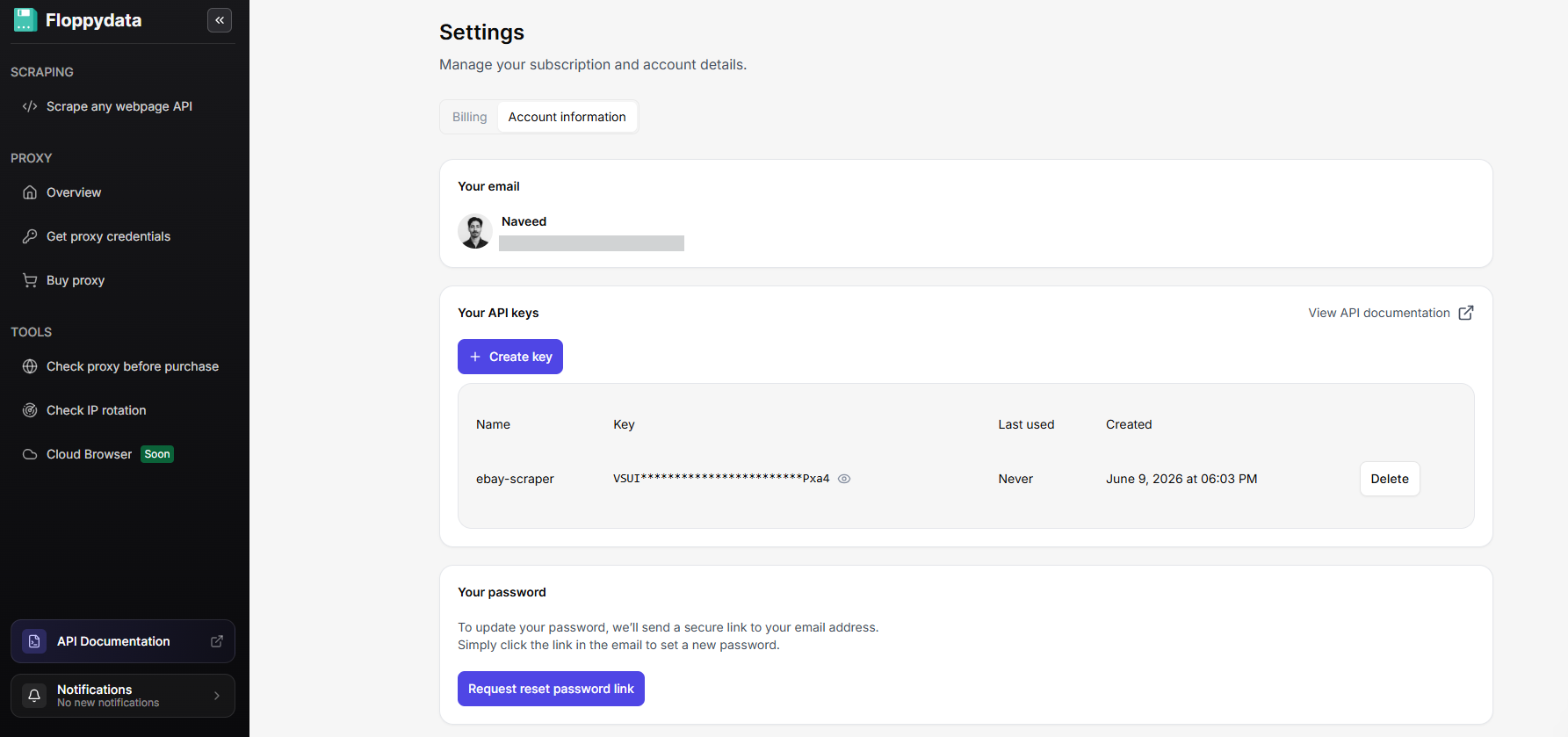
- A Floppydata account with a Web Unlocker API key. Five free scrapes come with every new account so you can get through this whole guide without paying. The key is in the Web Unlocker dashboard.
- Two libraries:
requestsandbeautifulsoup4
Install the two libraries first:
pip install requests beautifulsoup4
Then your project folder:
mkdir ebay-scraper
cd ebay-scraper
touch ebay_scraper.py
Sending the first request
First thing I tried was just a basic request to see what happens:
import requests

url = "https://www.ebay.com/sch/i.html?_nkw=mechanical+keyboard"
response = requests.get(url)

print(response.status_code)
print(response.text[:500])
Block page. Not listings, just nothing useful. eBay spots a plain Python request immediately, no fingerprint, no trusted IP, it’s just not gonna work. So rather than wasting time on that I just use the Web Unlocker.
Scraping eBay with Floppydata Web Unlocker
It takes care of all the annoying stuff: residential IP, browser fingerprint, page rendering, and hands you back clean HTML. Only charges for successful scrapes too so you’re not losing credits on failed ones.
I always test in the dashboard playground (no-code Web Unlocker playground) before writing anything. Paste the search URL, hit Scrape, look at what comes back. Way easier to build a parser when you already know what you’re working with.
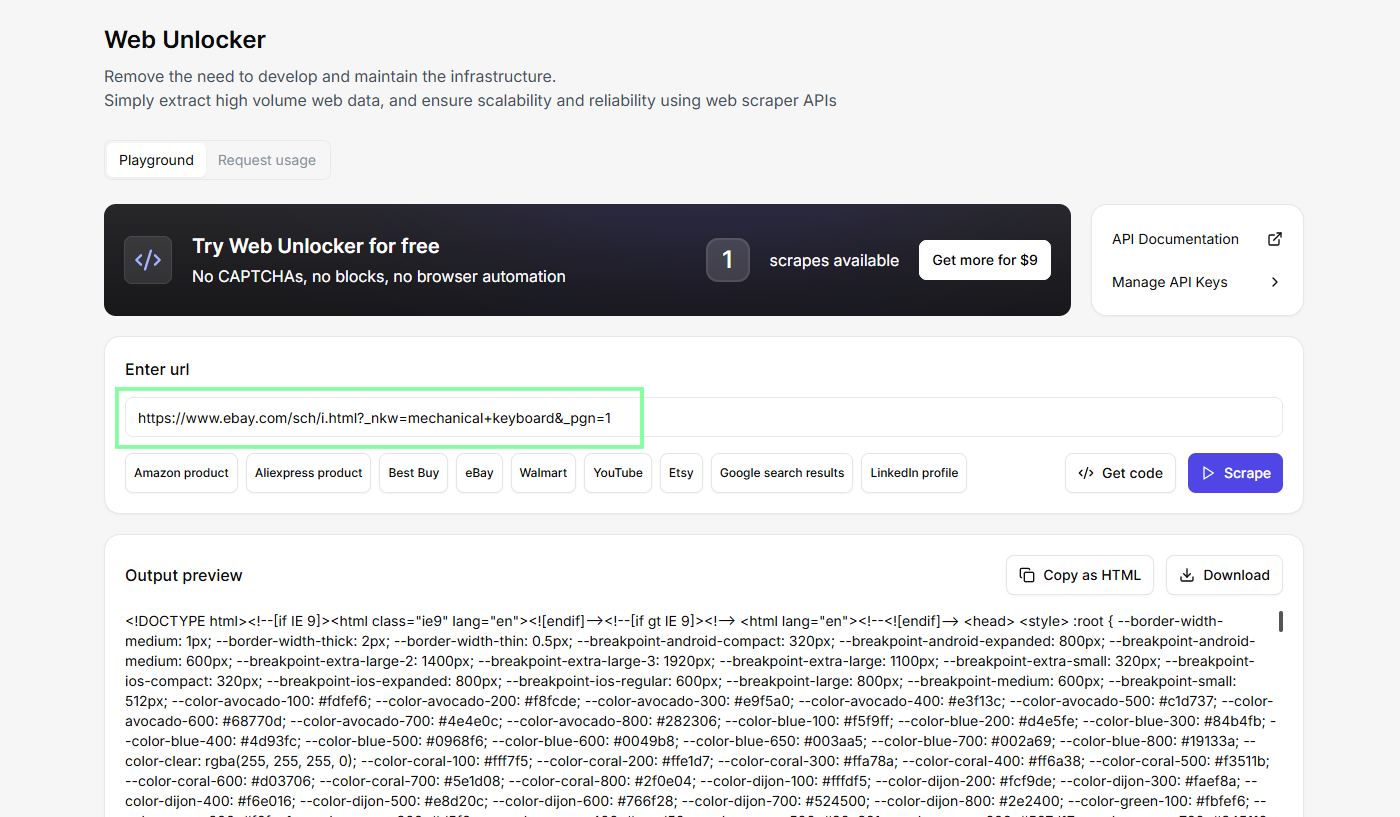
We’ve now got the HTML, so let’s move to code.
Step 1: Set up the request
import requests
import json
from bs4 import BeautifulSoup

API_URL = "https://api.floppydata.net/v1/webUnlocker"
API_KEY = "YOUR_API_KEY"

SEARCH_URL = "https://www.ebay.com/sch/i.html?_nkw=mechanical+keyboard&_pgn=1"
OUTPUT_FILE = "ebay_listings.json"
Replace YOUR_API_KEY with the key from your dashboard.
Also, _pgn=1 is just the page number. If you want the second page, change it to _pgn=2. Third page, _pgn=3. Simple.
Step 2: Fetch the page through Web Unlocker
def fetch_html(url):
    response = requests.post(
        API_URL,
        headers={
            "Content-Type": "application/json",
            "X-Api-Key": API_KEY,
        },
        json={
            "url": url,
            "country": "US",
            "city": "New York",
            "difficulty": "medium",
            "expiration": 0,
        },
        timeout=120,
    )

    response.raise_for_status()

    data = response.json()
    html = data.get("html")

    if not html:
        raise ValueError("Unlocker response did not include an 'html' field.")

    return html
Country and city make sure the request routes through a US residential IP, which affects both pricing and what listings actually show up. Difficulty medium is the right setting for eBay specifically because it has serious anti-bot protection. Anything lower and you’ll just get blocked. Expiration 0 forces a fresh page every time instead of pulling a cached response. The rendered HTML comes back in the html field of the JSON, and that’s what BeautifulSoup parses in the next step. If you want to see every available parameter, the Web Unlocker API reference has them all.
Step 3: Extract the listings
Each result on the search page is an li.s-card container. To scrape eBay listings cleanly, we loop through every card and pull the fields we want, using defensive checks so a missing field never crashes the run:
def extract_listings(html):
    soup = BeautifulSoup(html, "html.parser")
    cards = soup.select("li.s-card")
    listings = []

    for card in cards:
        title_el = card.select_one(".s-card__title")
        title = title_el.get_text(" ", strip=True) if title_el else None

        if title:
            # eBay appends this as accessibility text
            title = title.replace("Opens in a new window or tab", "").strip()

        # Skip the placeholder card at the top of search results
        if not title or title == "Shop on eBay":
            continue

        price_el = card.select_one(".s-card__price")
        condition_el = card.select_one(".s-card__subtitle")

        # Shipping info sits inside attribute rows
        shipping = None

        for row in card.select(".s-card__attribute-row"):
            text = row.get_text(" ", strip=True)

            if any(word in text.lower() for word in ("ship", "free", "delivery")):
                shipping = text
                break

        # Grab the first link that points to an item detail page
        url = None

        for a in card.select("a.s-card__link"):
            href = a.get("href")

            if href and "/itm/" in href:
                url = href.split("?")[0]
                break

        listings.append({
            "title": title,
            "price": price_el.get_text(" ", strip=True) if price_el else None,
            "condition": condition_el.get_text(" ", strip=True) if condition_el else None,
            "shipping": shipping,
            "url": url,
        })

    return listings
Two gotchas worth knowing about.
- eBay always puts a Shop on eBay placeholder card at the top of search results. If you don’t skip it, your first item in the listings array is just useless junk.
- The title also grabs “Opens in a new window or tab” as accessibility text from the anchor tag, so that the replace line cleans it up before anything gets appended.
Step 4: Save the results
def main():
    print(f"Fetching data from: {SEARCH_URL}")

    html = fetch_html(SEARCH_URL)
    listings = extract_listings(html)

    if not listings:
        raise SystemExit("No listings found. eBay may have changed its markup.")

    with open(OUTPUT_FILE, "w", encoding="utf-8") as file:
        json.dump(listings, file, indent=2)

    print(f"Found {len(listings)} listings")
    print(f"Saved results to {OUTPUT_FILE}")


if __name__ == "__main__":
    main()
Run the script:
python ebay_scraper.py
And you should see something like:
[
  {
    "title": "MSI Forge GK600 TKL Wireless Mechanical Keyboard RGB Bluetooth 2.4GHz",
    "price": "$49.99",
    "condition": "Brand New",
    "shipping": "Free shipping",
    "url": "https://www.ebay.com/itm/227344950627"
  }
]
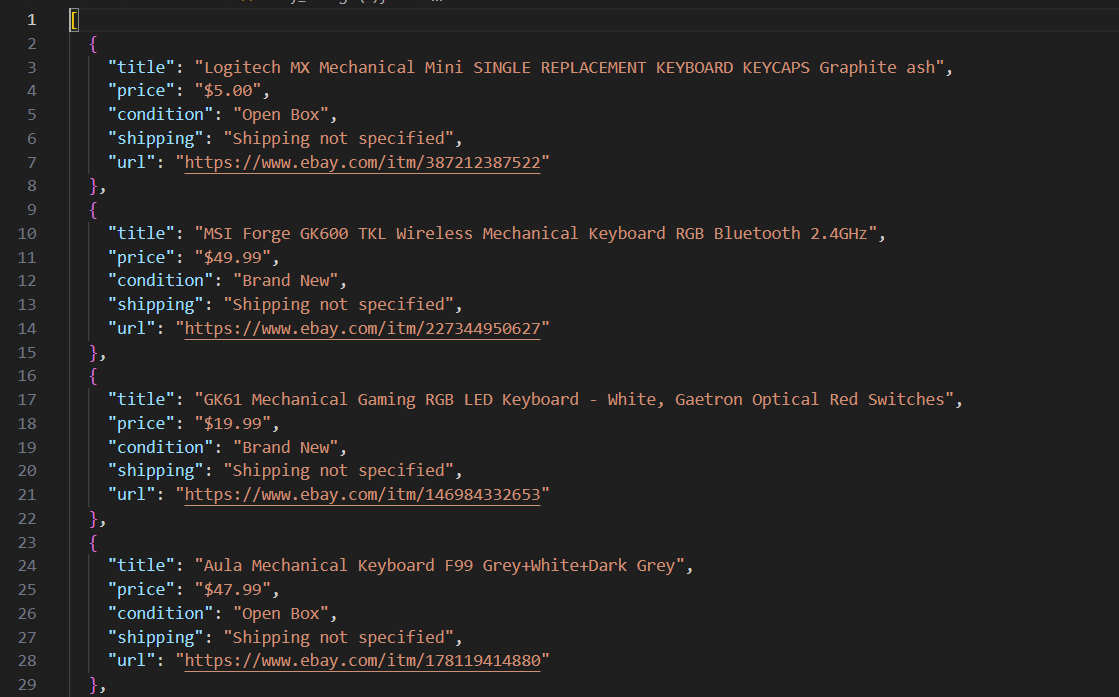
That is the basic scraper working.
From here, changing the keyword is just changing _nkw=mechanical+keyboard in the URL. If you want another page, you can go from _pgn=1 to _pgn=2, _pgn=3, and so on.
Troubleshooting
So, it’s obvious, scrape eBay long enough — and you’ll likely hit one of these:
- 403 errors: eBay flagged your IP. Routing through the Web Unlocker with residential IPs is the fix.
- Empty responses: usually a rendering issue. Double check you’re reading from the
htmlfield in the Web Unlocker response, not the raw JSON body. - Missing fields: not every listing has condition or shipping info populated. The defensive checks in
extract_listingshandle that already. - No results at all: eBay changed its CSS class names again. Go back to the playground, inspect the new markup, and update your selectors.
Your Next Step
Look, eBay isn’t the most brutal site to deal with but between the CAPTCHAs, rate limiting, and the fact that the markup just changes on you sometimes, doing it without the right setup is just going to waste your time. Routing through something that handles all of that means you skip straight to actually working with the data.
That’s what Floppydata’s Web Unlocker is good at. Residential proxy rotation, real browser fingerprints, full page rendering, and you only pay for successful responses so failed scrapes don’t cost you anything. Throw in a few lines of BeautifulSoup and the whole thing becomes pretty straightforward honestly.
Five free scrapes come with every new account so you can go through this whole guide without paying anything.