Table of Contents
Google Chrome is the most popular browser in the world, and perhaps you’re using it right now. But Chrome isn’t a private browser: websites see your real IP address, and search results are tied to your actual location.
That’s why I almost always use Chrome with a proxy. You might need one too, for privacy, to see search results and prices in another country, or to keep work accounts separate. The hard part is knowing which proxy, and which way of connecting it, actually works.
In this guide I compare 10 tools in three groups: proxy providers, Chrome proxy extensions and antidetect browsers. For five of the providers I use measured data from our residential proxy benchmark on location accuracy, speed and IP reputation, alongside my own hands-on checks in Chrome.
Disclosure: this guide is published on Floppydata’s blog, and Floppydata is one of the providers compared. Benchmark figures come from our October 2026 test of 12 residential proxy providers, run with the same scripts for everyone; raw data is public on GitHub. Last updated: October 2026.
TL;DR
• Our #1 pick: Floppydata. Proxies plus its own free Chrome extension to switch, check and manage them. In our benchmark only 60.7% of its IPs were flagged as proxies, the lowest of the five providers here, and 99.8% landed in the requested country.
• Easiest way to use a proxy in Chrome: a proxy extension. Chrome’s own route goes through your system settings, which asks for your password in a pop-up. Chrome doesn’t support SOCKS5 proxies with a login, so use HTTP(S) or IP whitelisting for those.
• Fastest connections: Oxylabs and Decodo had the lowest median latency of the providers here (0.75 s and 0.79 s).
• Free start: Webshare gives 10 free datacenter proxies; Oxylabs offers a few free datacenter IPs.
• Many separate profiles: use an antidetect browser such as GoLogin or 1Browser with a proxy per profile.
| Tool | Type | Free option | Location accuracy* | Median latency* | IPs flagged as proxy* | Separate profiles |
| Floppydata | Proxy provider + Chrome extension | Free extension and free proxy list | 99.8% | 0.93 s | 60.7% | Via Cloud Browser |
| Webshare | Proxy provider | 10 datacenter proxies | 99.8% | 1.00 s | 83.3% | ❌ |
| Decodo | Proxy provider | 3-day trial | 99.8% | 0.79 s | 85.0% | ❌ |
| Oxylabs | Proxy provider | Free datacenter IPs | 99.9% | 0.75 s | 80.3% | ❌ |
| Bright Data | Proxy provider | Trial after verification | Not in benchmark | Not in benchmark | Not in benchmark | ❌ |
| Geonode | Proxy provider | $5 trial | 99.3% | 1.09 s | 99.3% | ❌ |
| FoxyProxy | Chrome extension | Free extension | Depends on the proxy you add | ❌ | ||
| Proxy Switcher | Chrome extension | Free extension | Depends on the proxy you add | ❌ | ||
| GoLogin | Antidetect browser | 3 free profiles | Built-in proxies or your own | ✅ | ||
| 1Browser | Antidetect browser | 10 free profiles | Built-in proxies or your own | ✅ | ||
*From our residential proxy benchmark, 5–8 October 2026, residential proxies. Location accuracy is the share of exit IPs in the requested country; “IPs flagged as proxy” is the share of 300 sampled IPs that Scamalytics flagged, lower is better.
How I Tested Proxies for Chrome
A good Chrome proxy has to pass five checks:
- Privacy: websites should see the proxy’s IP and location, not yours. IPs that reputation databases flag as proxies are more likely to trigger CAPTCHAs and blocks.
- Location accuracy: if you ask for London, you should get London. Search results, prices and language should change accordingly.
- Connection speed: a proxy shouldn’t make browsing noticeably slower.
- Profile isolation: if you run several accounts, each should have its own IP and browser profile.
- Ease of use: setting it up shouldn’t take a tutorial.
For location accuracy, speed and IP reputation I use figures from our benchmark, measured on the same scripts for every provider. The rest comes from setting each tool up in Chrome myself and checking the result with an IP checker and localized searches.
How to Use a Proxy in Google Chrome
There are four ways to connect a proxy to Chrome. Here’s how they compare:
| Method | Applies to | Login and password | SOCKS5 with login | Quick switching |
| Proxy extension | Chrome only | Saved in the extension (HTTP/HTTPS) | ❌ (use HTTP/HTTPS) | ✅ |
| System proxy settings | Chrome and other apps that use system settings | Chrome asks in a pop-up | ❌ | ❌ |
| Antidetect browser | Each profile separately | Saved per profile | ✅ | ✅ |
| Command-line flag | One Chrome window | ❌ (use IP whitelisting) | ❌ | ❌ |
1. With a proxy extension (easiest)
An extension routes only Chrome’s traffic through the proxy and lets you switch locations in one click. With the Floppydata Chrome extension:
- Install the extension from the Chrome Web Store.
- Add your proxy: choose HTTP or HTTPS, then enter the host, port, username and password. You can also give the proxy a name to find it quickly.
- Run the built-in check to confirm the connection, location and response time.
- Turn the proxy on. The extension shows your current IP and location in its pop-up.
2. Through your system settings
Chrome doesn’t have its own proxy field: it uses your operating system’s settings. In Chrome, open Settings → System → “Open your computer’s proxy settings”, then:
- Windows: Network & Internet → Proxy → Manual proxy setup → enter the address and port.
- macOS: System Settings → Network → your connection → Details → Proxies → choose the protocol and enter the server.
Keep in mind that this changes the proxy for your whole device, not only Chrome, though some apps ignore system settings. Chrome will ask for your proxy login in a pop-up. SOCKS5 proxies with a login don’t work in Chrome at all; use the provider’s HTTP(S) endpoint, whitelist your IP, or use an antidetect browser instead.
3. With an antidetect browser
If you manage several accounts, an antidetect browser gives each Chrome-based profile its own proxy, fingerprint and cookies. It helps isolate cookies, fingerprints and proxy settings between profiles, reducing the risk of cross-profile tracking. GoLogin and 1Browser are covered below.
4. With a command-line flag (for developers)
Launch Chrome with --proxy-server="http://host:port" to route one session through a proxy. This flag doesn’t accept a login, so use IP whitelisting. For automated browsing with Playwright or Puppeteer, a cloud browser with built-in proxies is usually simpler.
What about VPNs? A VPN routes all your device’s traffic through one server and is good for general privacy, but it gives you little control over location and IP per site. A proxy in Chrome lets you choose the country or city per profile and switch in one click.
10 Best Proxies and Tools for Google Chrome
Proxy providers
1. Floppydata
Best for: private everyday browsing and location switching in Chrome.
Floppydata is my #1 pick for Chrome because it covers both halves of the job: the proxies and the tool to use them. My main reason for using a proxy is privacy rather than localization, and here Floppydata had the strongest result of the five providers in this list that we benchmarked: Scamalytics flagged only 60.7% of its IPs as proxies, against 80–99% at the others (full ranking). A lower proxy detection rate may reduce the likelihood of triggering some anti-bot checks, although actual CAPTCHA and blocking rates depend on the target website. Location accuracy was 99.8%, and from our Singapore server it was the fastest of all 12 providers we tested (0.73 s median latency).
The free Floppydata Chrome extension is what makes it easy. It shows your current IP, location and proxy response time in one click, lets you save and switch between proxy profiles, works with HTTP and HTTPS proxies with a username and password, and runs a health check before you connect. It also works with proxies from other providers.
Residential, mobile and datacenter proxies share one $1/GB balance, so you can switch from a residential IP for everyday browsing to a mobile IP for mobile-first sites without a second account. If you want the same IP every time you log in to a site, static ISP proxies start at $1.79/IP. Floppydata also publishes a free proxy list.
Pricing: $1/GB for residential, mobile and datacenter traffic (first purchase 19 GB, $19); static ISP from $1.79/IP on the 100-IP plan, or $19 for a single IP for four months.
Pros
- Fewest IPs flagged as proxies of the providers here (60.7%)
- 99.8% location accuracy
- Free Chrome extension with one-click switching and health checks
- Residential, mobile and datacenter on one $1/GB balance
- Free proxy list
Cons
- 98.0% success rate in our benchmark, lower than Oxylabs or Decodo (99.9%)
- No free trial for paid proxies; first purchase is 19 GB
2. Webshare
Best for: trying a proxy in Chrome for free.
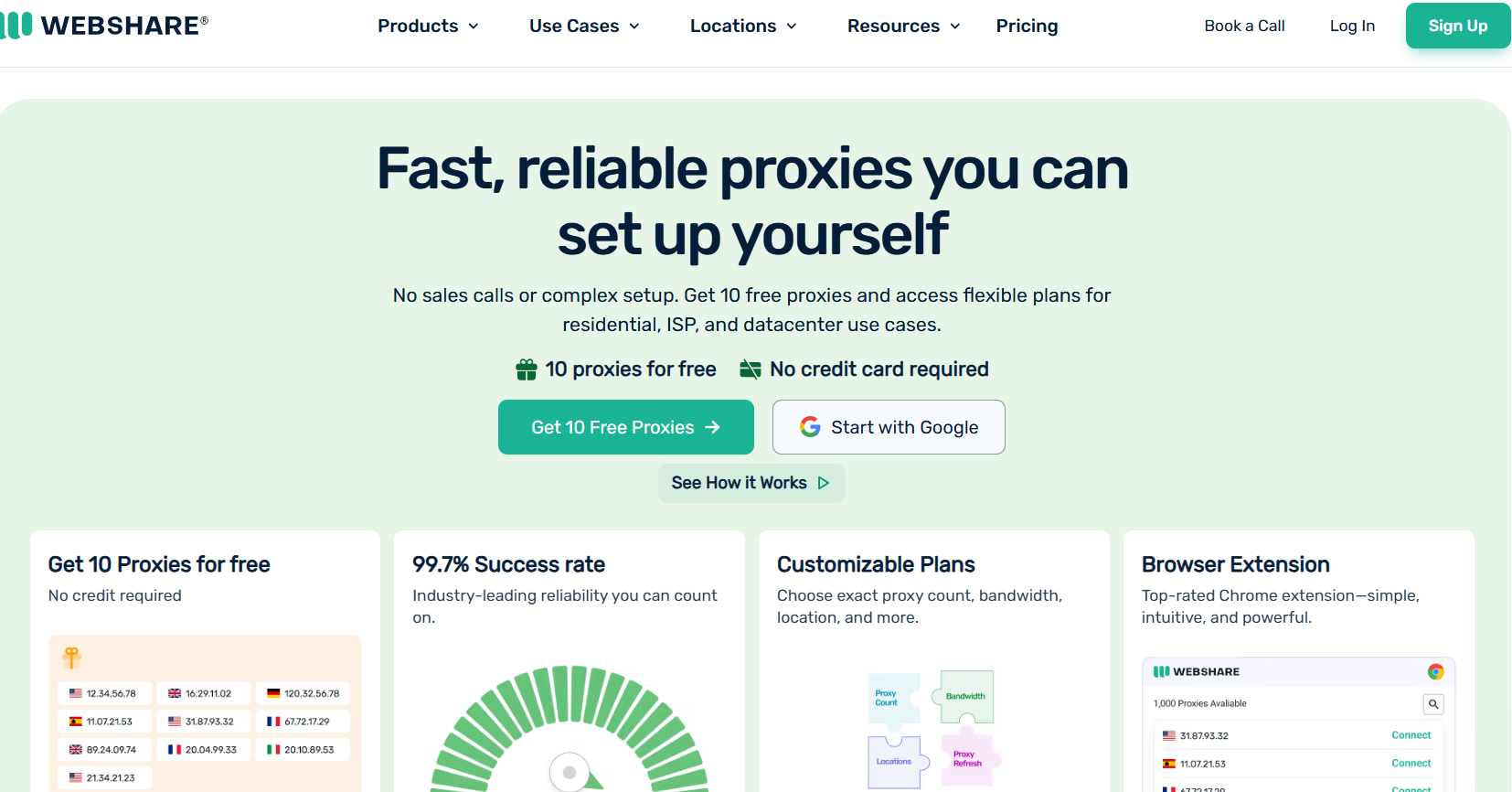
Webshare’s free plan gives you 10 datacenter proxies and 1 GB a month, which is enough to learn the setup. I added my Webshare credentials once and it worked: I picked a London IP, my search results switched to UK results, and an IP checker confirmed that sites saw me in London. In our benchmark its residential proxies had 99.8% location accuracy and a 1.00 s median latency.
Pricing: free plan with 10 datacenter proxies; residential from $3.50/GB.
Pros
- Free plan, no card needed
- Proxies can be replaced in the dashboard
- 99.8% location accuracy (residential)
Cons
- Free proxies are datacenter IPs, which strict sites block more often
- No mobile proxies
3. Decodo
Best for: fast, reliable city-level browsing.
Decodo, formerly Smartproxy, was one of the fastest and most reliable providers in our benchmark: 0.79 s median latency, a 99.9% success rate and 99.8% location accuracy. When I set up a San Jose proxy in Chrome and searched for “the best hotels around me”, I got hotels around San Jose, so city targeting worked as promised.
Pricing: residential from $3.75/GB; a 3-day trial with 100 MB or a 14-day refund.
Pros
- Fast and reliable in our benchmark
- Accurate city-level targeting
- Trial or refund option
Cons
- Higher price per GB than Floppydata
- More IPs flagged as proxies (85.0%)
4. Oxylabs
Best for: speed and enterprise-grade reliability.
Oxylabs had the lowest median latency of the providers here (0.75 s) and the best location accuracy in our benchmark (99.9%). It also offers a few free datacenter proxies, which are fine for a quick check but not for long private sessions. Setup was the least convenient: the proxy address is on one page and the login and password in your dashboard.
Pricing: free datacenter IPs; residential from $6/GB.
Pros
- Fastest median latency of the providers here
- 99.9% location accuracy
- Free datacenter proxies
Cons
- Setup details are split across pages
- Expensive for personal use
5. Bright Data
Best for: businesses that need compliance documentation.
Bright Data is one of the most established providers, with extensive compliance documentation. To get a trial you need to verify your business first, which slows down a quick Chrome test, and it closed its mobile proxy product in April 2026. It wasn’t part of our benchmark because of that verification step. In my own check, its proxy worked well in Chrome.
Pricing: residential from $4/GB on promotion ($8 list).
Pros
- Strong reputation and compliance
- Large network
Cons
- Verification before any trial
- No mobile proxies
6. Geonode
Best for: the lowest price per GB.
Geonode’s residential proxies start at $0.79/GB, the cheapest in this list. In our benchmark it was also the least reliable of 12 providers (97.1% success rate), with the slowest worst-case latency (3.67 s at P90), and Scamalytics flagged 99.3% of its IPs as proxies. Geonode also publishes a free list of public proxies; avoid those for anything private.
Pricing: from $0.79/GB on a 10 GB monthly plan; a $5 trial with 10 GB for three days.
Pros
- Lowest price per GB
- Cheap trial
Cons
- Least reliable and most often flagged in our benchmark
- Monthly subscription
Chrome proxy extensions
7. FoxyProxy
Best for: rule-based switching between many proxies.
FoxyProxy is a long-standing proxy manager for Chrome. You import proxies from any provider and set rules so certain sites always use a specific proxy. FoxyProxy also sells its own proxies separately. It’s powerful, but the rule settings take some time to learn on the first try.
Pros
- Rules to route specific sites through specific proxies
- Imports proxies from any provider
- Connection logs
Cons
- Takes some time to set up
- No free proxies
8. Proxy Switcher
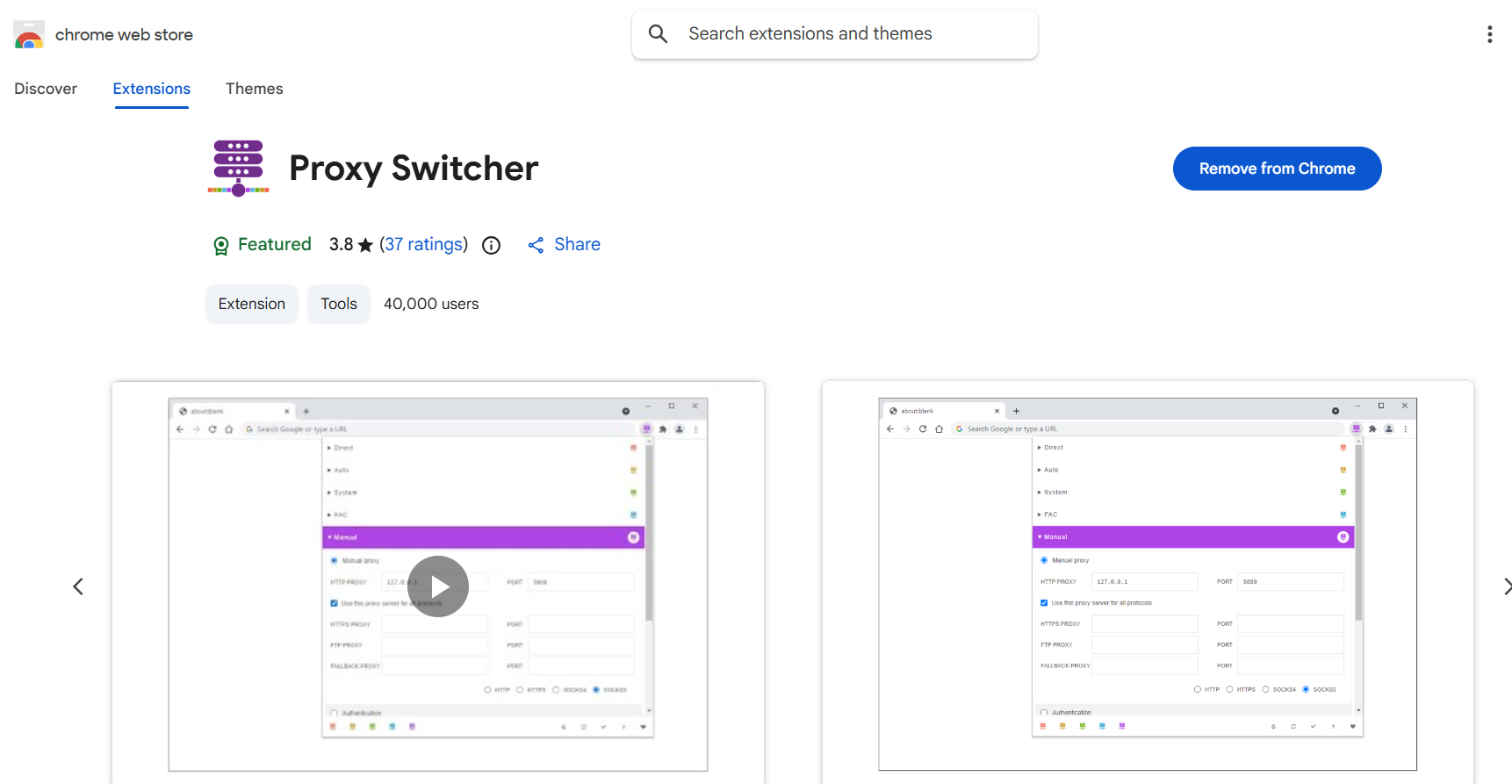
Best for: simple one-click switching.
If you don’t need an antidetect browser, a switcher lets you move from one IP to another while you browse. Proxy Switcher was simple to set up, nothing fancy: add your proxies, then click the extension icon to switch.
Pros
- Easy to set up
- Quick switching between proxies
Cons
- No built-in proxies
Antidetect browsers
9. Gologin
Best for: managing several accounts with separate Chrome-based profiles.
Gologin gives each profile its own fingerprint, cookies and proxy, so accounts on sites like Upwork, LinkedIn or Reddit stay separate. It has built-in proxies, accepts your own, and lets you share profiles with remote team members. In GoLogin’s October 2026 test of 12 antidetect browsers, its profile running on a Floppydata residential proxy was rated consistent with no proxy detected by Pixelscan.
Pros
- Separate fingerprint and proxy per profile
- Profile sharing for teams
- Free plan with three profiles
Cons
- You browse inside Gologin, not your regular Chrome
10. 1Browser
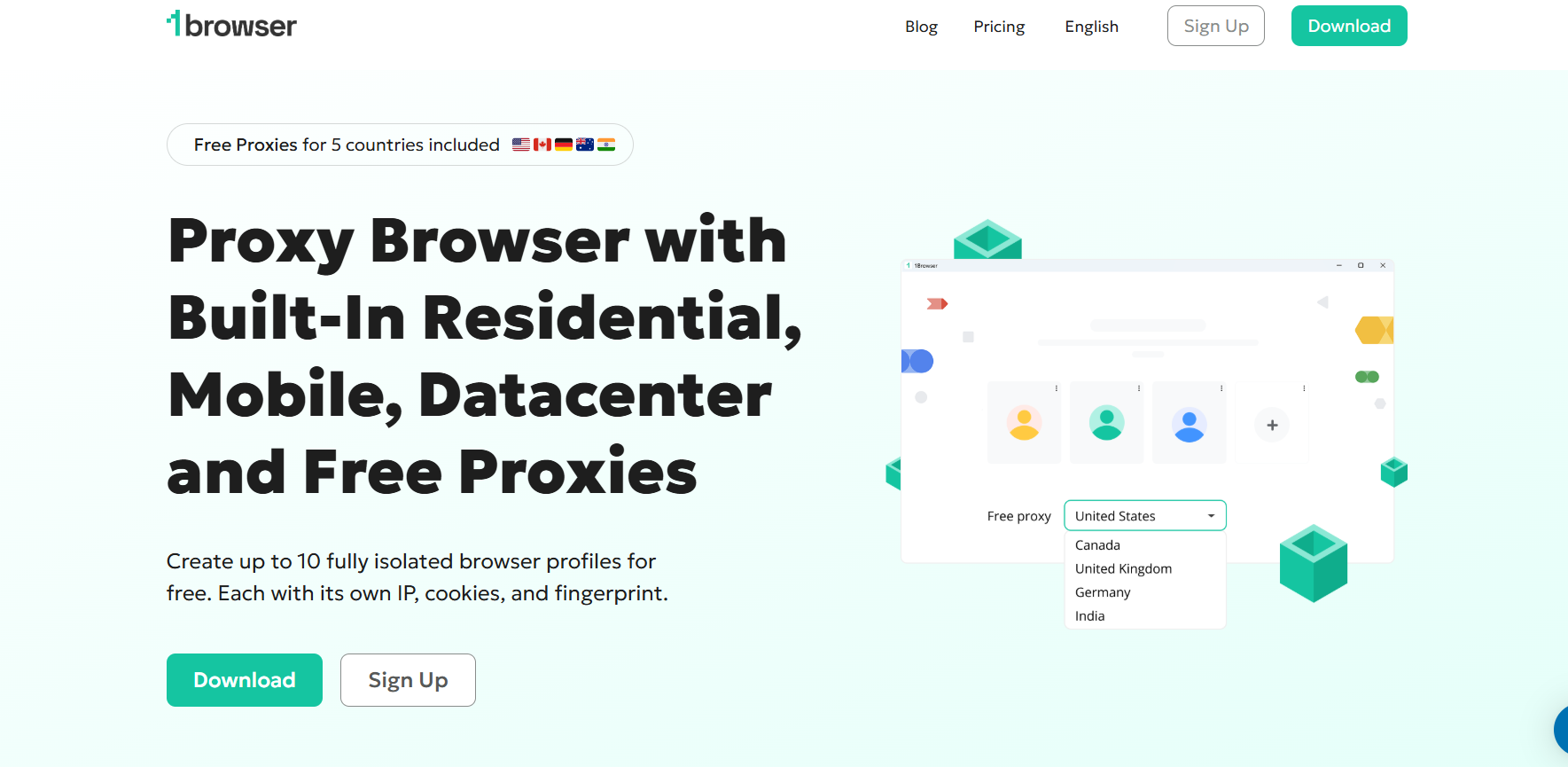
Best for: a free start with several profiles.
1Browser is a multi-accounting browser where each profile has its own settings and proxy. The free plan includes 10 profiles and built-in proxies, and you can add your own. For private browsing, attach a proxy from a provider above: in GoLogin’s October 2026 test, Pixelscan flagged 1Browser’s built-in proxy.
Pros
- 10 free profiles
- Built-in proxies and support for your own
Cons
- You browse inside 1Browser, not your regular Chrome
- Built-in proxies were flagged in an independent test
How to Check Your Proxy and Avoid Leaks in Chrome
Once the proxy is on, check that it really hides you:
- Check your IP and location with the Floppydata proxy checker or IP and fingerprint tools. The country and city should match the proxy.
- Check your timezone and language. If they still show your real location, sites can tell you’re using a proxy.
- Check for WebRTC leaks. WebRTC can reveal your real IP even behind a proxy. Use an extension that limits WebRTC, or an antidetect browser that handles it for you.
- Search something local, such as “restaurants near me”, and make sure the results match the proxy’s city.
If your real IP still shows up, the problem is usually the setup, not the provider: a WebRTC leak or a proxy that only covers part of your traffic.
FAQ
Does Chrome have a built-in proxy?
No. Chrome uses your operating system’s proxy settings. To set a proxy for Chrome only, use an extension such as the Floppydata Chrome extension, or an antidetect browser.
Why does Chrome keep asking for my proxy password?
Chrome asks for proxy credentials in a pop-up when you use system proxy settings. A proxy extension stores the login for you, or you can whitelist your IP with the provider so no login is needed.
Can I use SOCKS5 proxies in Chrome?
Yes, but only without a login: Chrome doesn’t support username and password authentication for SOCKS5 proxies, through system settings or extensions. Whitelist your IP with the provider, use the same proxy over HTTP(S) with a login, for example in the Floppydata extension, or use an antidetect browser, which handles SOCKS5 logins itself.
How do I turn off a proxy in Chrome?
Switch off the proxy in your extension, or open Settings → System → “Open your computer’s proxy settings” and turn off the manual proxy.
Are free proxies safe for Chrome?
Free public proxies can log or change your traffic, so don’t use them for logins or payments. For private browsing, use a paid proxy from a trusted provider.
Concluding Thoughts
Proxies have become part of how I use Chrome every day. I’ve tried proxies that didn’t work at all, and that’s part of why I wrote this guide.
For most people, Floppydata is the best way to use a proxy in Chrome: IPs that are rarely flagged as proxies and land in the right country, residential, mobile and datacenter options on one $1/GB balance, and a free Chrome extension that makes switching and checking proxies a one-click job. If you need maximum speed, look at Oxylabs or Decodo; if you run many accounts, pair your proxies with GoLogin.
Install the Floppydata Chrome extension and start with proxies from $19 on the pricing page.