
If you’re looking for a US IP address, it shouldn’t be that hard for you to find one, because the US is the birthplace of the internet, and therefore, it dominates the world with over 1.6 billion IPv4 addresses and an unlimited supply of IPv6 space.
The hard part about finding a US IP address is finding a “good” one. One that isn’t blacklisted, that doesn’t block your access to websites, and that doesn’t put you through loops of security checks every five minutes.
In this guide, I will explain in detail how my team and I managed to find the best-quality US IP addresses using proxy servers by Floppydata. Also, I’ll teach you how you can use them on your favorite browser or on an anti-detect browser for maximum anonymity.
Let’s get into it.
How to Get US IP Address: Step-by-Step Instructions
The steps are easy, even if you’re not a tech-savvy person!
First, go to the Floppydata website and create an account or log in if you already have one.
Once inside the dashboard, go to the left sidebar and click on “Create proxy pool”
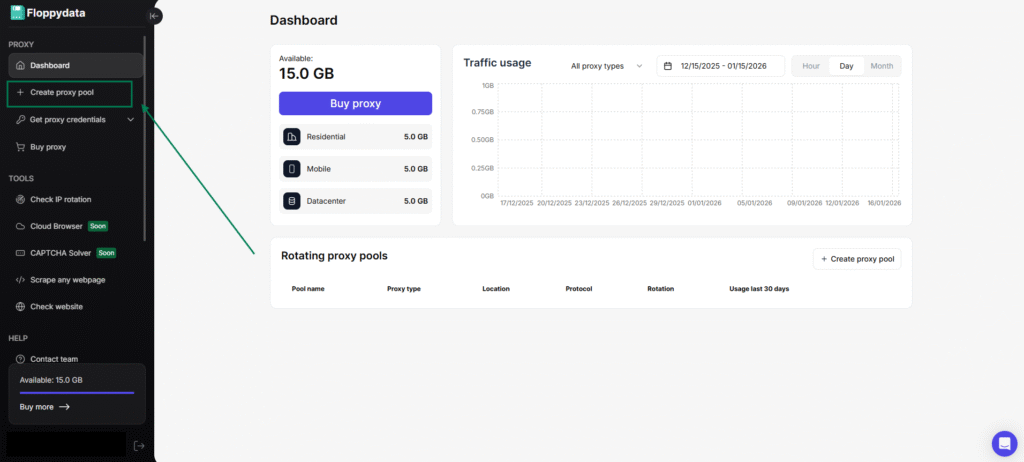
That’s where you’ll create your list of US proxies.
Give your list a name and enter your preferred requirements, such as your proxy type (residential, mobile, or datacenter), session type, protocol, and proxy quantity.
Most importantly, select the United States as your proxy location and add specific US cities if you want. You can choose from a variety of server locations, including major cities like New York and California, which ensures broad geographic coverage. Floppydata offers a large number of US servers across America, providing reliable access for customers seeking an American IP address.
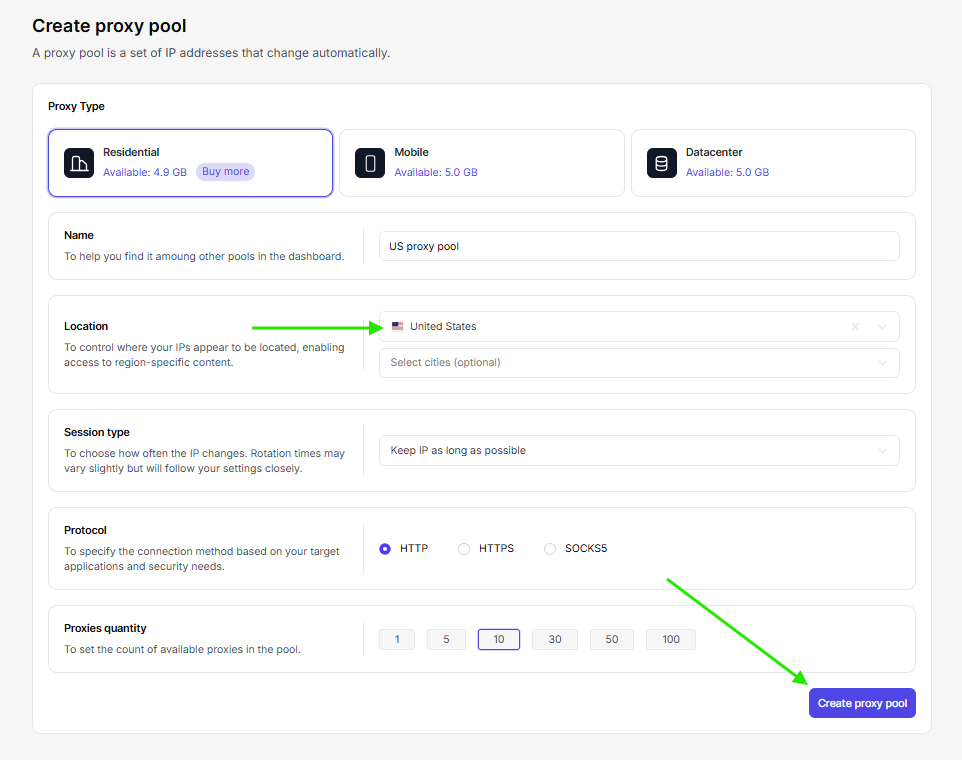
Once you’re done, click on the “Create proxy pool” button.
And voilà, you now successfully bought your own US IP proxies from Floppydata! See how easy and fast that was? That’s one of the many reasons why my team and I love this provider—the company is known for its reliable performance and ability to provide fast connections for streaming platforms and other services.
Here’s my list of US IP addresses. Yours should look like this, too:
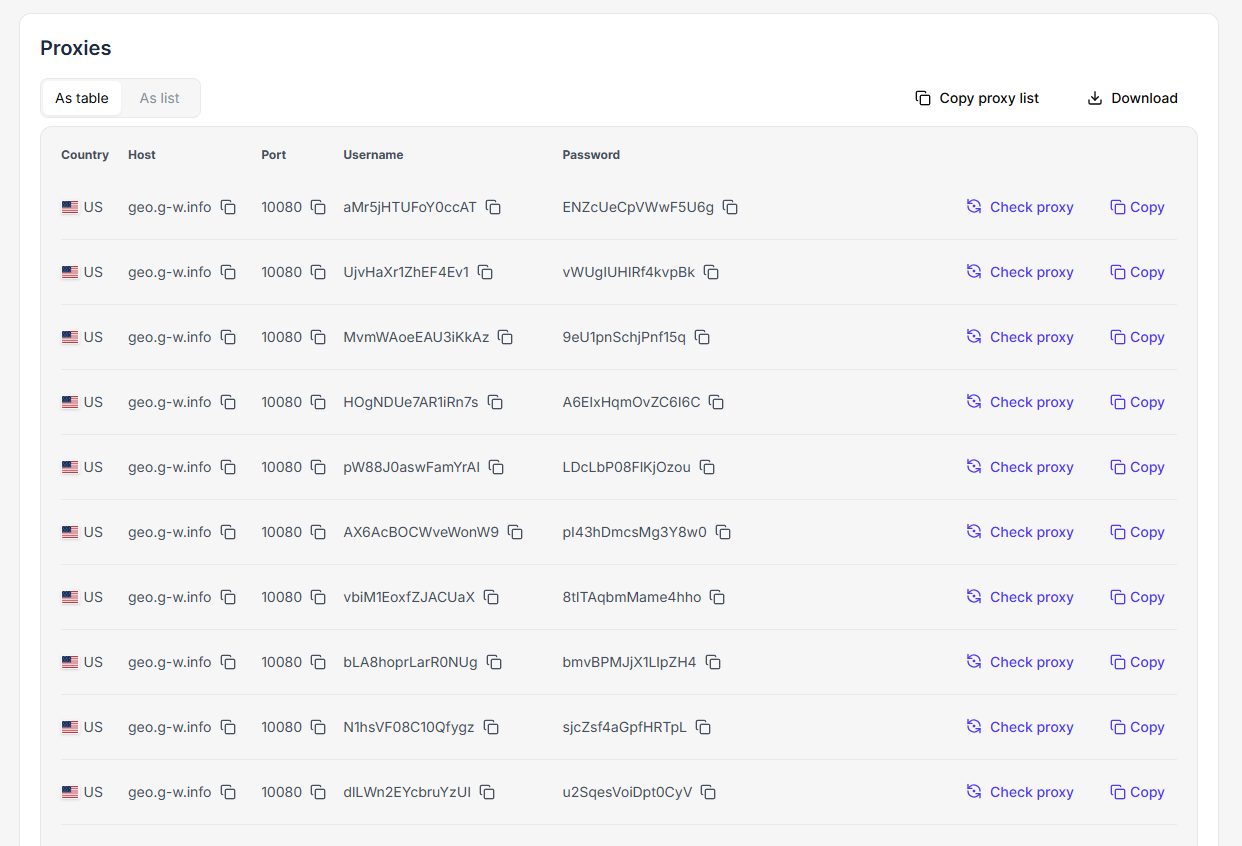
Now, how can you use these proxies to browse the internet like you’re living in the US? Let’s find out.
While this guide focuses on proxies, VPNs are another popular method for obtaining a US IP address, with the ability to unblock geo-restricted content and access various streaming platforms and services.
How to use your Floppydata US proxy IPs?
You have your fresh US IPs sitting on your Floppydata account; you can now freely use them in two different ways:
First, on your usual browser, whether it’s Chrome, Opera, or Firefox, they all accept proxies. By connecting to a private US IP address, you keep your internet activity secure and hide your real IP address, enhancing your privacy and security online.
Or, which is what I recommend, on an anti-detect browser** like Gologin**, which offers the exact same experience as any other browser, only with extra anonymity, so no one can detect who you are on the internet.
Below are step-by-step instructions on how to use both.
What you need before you start
Go to your proxy list on Floppydata, choose a proxy, and copy this information:
- The proxy’s Host
- Port
- Username
- and Password
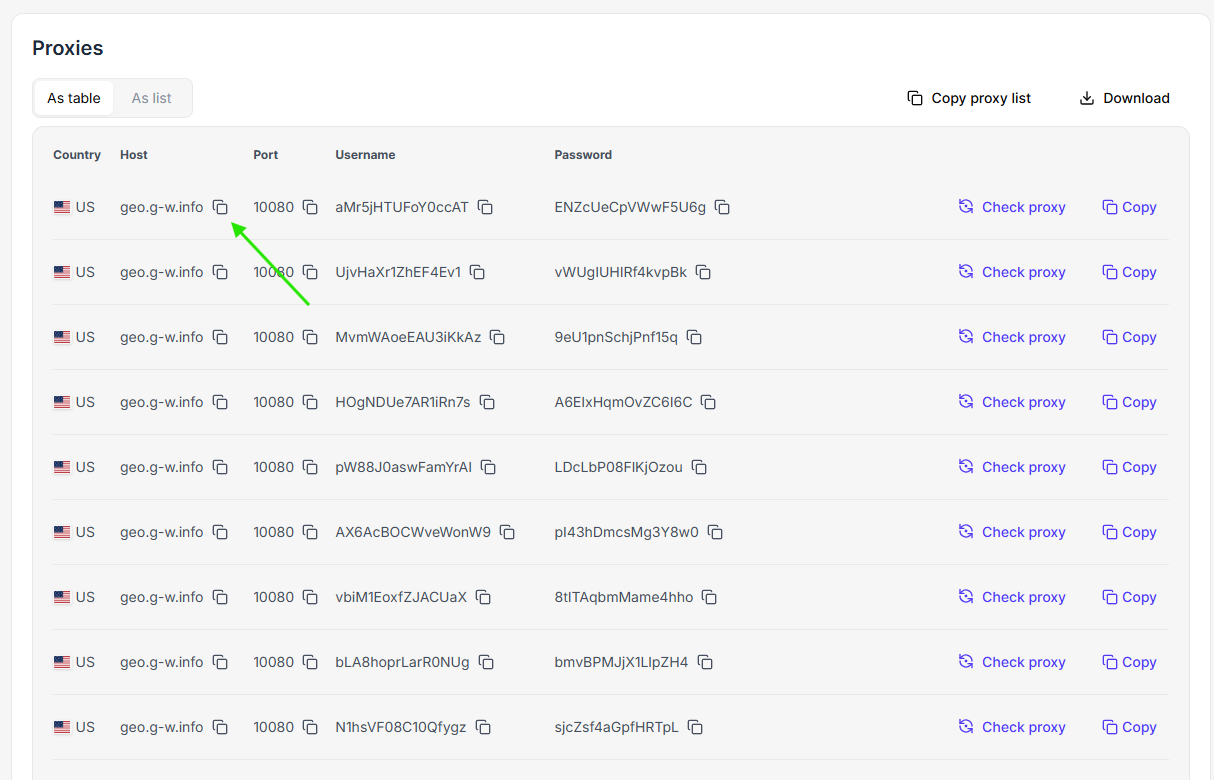
They are all organized in the list, so copying them is an easy task; just click on the copy symbol in front of each one.
You’ll need these to successfully complete the steps below:
Option 1: Use Floppydata US proxy IPs on your browser
FYI, Chrome doesn’t have its own internal proxy engine, so when you go into Chrome’s settings to set up your US proxy, it will open your OS settings (Windows or macOS; Mac users can also easily configure their proxy settings for their device). Using dedicated proxy software can further enhance compatibility and user experience across different platforms.
And when you set up the proxy, every app on your computer (Spotify, Zoom, Slack…etc.) will also start using that same proxy.
So, use Chrome if you want your entire computer’s identity to change. When set up correctly, using a proxy should not significantly affect your download speeds.
But if that’s not your goal, then you can use another browser like Mozilla Firefox, which has its own independent network stack, so you can configure a proxy inside Firefox that only affects Firefox and none of the other apps on your computer.
Make your choice, and follow the steps below for your preferred browser:
For Chrome
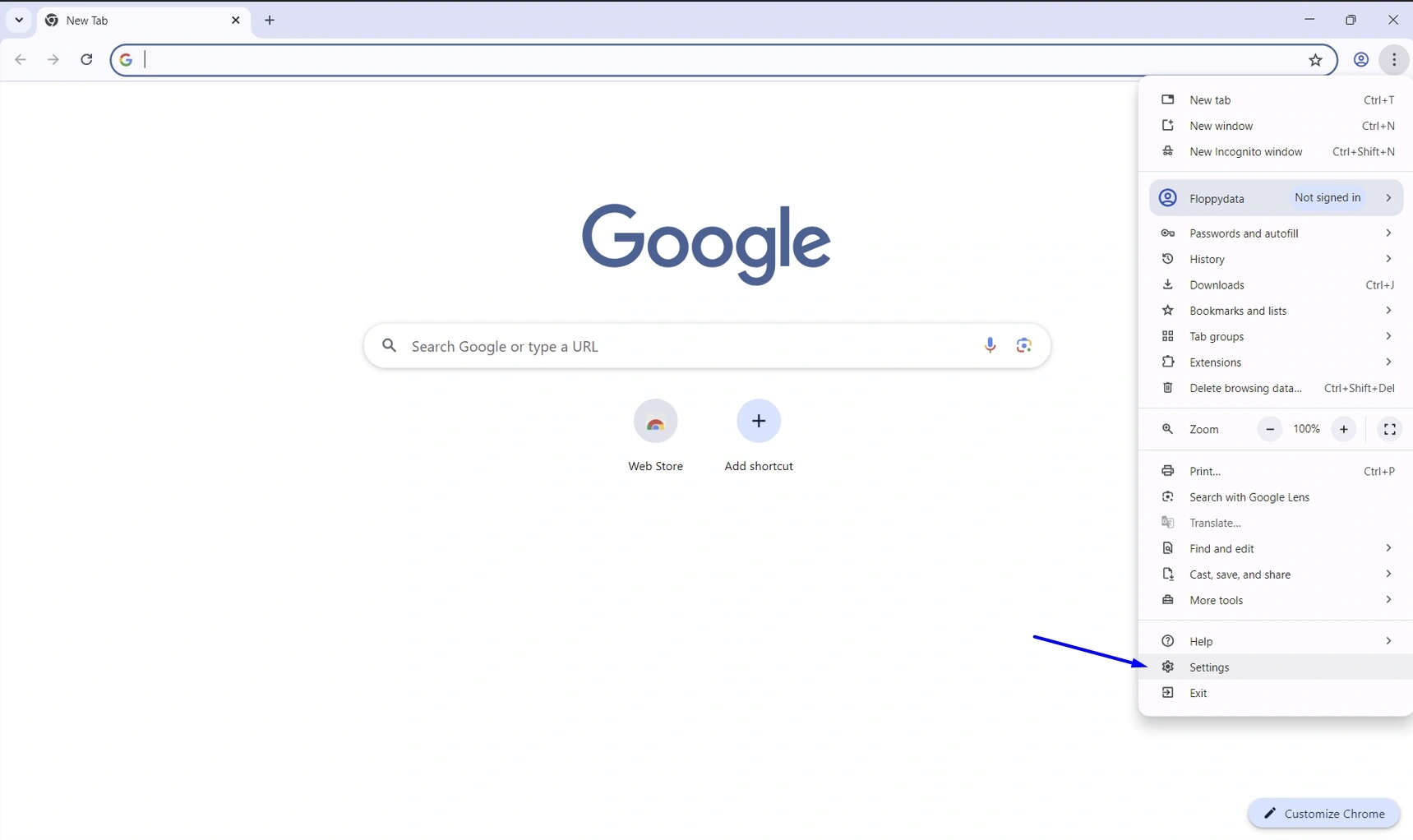
- Open your Chrome browser and click on the three dots in the top left corner, then go to settings.
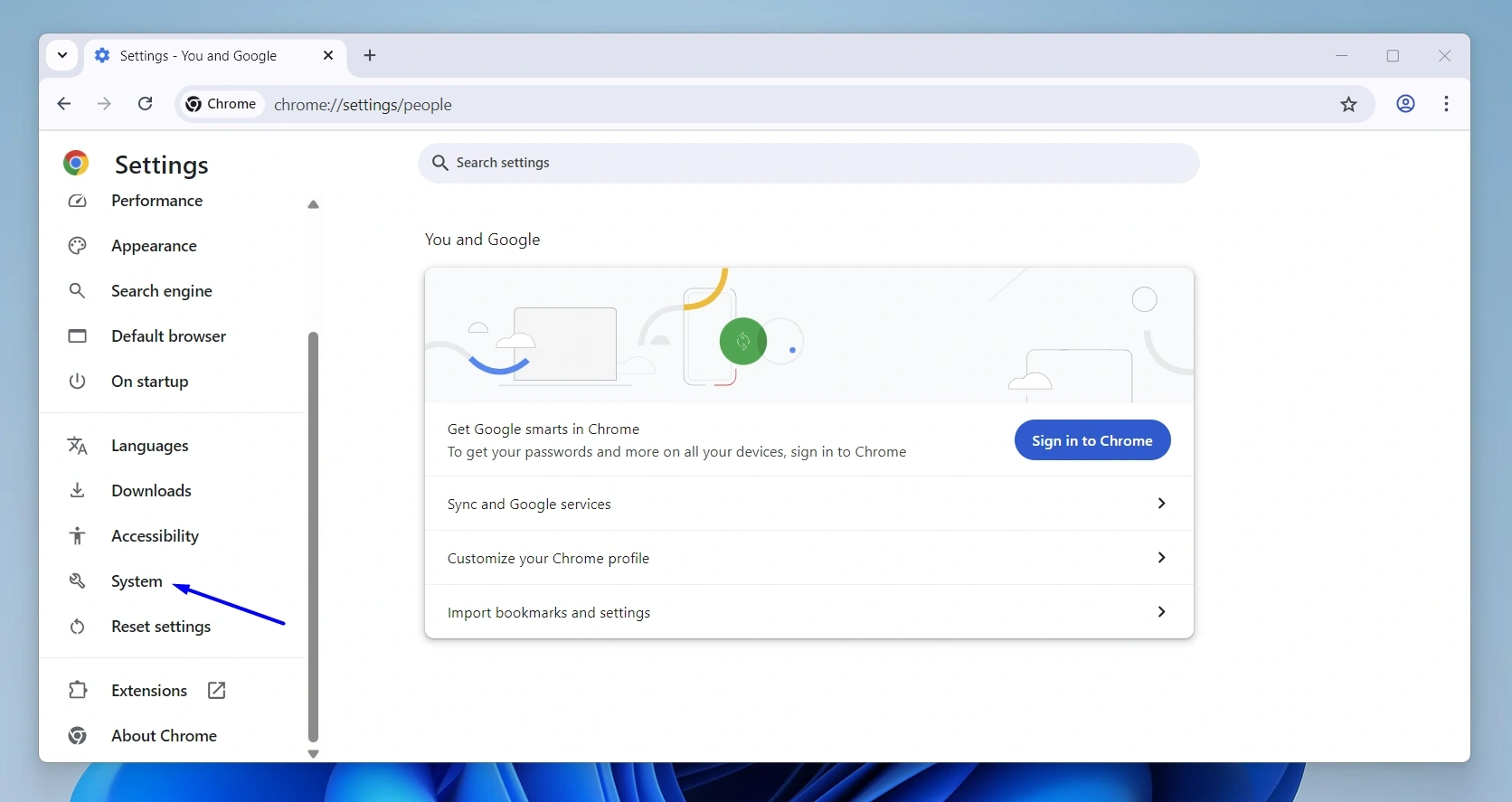
- On the left menu, scroll a bit until you find System, and click on it.
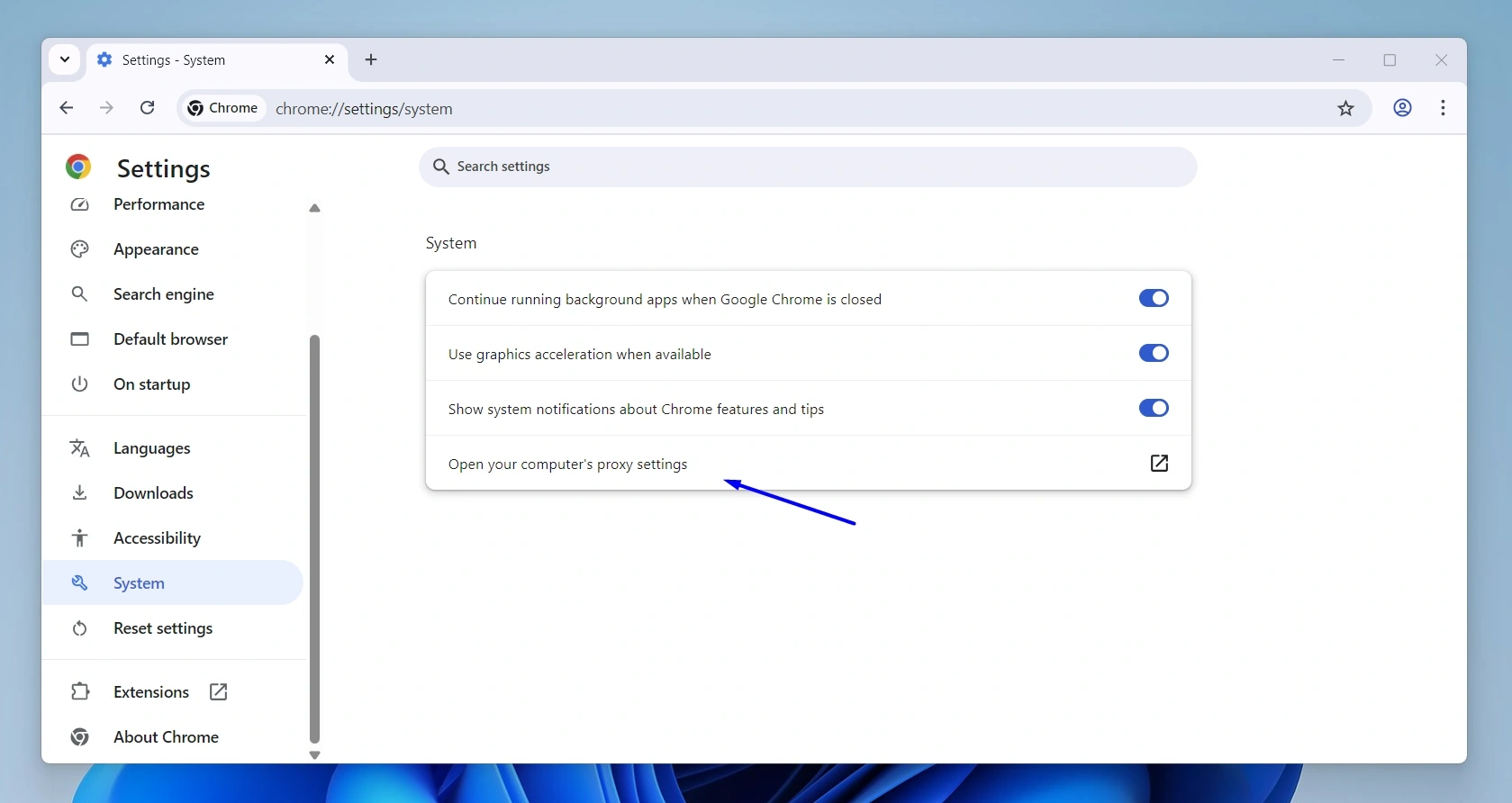
- Select the “Open your computer’s proxy settings” option, which, as we discussed, will open your Operating System’s proxy settings.
- Now let’s configure your proxy: Go to the “Manual proxy setup” section and click Set up.
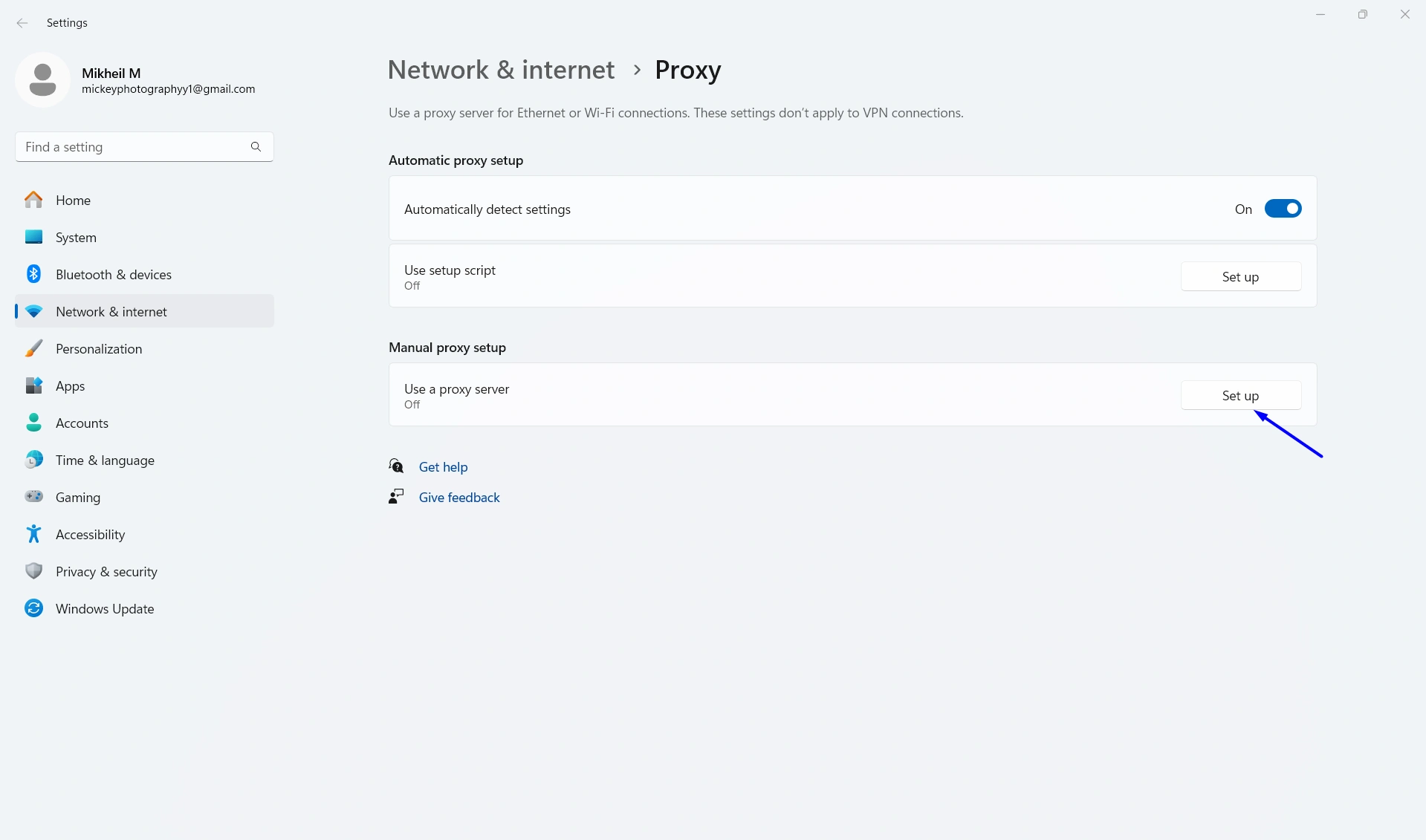
- This will open a new window where you can configure your proxy settings. First, turn the “Use a proxy server” toggle on. Then, paste the proxy host you’ve copied before under “Proxy IP address” and paste the port under “Port”.
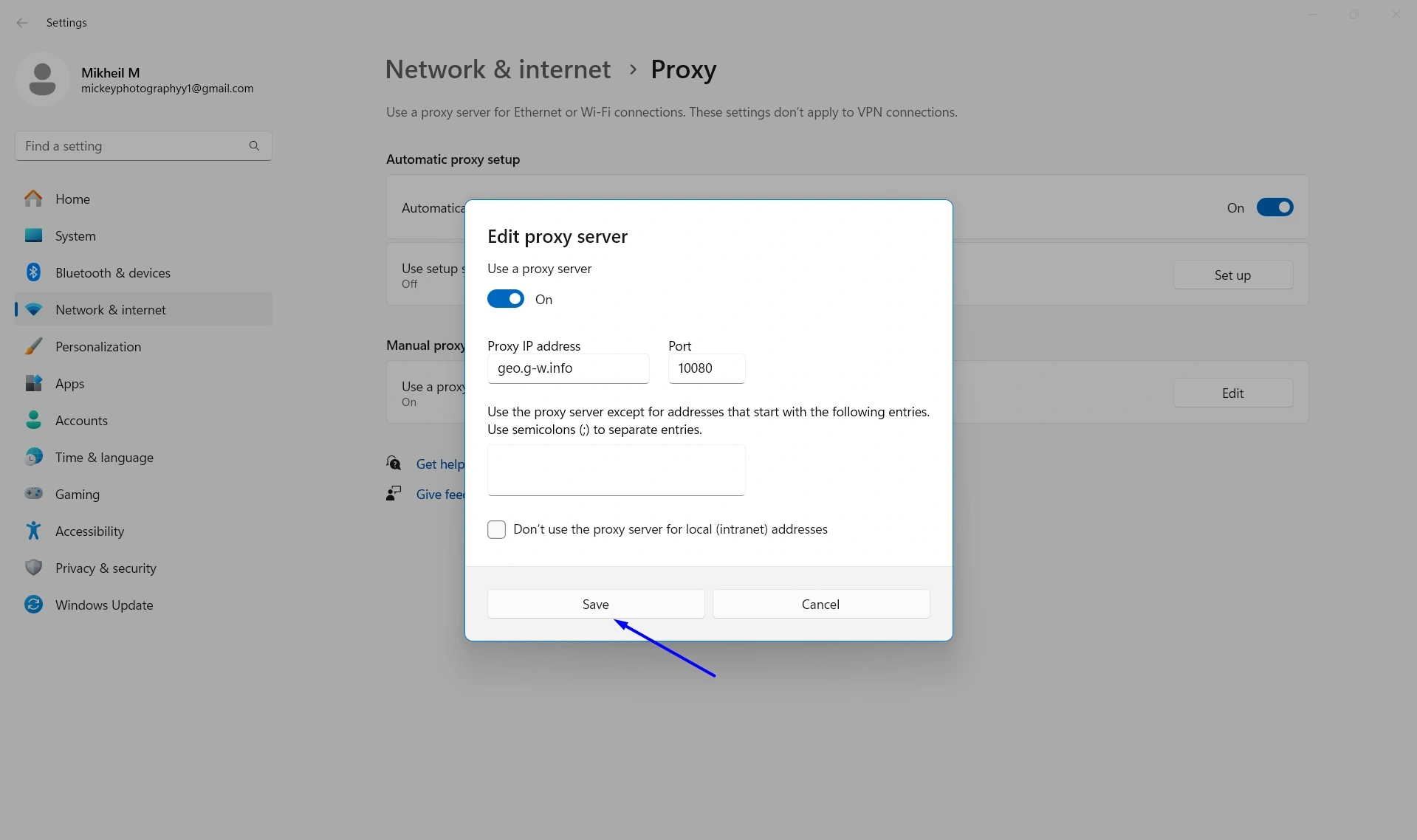
- Click Save when you’re done.
- Restart your browser, and when Chrome opens again, it will ask you to enter a username and password, which you can also copy directly from the list on Floppydata.
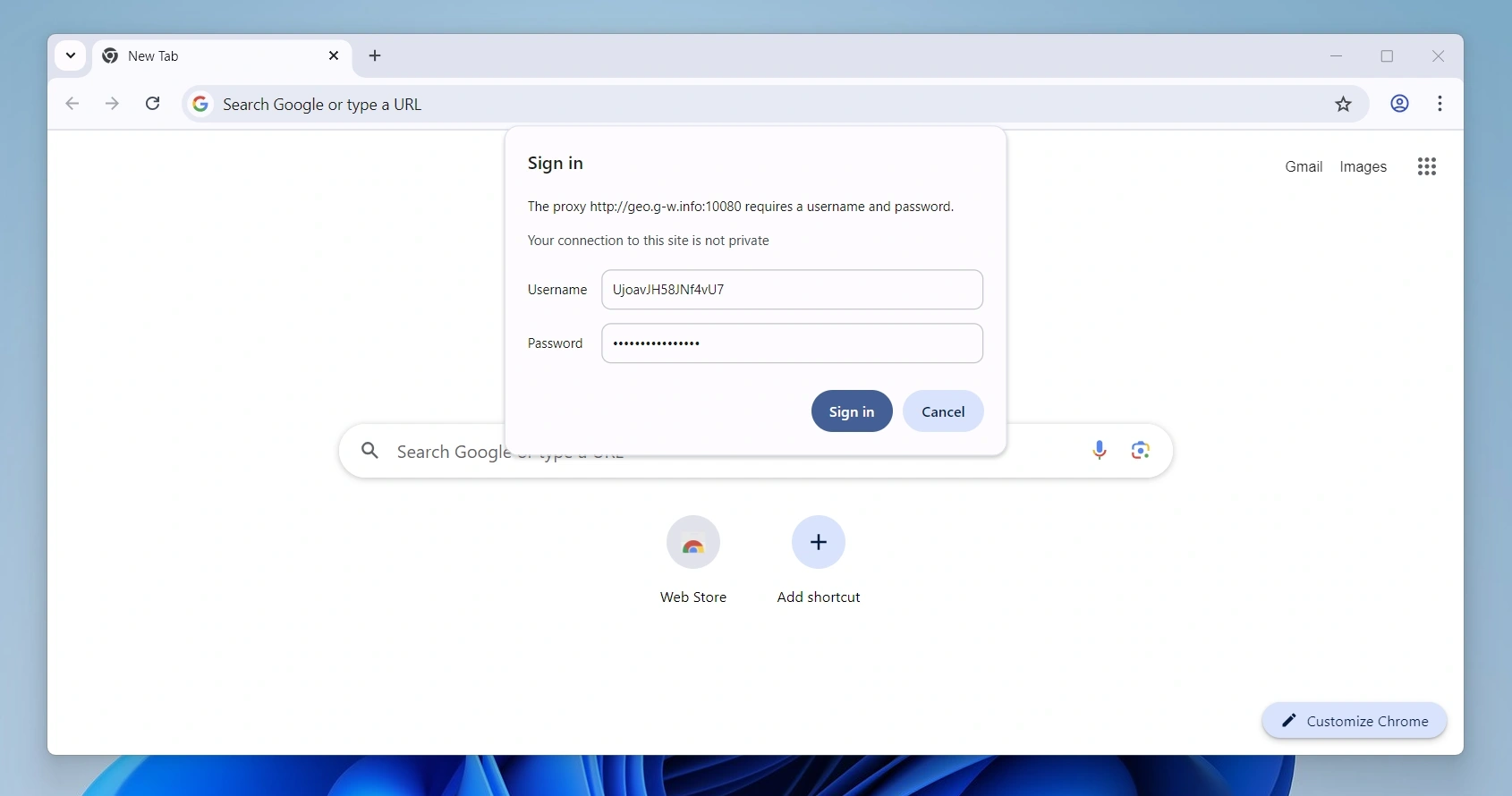
Once you click Sign in, your Chrome browser will start working with your new US IP address!
For Firefox
- Open your Firefox browser, click the hamburger menu (☰) on the top right corner, and select Settings.
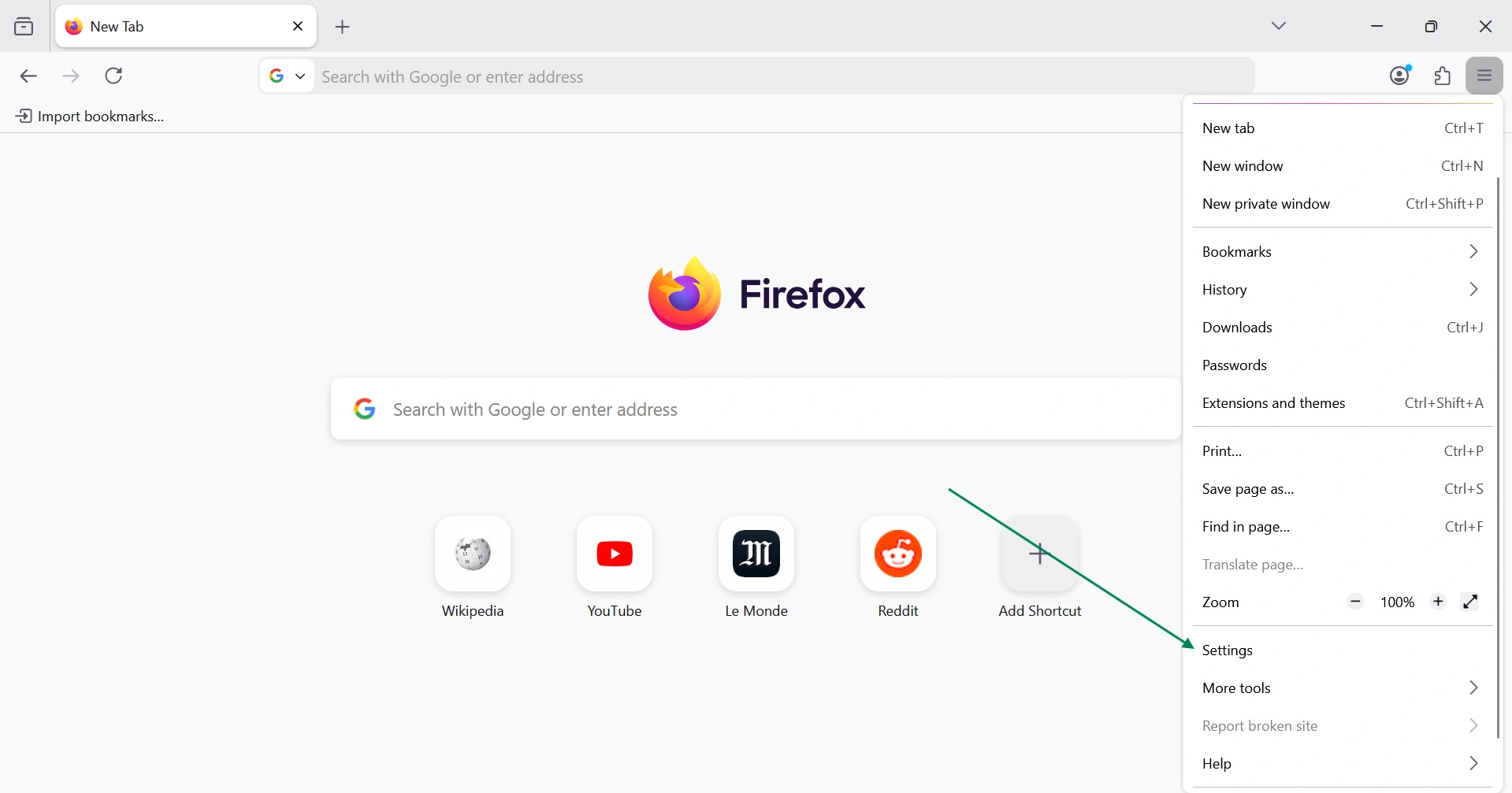
- Scroll down until you find the Network Settings section. Click on Settings…
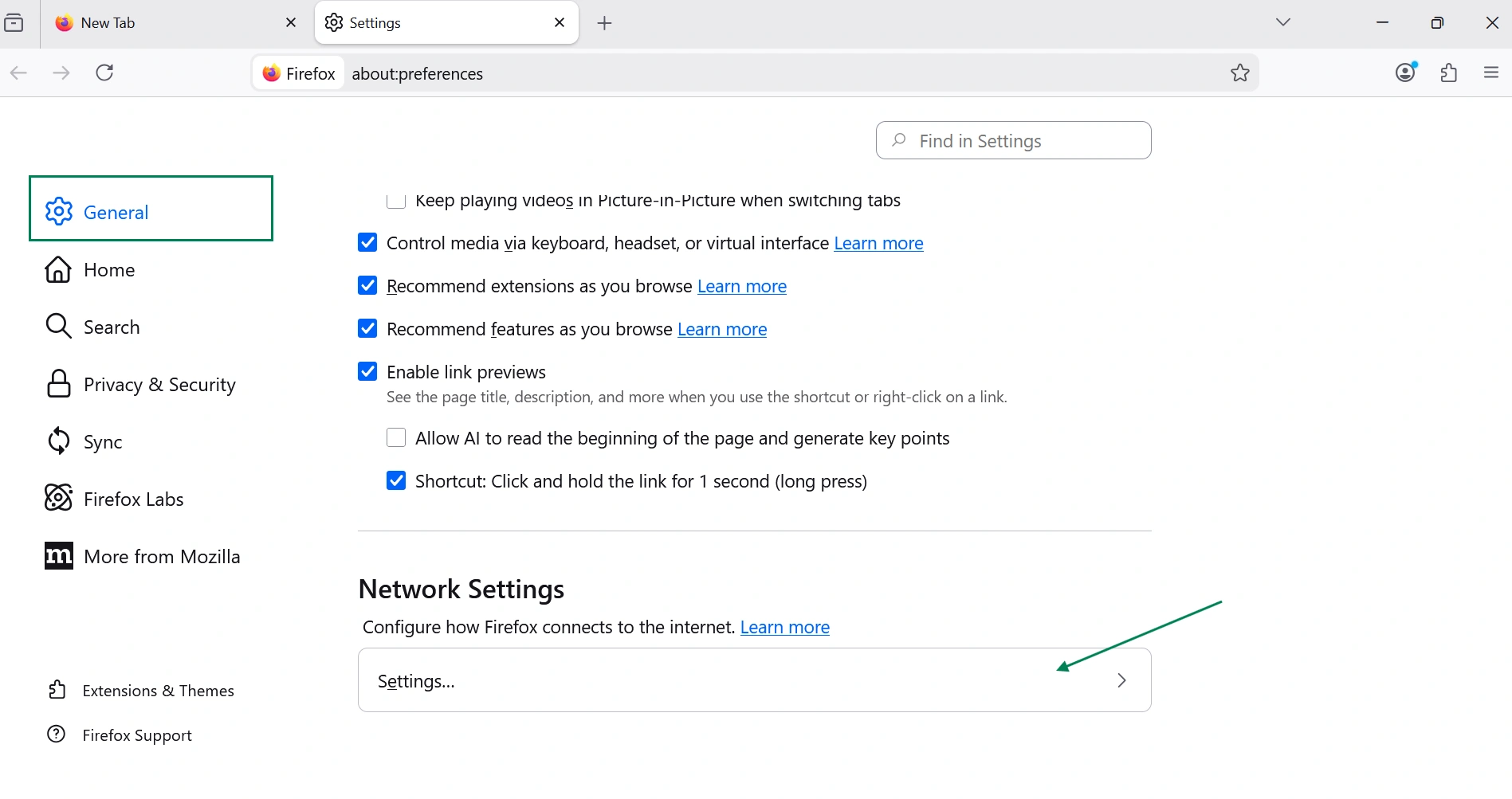
- In the Connection Settings window, select “Manual proxy configuration” from the options. Start filling the fields: enter your IP host address inside the HTTP Proxy box, and its port inside the Port box. Then click OK.
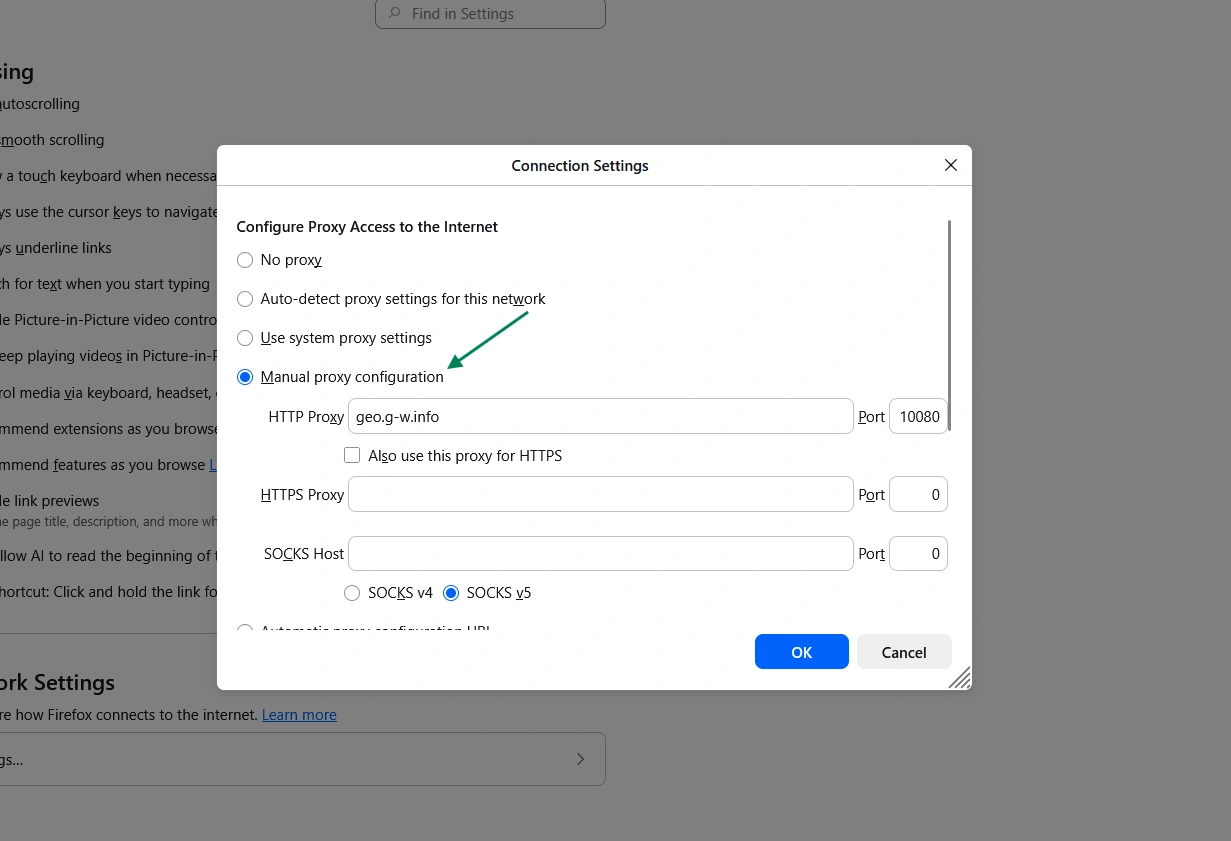
- Restart your browser, and when Firefox opens again, you’ll be asked to enter a username and a password, which you’ll find in your proxy list on Floppydata.
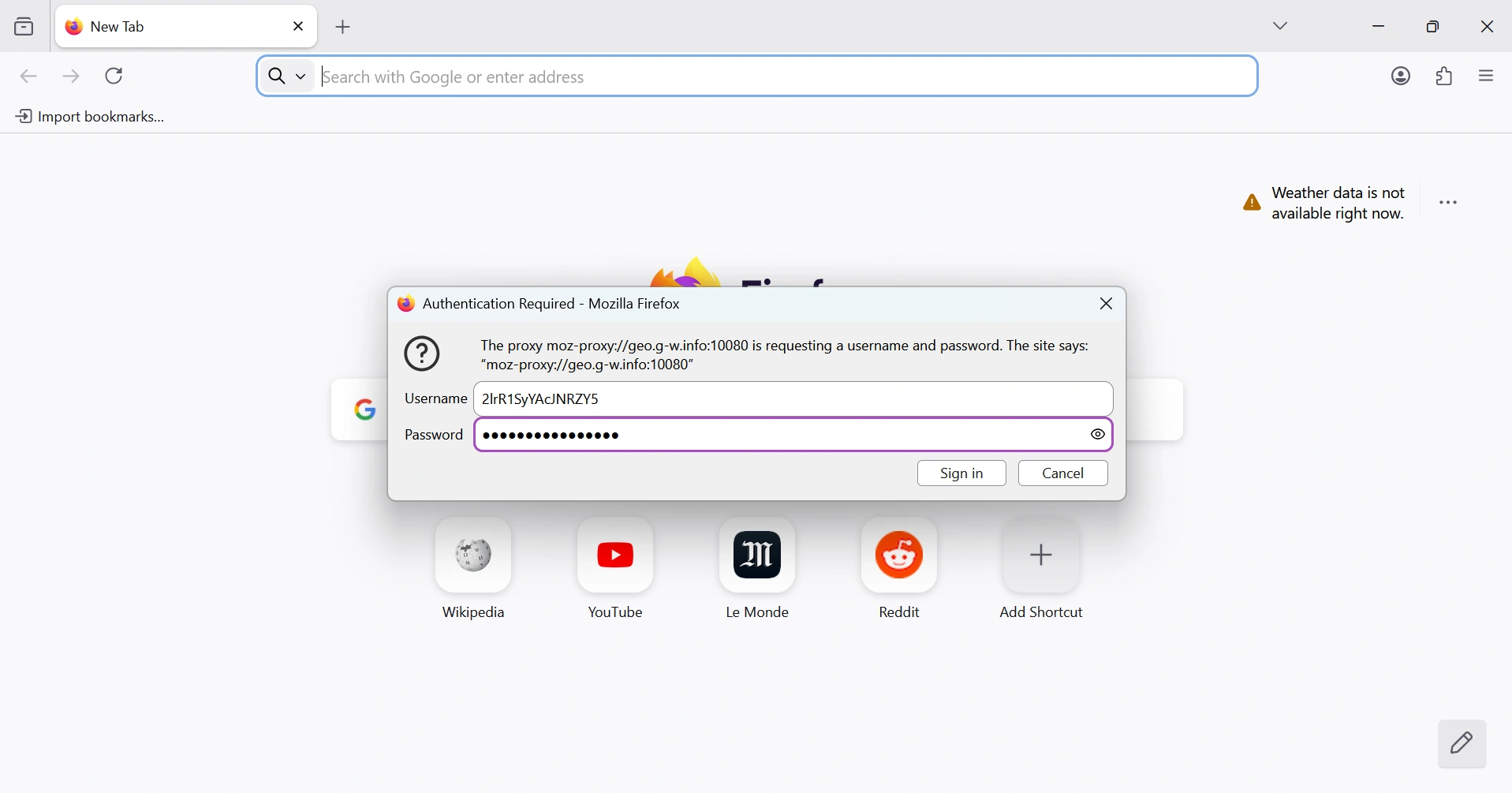
Once you click sign in, your Firefox browser will use your selected US IP address successfully!
Option 2: For maximum anonymity, use Floppydata US proxy IPs on Gologin
Why use an anti-detect browser instead of a normal one?
If you use a Miami IP address on a normal browser like Chrome while your computer is set to “Paris Time” and “French Language”, websites will suspect this and trigger verification loops and block you.
The way Gologin solves this is by giving you a browser profile that has internal settings that match your US proxy.
So, if your proxy is in Miami, Gologin will automatically set that profile’s timezone to EST and its language to English (US).
Besides, if you use multiple social media accounts, you can create a separate browser profile for each one of these accounts on Gologin, so you make each account appear as if it is owned by a completely different person living in a different US city.
Another reason why an anti-detect browser is better than using an ordinary one is: when using a “Static” US IP address in the same Gologin profile day after day, you will build account trust because you look like you’re connecting from the same American location every single day.
And if you’re a marketer or e-commerce seller, you can share your Gologin profile (including its US proxy) with a teammate in another country. When they open it, they will also be using the same identity as you, which will avoid “suspicious login” alerts.
These are only a few of the many reasons my team and I use the Floppydata + Gologin combo! Let me show you how to do it:
How to set up your Floppydata US proxy on Gologin
This part is the easiest, you don’t need to copy every element of your proxy one by one, you’ll just need to click on the “Copy proxy list” button to copy everything at once.
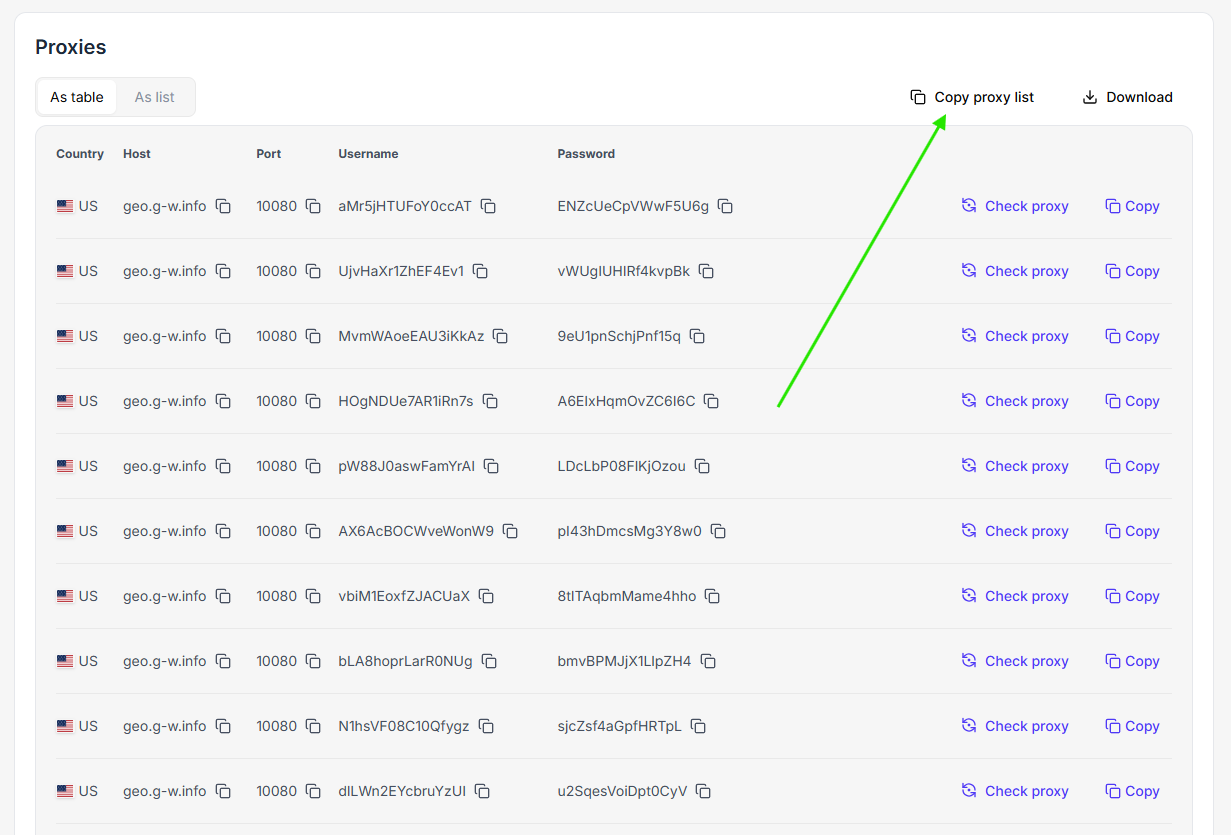
Once you click on it, follow the next steps:
- Go to Gologin, install it on your device, and create your account.
- Once inside the Gologin dashboard, click on the hamburger (☰) menu on the top right and select “Proxies”.
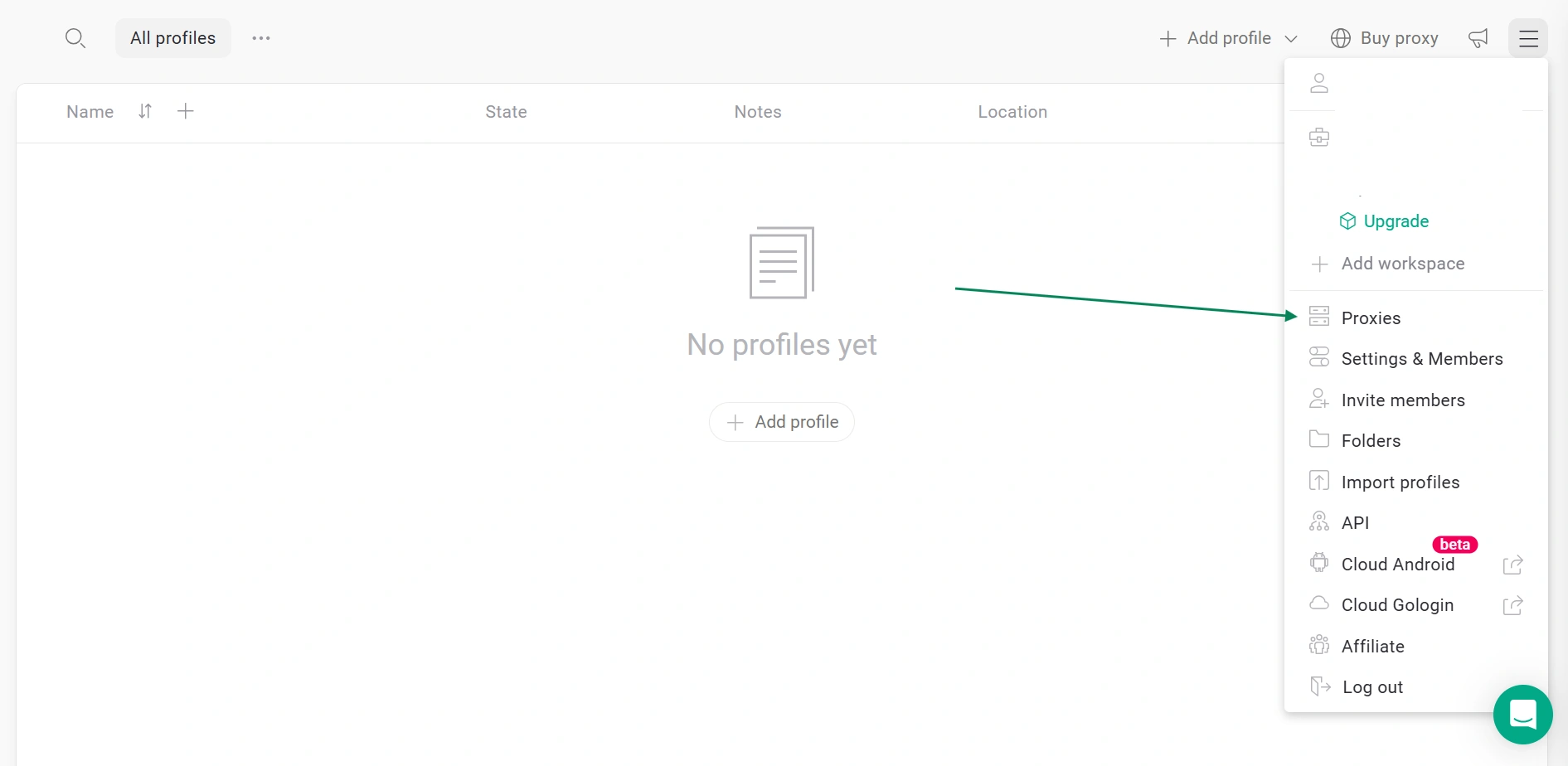
- Click import proxies on the top left corner and paste your Floppydata proxy list there
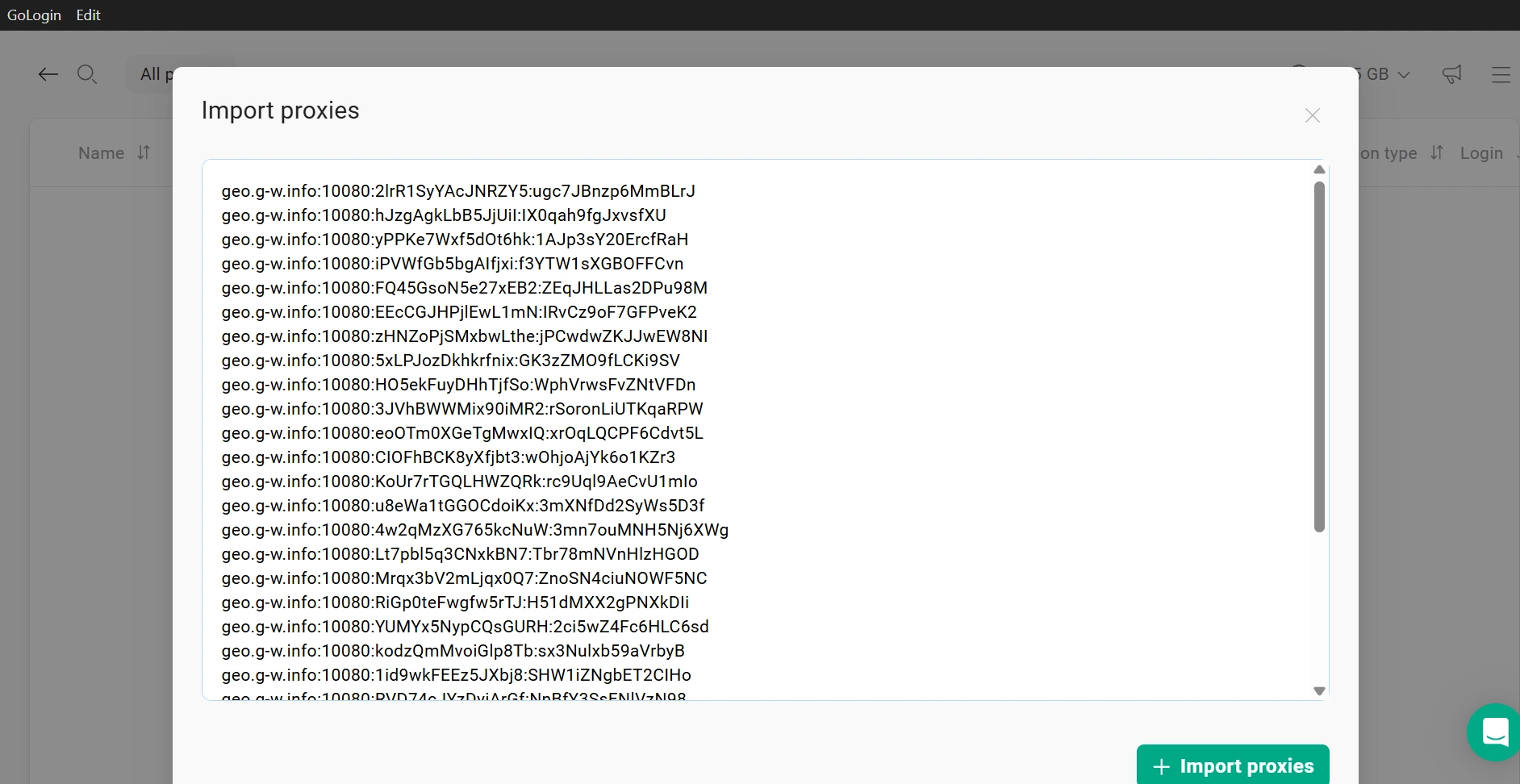
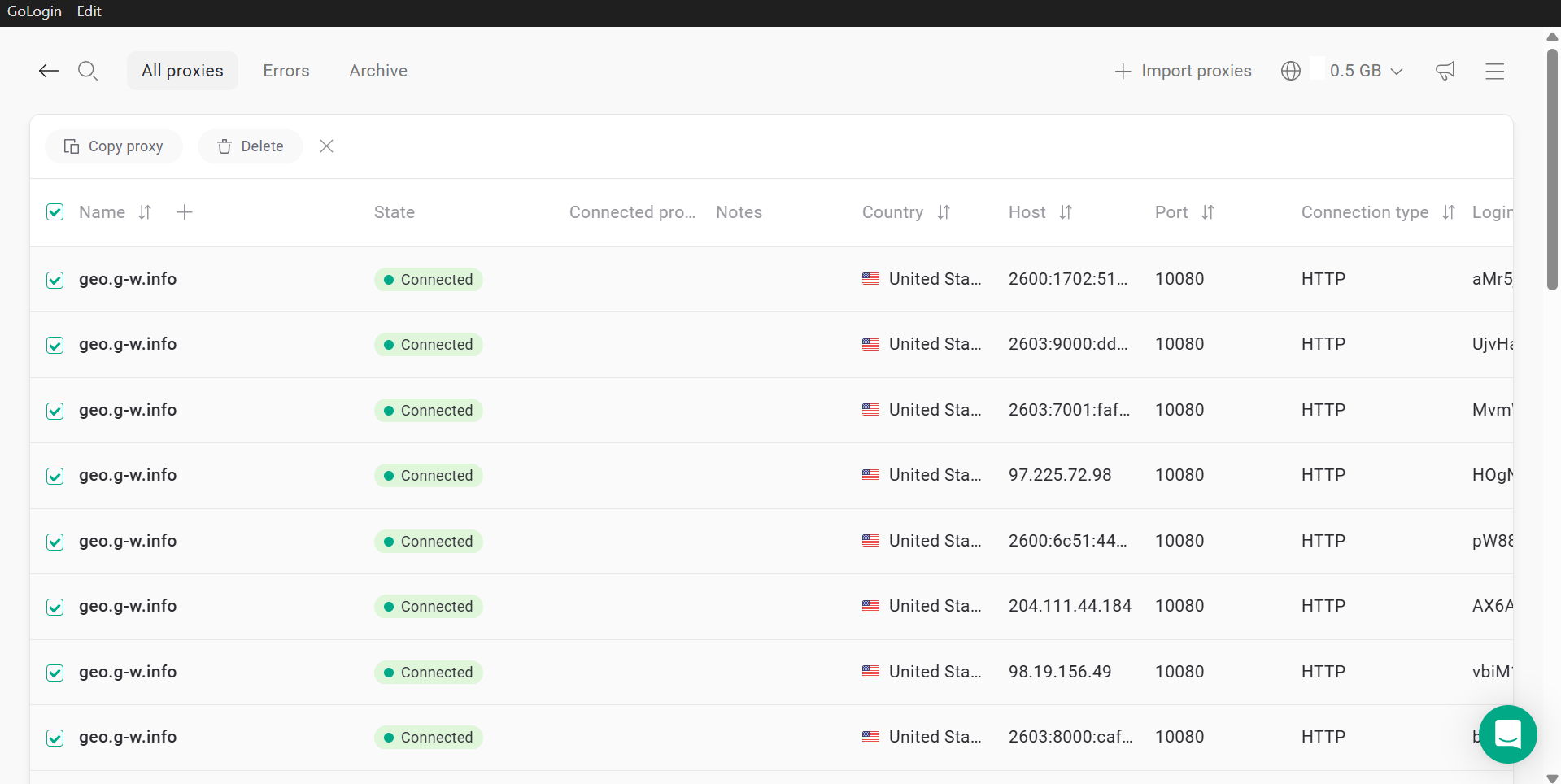
- Once you click on the green “+ Import proxies” button, Gologin will automatically validate your proxies.Here’s my list of US proxies on Gologin. Yours should look like this, too:
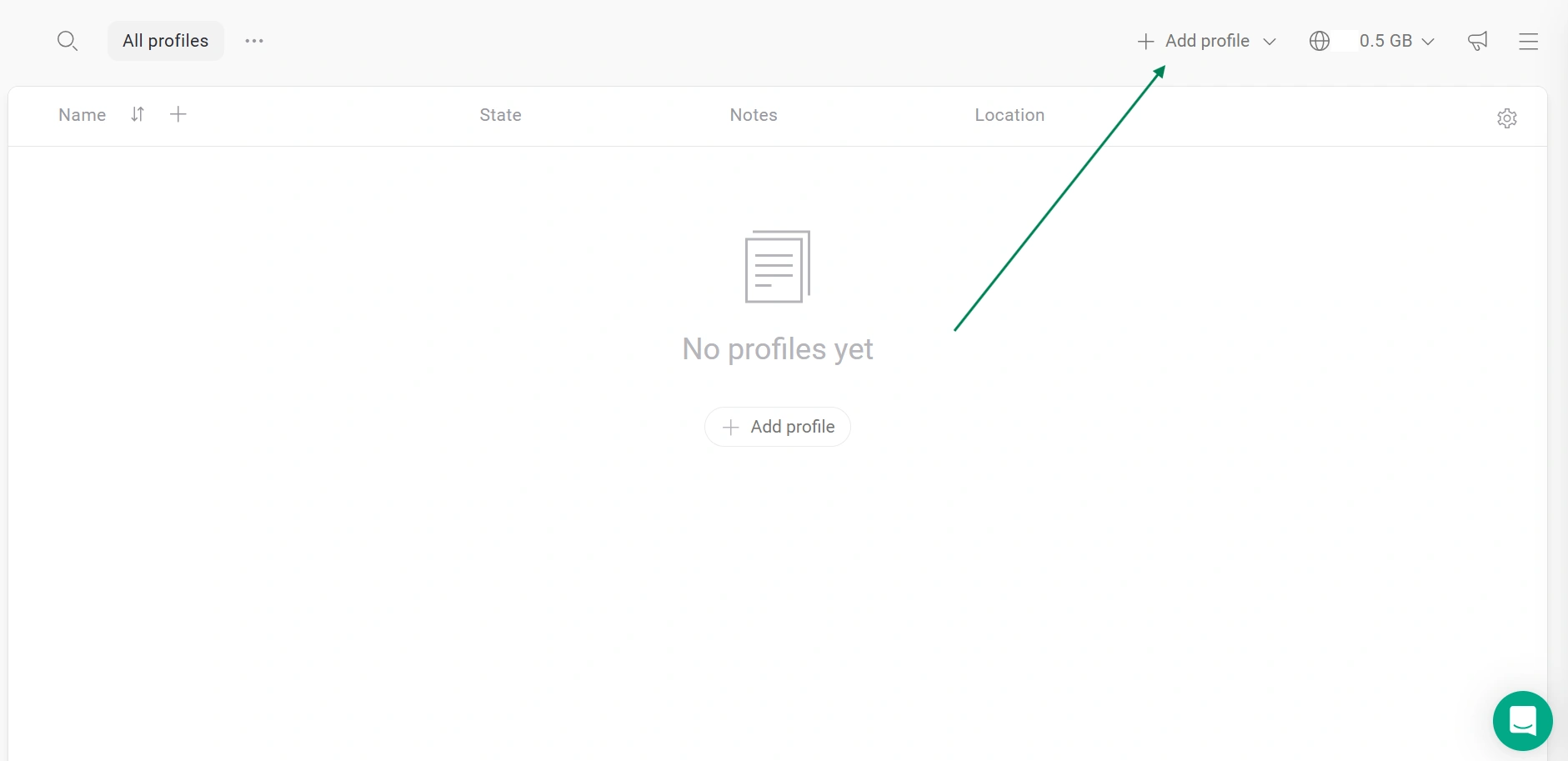
- Now, go back to the Gologin dashboard and click Add profile. That’s where you’ll create the browser profile where the US proxy is going to be used.
- Under the Proxy tab, fill in the required details and give your profile a name. Make sure you select “Your proxy” instead of “Gologin proxy”, so you can choose a proxy from your saved Floppydata list.
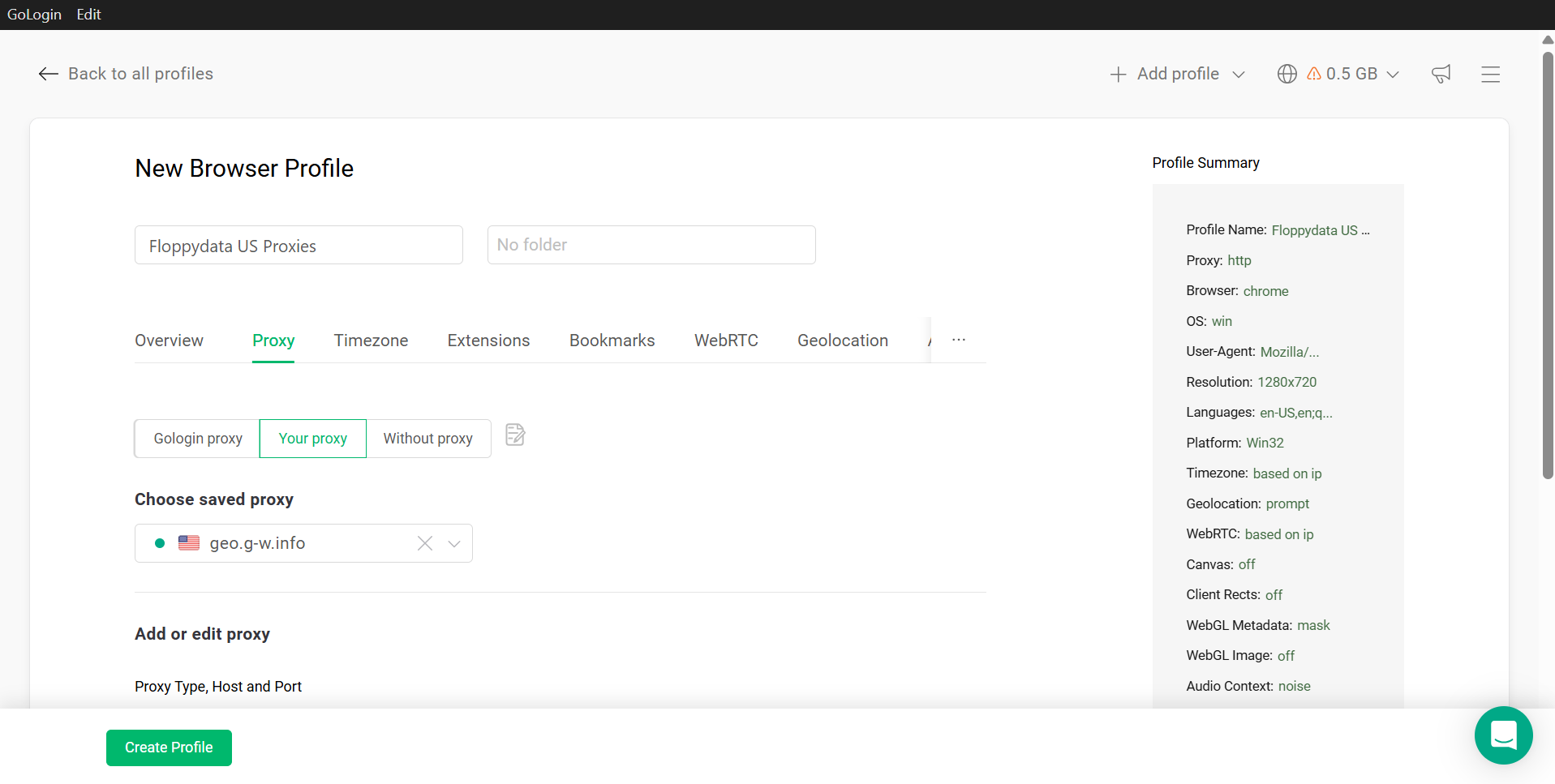
- Click the “Create profile” button, and your profile is now created. You’ll find it ready to be used in your Gologin account under “All profiles”.
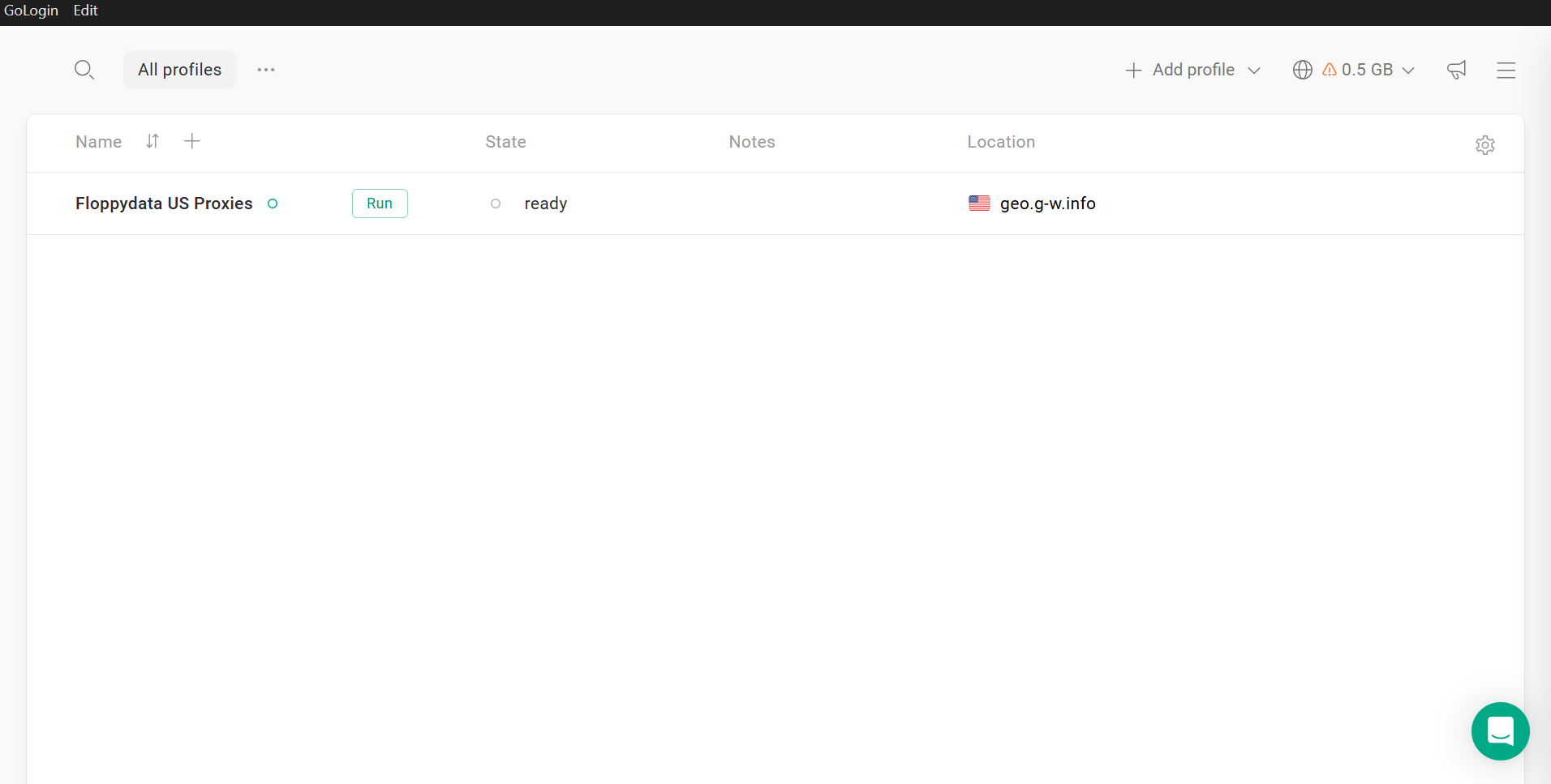
- Once you find your profile, click the green Run button, and a browser window will open. That’s your unique anti-detect browser profile with a US proxy where you can navigate anonymously!
Proof that this works
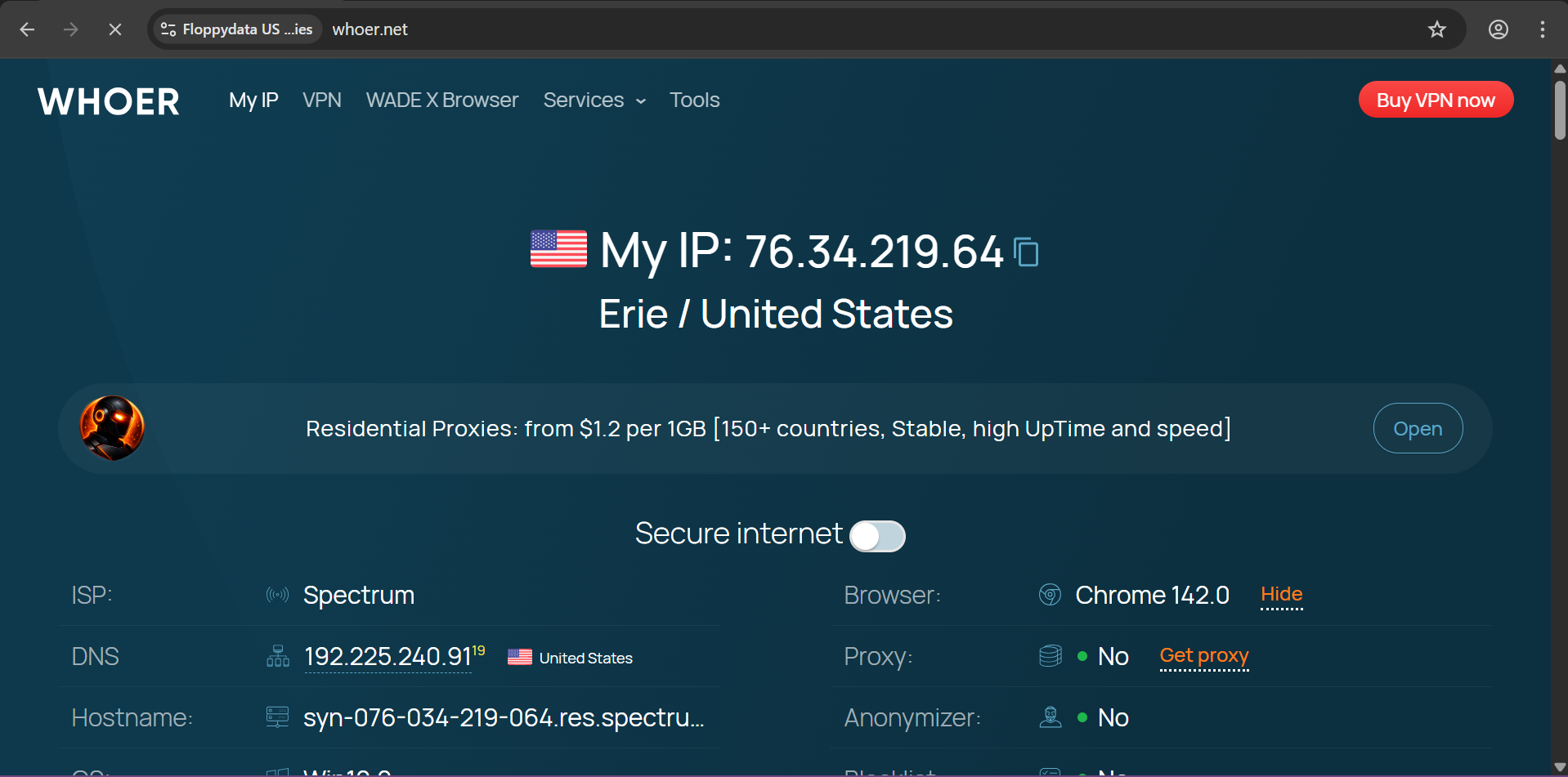
Inside the browser, type Whoer net and see for yourself:
Final thoughts
There is a generous amount of US IP addresses in the world, but not all of them will keep you safe, anonymous, or free to navigate any website you want. Having a US IP address allows you to access US content on popular streaming platforms such as Netflix, US Netflix, and Prime Video. However, some platforms may be blocked without a reliable solution, and free services often have data caps that limit streaming. That’s why I learned to find trusted sources to grab my US proxy IPs from, and the number one source I’ll always recommend is Floppydata, with more than 65 million IPs updating every day. Paying for a quality service is often a great choice, as it ensures access to US content without interruptions. For example, a paid service can help you access US Netflix or Prime Video from abroad, bypassing geo-restrictions that would otherwise block you. Investing money in a trusted provider can save you time and frustration. In this guide, I taught you how to grab these high-quality proxies for yourself, and I also showed you the smartest method to use them with extra anonymity thanks to Gologin. Hope you’re now able to access US-only content and navigate the internet with a secure US identity without any blocks!
Thanks for following along!