WhatsApp has evolved from a casual chat app into a must-have business platform for sales, customer support, team communications and more. Businesses manage multiple key operations from different WhatsApp accounts to keep things streamlined. However, a WhatsApp account cannot be simultaneously used on two mobile devices. You can, however, allow your team members to access it via web (needs QR), which is not an option for remote teams.
In this blog, I will discuss a few methods to manage multiple WhatsApp accounts from a single device at once, share them with your team (and run them simultaneously) without needing to send QRs back and forth, and keep your team’s productivity at maximum level.
Scenarios Where You Need Multiple WhatsApp Accounts
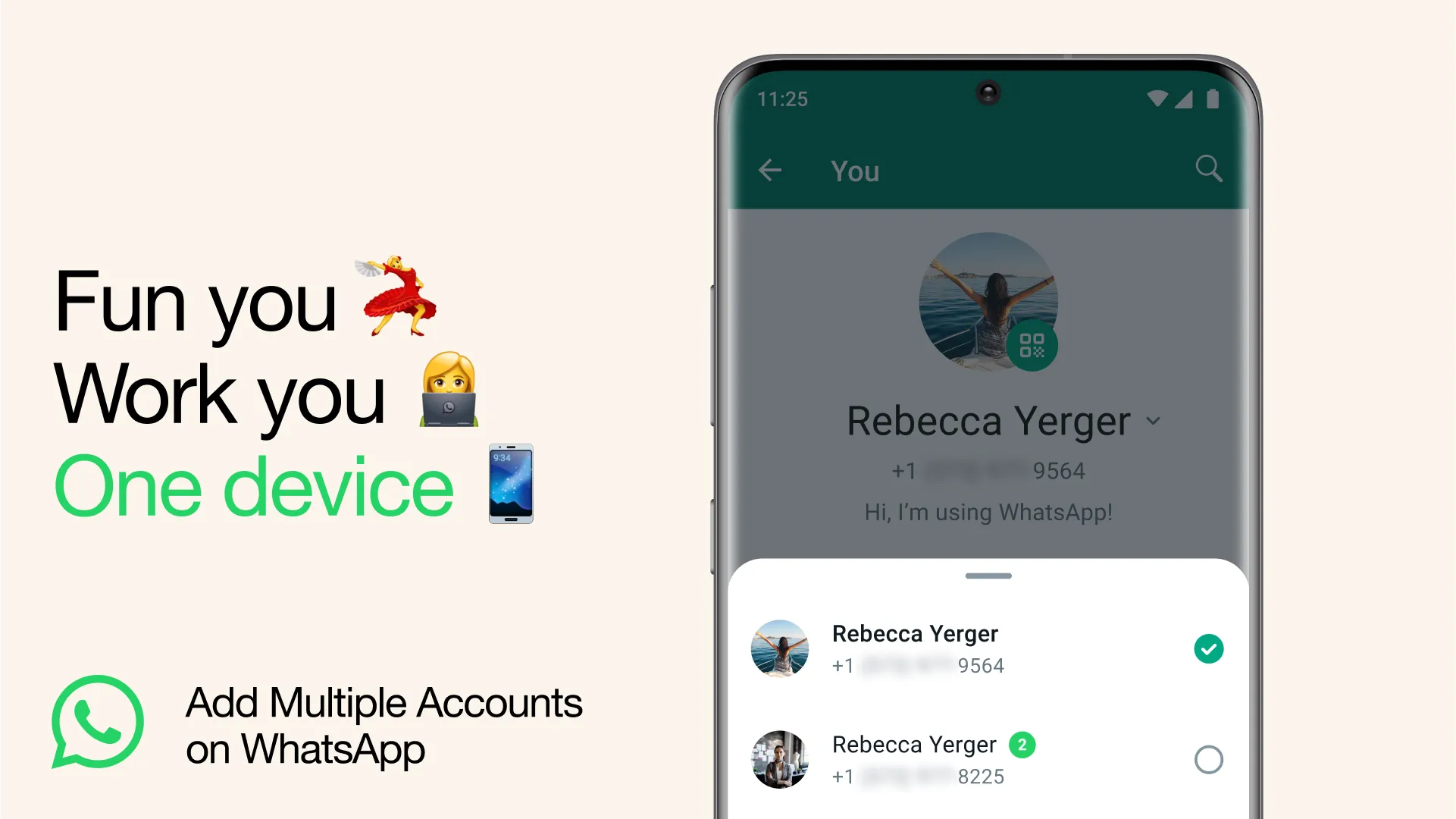
WhatsApp allows you to keep two accounts (if you have a dual-sim phone), but you need to switch between them from the app if you need to use the other account. But there are many scenarios where you need more than two accounts.
Sales & Support Teams
Companies sometimes have different WhatsApp accounts for each team, such as one for sales and one for customer support. The main purpose is to manage DMs more easily. In the customer support account, you can’t get sales queries and the sales team will not be able to interfere in your communications either.
Agencies & Virtual Assistants
Agencies and VAs that manage social media services for companies need to run multiple WhatsApp accounts on a single device simultaneously, and even share the same account with multiple people.
Region-Specific Accounts
Big organizations prefer dividing their sales and customer support teams into different zones with their own specific contact numbers. A company that has a separate WhatsApp account in each country, or even area, needs a robust team to handle multiple accounts at once.
Ways to Use Multiple WhatsApp Accounts on One Device
Here are some ways to use multiple WhatsApp accounts on one device. Some methods work for simultaneous edits.
Official WhatsApp Method for Multiple Accounts
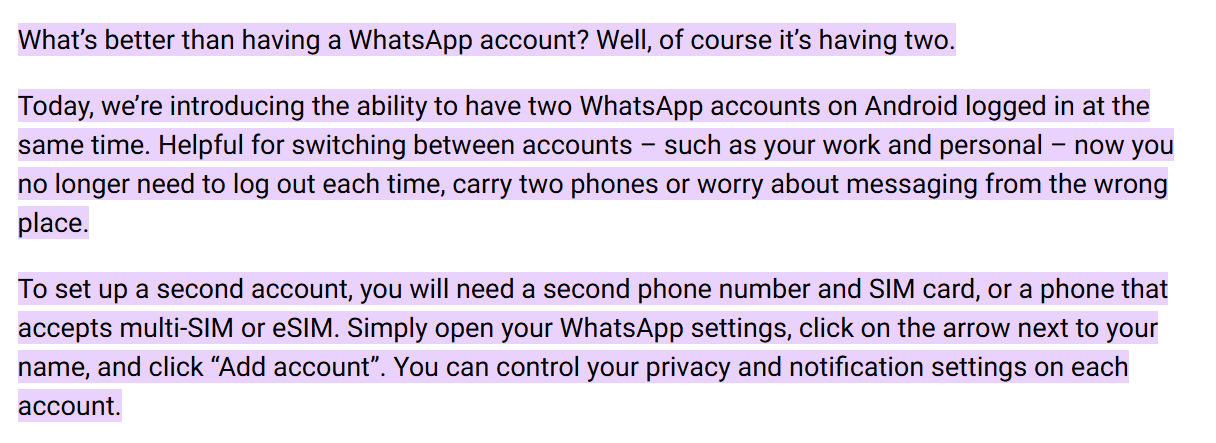
WhatsApp allows you to add upto two accounts (if you have a dual-SIM phone) on one device. You can also create a third WhatsApp Business account but you need a third SIM card for it. A common workaround is to put the SIM card in it, log in to your WhatsApp account, and take the SIM card out. Do the same with the other SIM card. This way, you can use upto three accounts on your mobile phone officially.
However, the problem with this method is that you can only use one WhatsApp account at once and need to switch to the other one to use it. Moreover, sharing this account via WhatsApp Web needs scanning the QR code for all team members. Since WhatsApp Web’s session times out pretty quickly for security reasons, re-verifying by scanning the QR code can be counterproductive for teams.
Sharing Sessions With Multiple People Via WhatsApp Web
As I explained above, a common method is to share your WhatsApp account through WhatsApp web. However, if you have a remote team, they need to send you a screenshot of their QR Code, you scan it and they are able to access it from their device.
There is also a limitation to account sharing. You can share one WhatsApp account on upto four different devices via WhatsApp Web. If more people are using the same account, these methods are not viable.
Setting Up WhatsApp Accounts on Multiple Physical Devices
If you don’t need concurrent account sharing, where multiple people are using the same account, you can also log in multiple WhatsApp accounts on physical devices (i.e more phones). This method is secure but costly as you need to buy multiple mobile phones for each account. Moreover, since most companies prefer desktops for work and track employee activity through them (in case of remote teams), mobiles are not a very good alternative. A better solution is to use cloud phones.
Using Cloud Phones Service to Manage Multiple WhatsApp Accounts
Using cloud phones solves the problem of buying multiple devices. We used GeeLark and Gologin’s cloud phone profiles for this. These browsers help us create isolated browser profiles (with Android OS). We installed WhatsApp on it and logged in using a SIM card in our laptops. GeeLark is a dedicated cloud phone tool that launches Android sessions on the cloud. You can use it just like any other phone (from your desktop) and use WhatsApp from it.
Using Proxies To Manage Multiple WhatsApp Accounts
Using a proxy is the safest, fastest, and most efficient method that you can pair with all the methods listed above. WhatsApp tracks your IP address to see which device is currently using your account. If your account is being simultaneously accessed by multiple users at once, WhatsApp’s security system triggers and logs out all the web sessions. To solve this problem and run things at scale, we use high-quality proxies.
Proxies help you maintain a consistent IP address across multiple devices. Since all devices are using the same IP, WhatsApp sees that as the same traffic coming from one device. You can also pair your proxies with cloud phones (if you’re using Gologin Android cloud profiles) and with your basic web browsers (if your team is using WhatsApp web).
This way, you can run multiple WhatsApp accounts in different browser profiles. Make sure that you assign a unique proxy IP to each browser profile. Moreover, you can also share access to the same account with multiple people, but make sure they are all using the same proxy IP to access the account.
Is Using Proxies a Scalable and Efficient Solution?
Yes, proxies are the most scalable solution. If you’re trying to log in to the same WhatsApp account on more than 3 devices, WhatsApp will log you out. Proxies help avoid the hassle of logging in again and again. Moreover, using proxies on cloud phones help you avoid account bans. Otherwise, WhatsApp can flag your activity as spam and even permanently ban your account for security reasons.
Step-by-Step Guide: Use Multiple WhatsApp Accounts Using Floppydata Proxies
If you want to set up proxies, below is the exact process I follow, from signing up to managing proxies inside my browser.
Step 1: Create Your Floppydata Account
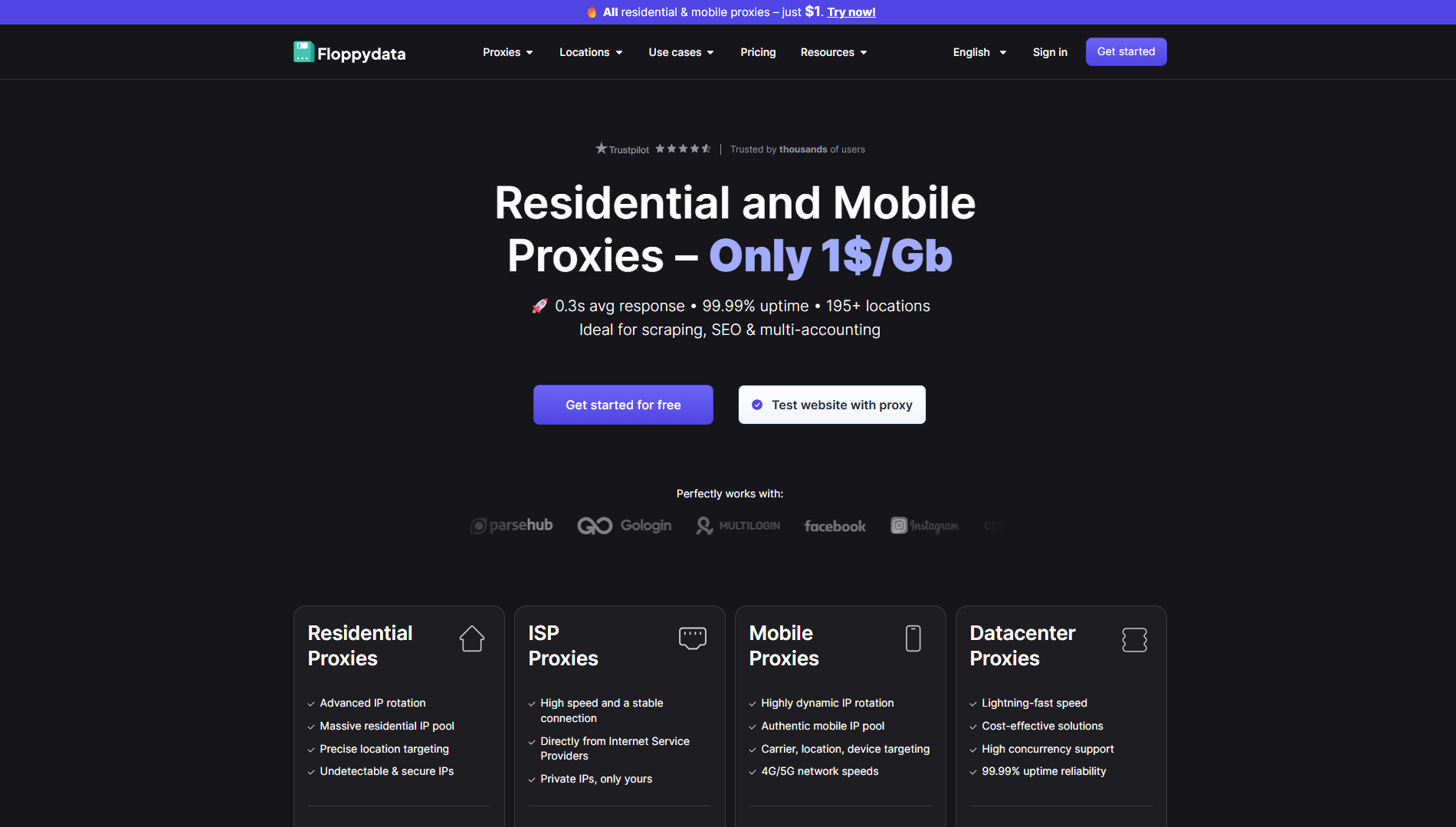
Start by signing up on the Floppydata website. The signup process is simple and only takes a minute. After verifying your email, you’ll land directly inside the Floppydata dashboard, which is where all proxy management happens.
Step 2: Choose and Buy a Proxy Plan
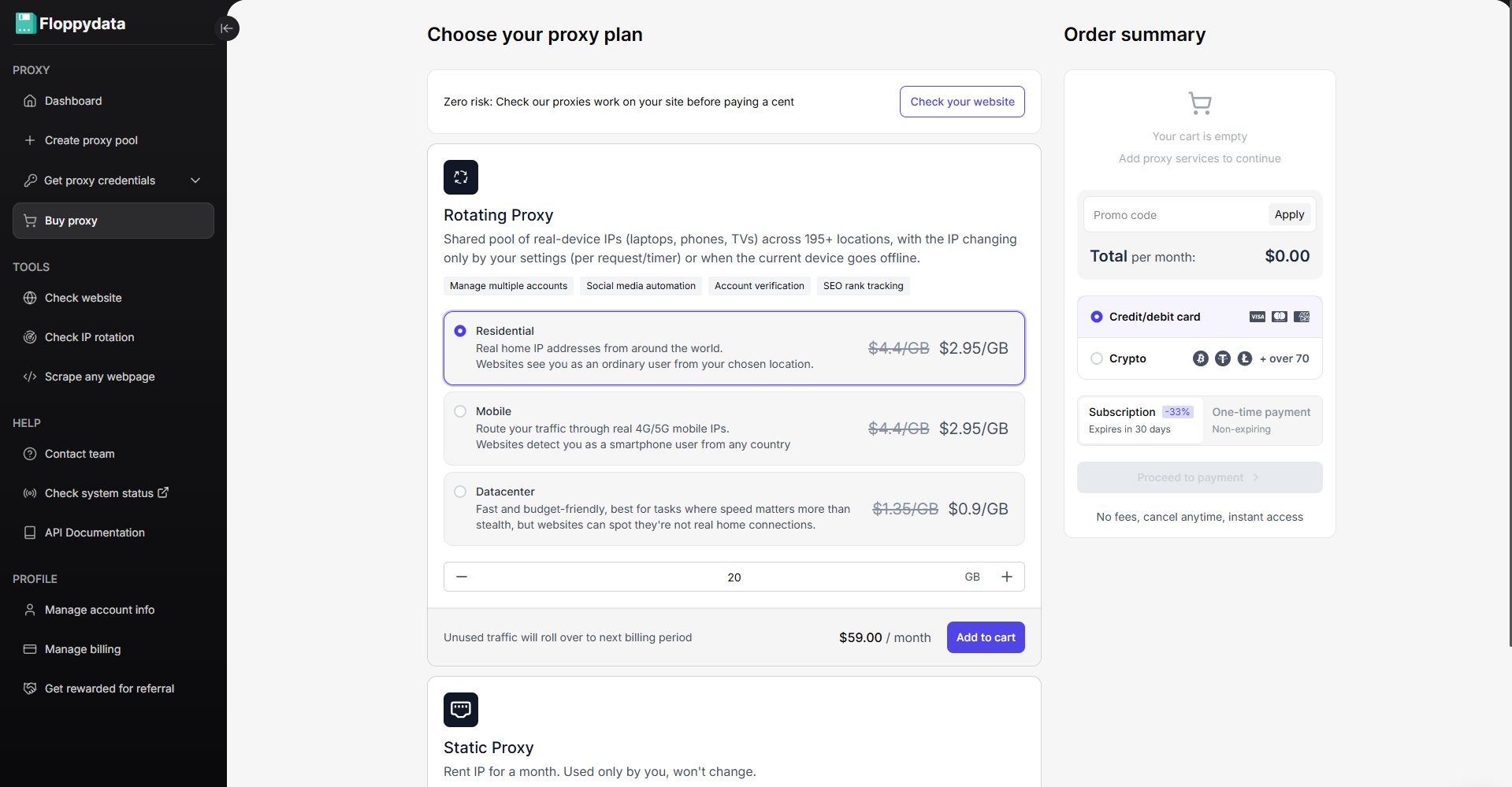
Once you’re done experimenting with the $1 free trial from Floppydata, you can then buy the most affordable and secure proxies directly from your dashboard.
Go to the Buy proxy section. Here, you’ll see different proxy types:
- Datacenter proxies
- Residential proxies
- Mobile proxies
For social media and messengers like WhatsApp, I usually go with residential proxies because they look like real user connections and have a lower risk of being banned. Once selected, complete the payment, and your balance will be added instantly. Floppydata has one of the most affordable pricing plans with a pay-as-you-go model that only charges what you actually use.
Step 3: Create a Proxy Pool in the Dashboard
Now, create a proxy pool. Choose any country and city, select the proxy type, quantity, and name. Once you create a proxy pool, Floppydata will assign you unique proxies. This pool is reusable and can be edited anytime.
Step 4: Get Your Proxy Credentials
Inside your proxy pool, you’ll see:
- Proxy host
- Port
- Username
- Password
Floppydata also allows:
- Bulk proxy generation
- Bulk download of proxy lists
- Copying proxies in browser-ready formats
If you’re managing many accounts, bulk download saves a lot of time. You can now share these proxy details with your team and specify which proxy to use for which WhatsApp account. This way, the whole team will use the same proxy for the account, so WhatsApp thinks that this is the same session. You can add these proxies to your browser, like Chrome, Firefox, Gologin, etc.
How Do I Bypass WhatsApp Web’s QR Scanning?
WhatsApp web can only be accessed by scanning a QR from the device that has that account logged in. An easy and efficient workaround is using Gologin or other antidetect browser. Gologin provides shareable cloud web profiles. You create a browser profile, attach your Floppydata proxy to it, and log in to WhatsApp. You can now share this profile with your team. All they need to do is download the Gologin app on their desktop and access your shared profile. This profile already has the WhatsApp web logged in with your set proxy. They don’t need to scan a QR or set up a proxy separately.
In simpler terms, they are using your Gologin browser profile from their device. You can share this profile with as many team members as you want, and they can all access the WhatsApp web session that you logged into. This way, only one person needs to handle the hassle of QR codes while the rest enjoy a productive and smooth experience.
Conclusion
To conclude, you can use multiple methods to share your WhatsApp account with multiple people, or to manage multiple WhatsApp accounts from one device. The safest method is to use secure Floppydata proxies paired with a quality antidetect browser like Gologin. This approach is efficient, scalable, and hassle-free. If you don’t want to use an antidetect browser and can manage QR codes and proxy setup, standalone proxies in your usual Chrome or Firefox browser is also a great choice.
FAQ
Can I have multiple WhatsApp accounts at the same time?
Yes — WhatsApp allows multiple accounts, but each needs a different phone number. You can run them using separate profiles or browser sessions.
How do I set up more than one WhatsApp account?
Create unique browser profiles, attach a proxy to each, and log into WhatsApp. Each session becomes a separate account you can share or manage.
Can I share these accounts with my team?
Yes — once profiles with proxies are set up and logged in, you can share them with teammates so they use the same session securely.