

Out of all social media platforms, Snapchat is the hardest to manage due to its account-sharing restrictions. If I log in to my account on a second device, Snapchat automatically logs me out of the first one. This is why managing multiple Snapchat accounts for ads, marketing and follower growth, etc., is difficult. In this blog, I have listed thoroughly tested methods to manage multiple Snapchat accounts from the same device (and even concurrent Snapchat accounts at once).
Why You Need to Manage Multiple Snapchat Accounts
If you want to target Gen Z and Gen Alpha, Snapchat is the right platform. 90% of the US 13-24 year olds rate Snapchat as their most important social media app. Moreover, Snapchat Ads are extremely effective for Gen Z products as they are baked right into the snaps and stories.
Freelancers and agencies who help Snapchat influencers grow, manage ads via Snapchat Ads, and post promotional content to reach Gen Z audiences need to manage multiple accounts from the same device. In many cases, you even need to manage concurrent Snapchat sessions at once. This isn’t possible with Snapchat’s current account policy, but there are some solid workarounds discussed below.
Snapchat’s Policy: Can You Have More Than One Snapchat Account?
Yes, you can have multiple Snapchat accounts on different emails or phone numbers. Snapchat officially allows users to add up to four accounts on one device. You can only use one account at a time and need to log out and switch to another one to use it. If you’re managing accounts for multiple people, this is counterproductive.
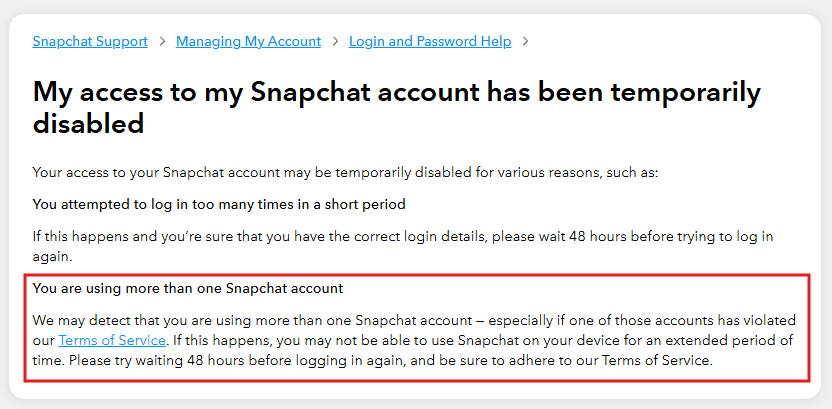
If Snapchat detects any spam activity on one of the accounts, all your accounts are at risk of getting banned. If you create too many accounts too fast(especially from the same device), you put all the accounts at risk of getting banned. In short, Snapchat doesn’t care about multiple accounts; it cares about spam and activity that violates its terms.
How to Make 2 Snapchat Accounts?
As discussed, Snapchat does not restrict you to one account per device. You can create multiple accounts by simply logging out of your current one and signing up for a new one with a unique email or phone number. You can’t link the same phone number to all accounts.
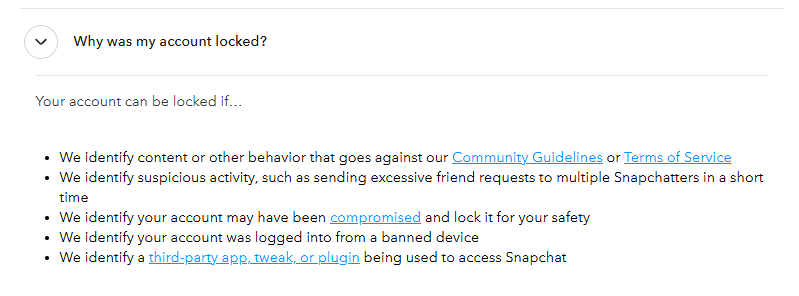
While creating a Snapchat account is a fairly simple process, make sure you don’t create too many accounts too fast on the same device, as it counts as spam. When you create an account, don’t send excessive friend requests, which can result in your account getting locked. If you want to reduce the chances of getting locked out, Snapchat encourages 2FA to improve your account standing and make it look authentic.
Here is a snippet from Snapchat support outlining some reasons why Snapchat can ban your account.
Managing Multiple Snapchat Accounts on One Device
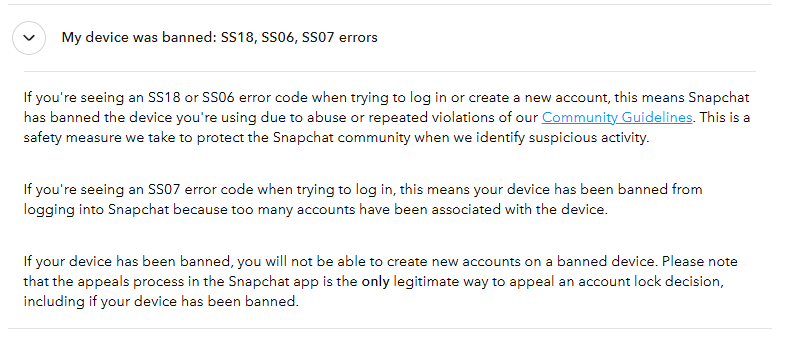
Operating multiple Snapchat accounts feels like walking on thin ice. One wrong move can not only lock you out of all your other accounts, but Snapchat can also ban your device, meaning you can’t use Snapchat on this device ever. Why is that so? Because, like other social media platforms, scammers and spam marketers try to exploit Snapchat as well. If you try to increase your followers inorganically or promote your products, you’re in danger.
At this point, you need to do two things:
- Protect your device from getting banned (mask your IP)
- Isolate your account activity so that each account looks like a separate device
Method 1: Using Multiple Physical Devices to Operate Snapchat Accounts
You can keep more than one mobile device. Each device should have no more than 2-3 accounts. This is a great and easy method to isolate activity between some accounts and protect them from getting locked due to a violation on a single account. However, this isn’t an effective way because it is costly, and accounts on the same device are still at risk. This is where cloud phones come in.
Method 2: Using Cloud Phones to Operate Multiple Snapchat Accounts
Cloud phones are the solution to the problems with the first method. You don’t need to buy multiple physical devices. Instead, you can buy as many cloud phones as you want via a reputable cloud phone service like Geelark. You create virtual mobile devices in the cloud and manage them through your desktop. You can download and log in to a Snapchat account on each cloud phone. This isolates your activity and protects other accounts from getting locked if one account violates any guidelines.
Moreover, cloud phones also protect your original mobile device from getting a lifetime ban from using Snapchat. If you’re an agency or business, cloud phones are a great and affordable way. The only drawback of cloud phones is that they can feel slow sometimes, and still don’t mask your device’s IP. All the cloud phones are using your desktop’s IP, and Snapchat can detect this and restrict all accounts (or even ban this device IP permanently). To avoid this, you need proxies.
Method 3: Using Proxies to Manage Multiple Snapchat Accounts
Proxies solve the biggest problem in multi-account management: shared IPs. When you use proxies, you are not only protecting your original IP address, but you can also change your IP every time you switch accounts. This way, each account’s traffic is routed through a different IP address, making them look like unique devices. Pairing a proxy with a cloud phone or an anti-detect browser(next method) is the best way to manage multiple Snapchat accounts concurrently.
Method 4: Using Proxies and Antidetect Browsers to Manage Multiple Snapchat Accounts
If you’re only using proxies, you’re hiding your original IP address, but Snapchat can still see your device fingerprint and figure out that you are only switching IP addresses. This is fine for most scenarios, but if an account violates guidelines, then Snapchat takes device fingerprint into account and bans all linked devices. Antidetect browsers solve this problem as well. Like cloud phones, you get a cloud web browser. Each browser profile has its own unique device fingerprint and acts as a unique device. If you’re using four Snapchat accounts in four profiles, you’re safe. Just make sure that you add a unique Floppydata proxy to each profile.
Cloud phones and antidetect browsers do the same job. The only difference is that cloud phone services offer cloud devices, while antidetect browsers offer isolated cloud web browsers.
Step-by-Step Guide: Configuring Floppydata Proxies
If you’re looking to set up proxies to manage multiple Snapchat and other social media accounts on one device, below is the exact process I follow.
Step 1: Create Your Floppydata Account
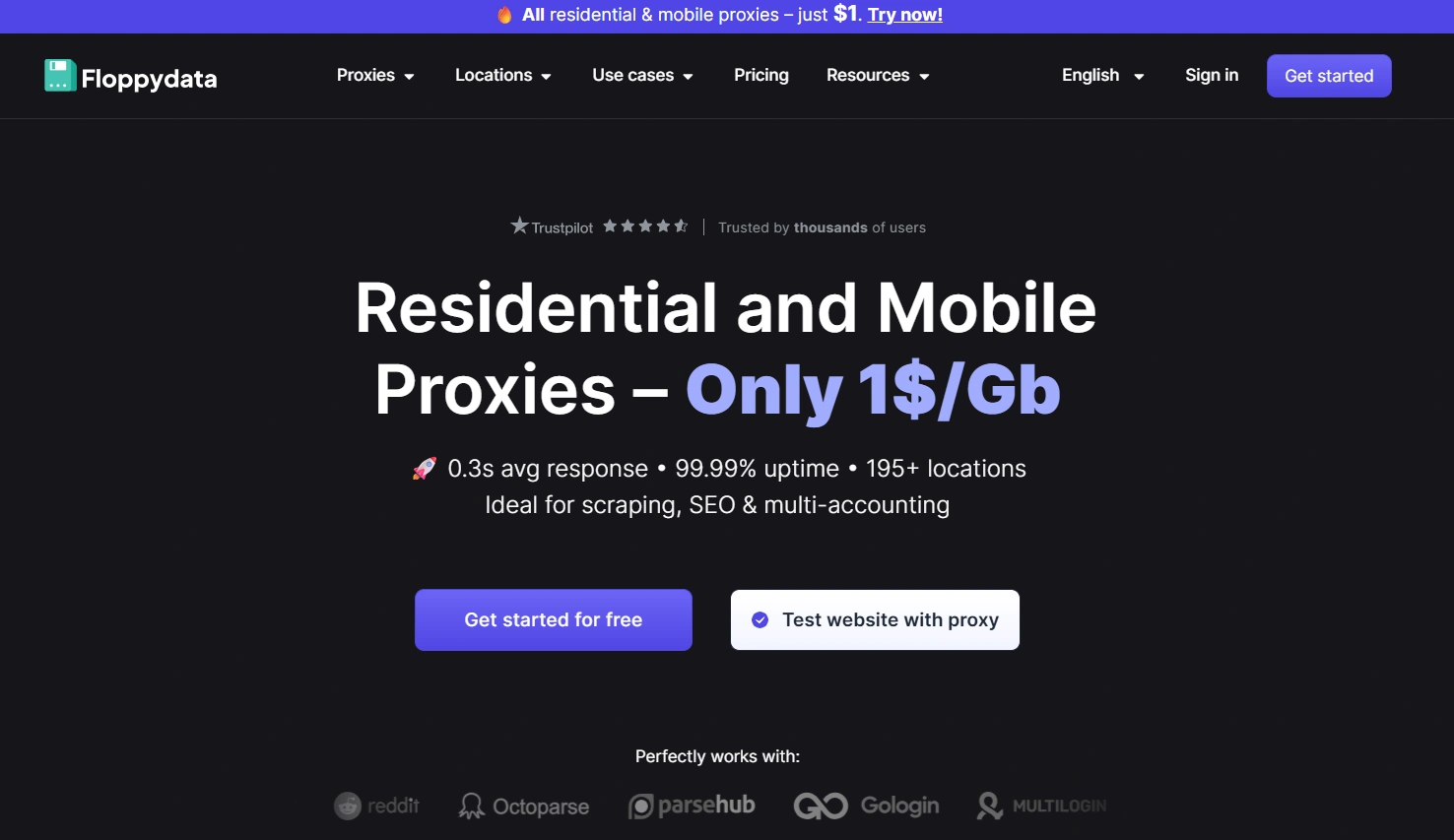
Start by signing up on the Floppydata website. The signup process is simple. After verifying your email, you’ll end up on the Floppydata dashboard. This is where all proxy management happens.
Step 2: Choose and Buy a Proxy Plan
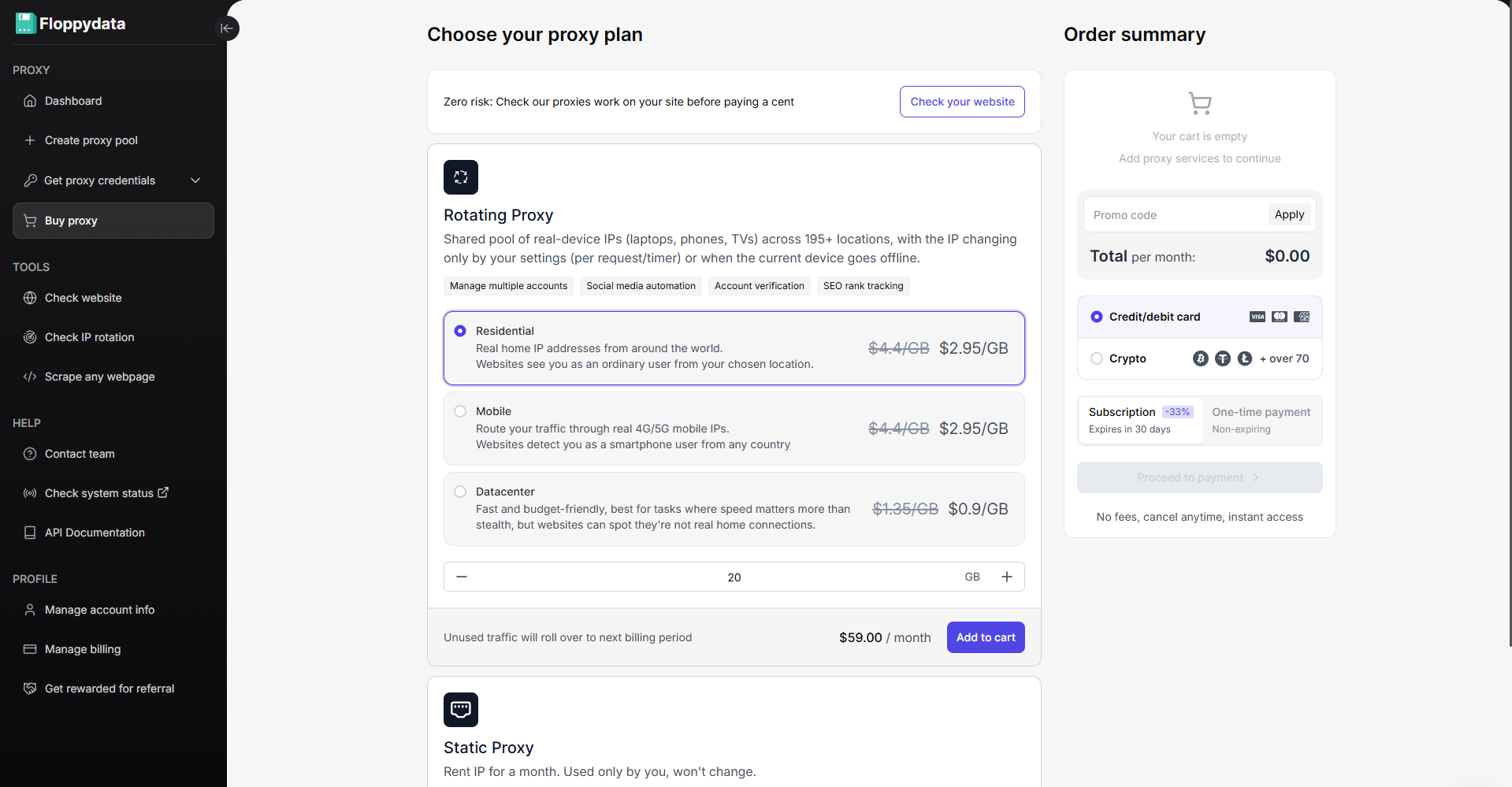
Once you’re done experimenting with the $1 free trial from Floppydata, you can then buy the most affordable and secure proxies directly from your dashboard.
Go to the Buy proxy section. Here, you’ll see different proxy types:
- Datacenter proxies
- Residential proxies
- Mobile proxies
For Snapchat, I usually go with residential proxies because they look like real user connections and have a lower risk of being banned. If you’re using cloud phones and want additional protection, mobile proxies are the way to go.
Once selected, complete the payment, and your balance will be added instantly. Floppydata has one of the most affordable pricing plans with a pay-as-you-go model that only charges for what you actually use.
Best Method: Use Floppydata Proxies with an Antidetect Browser
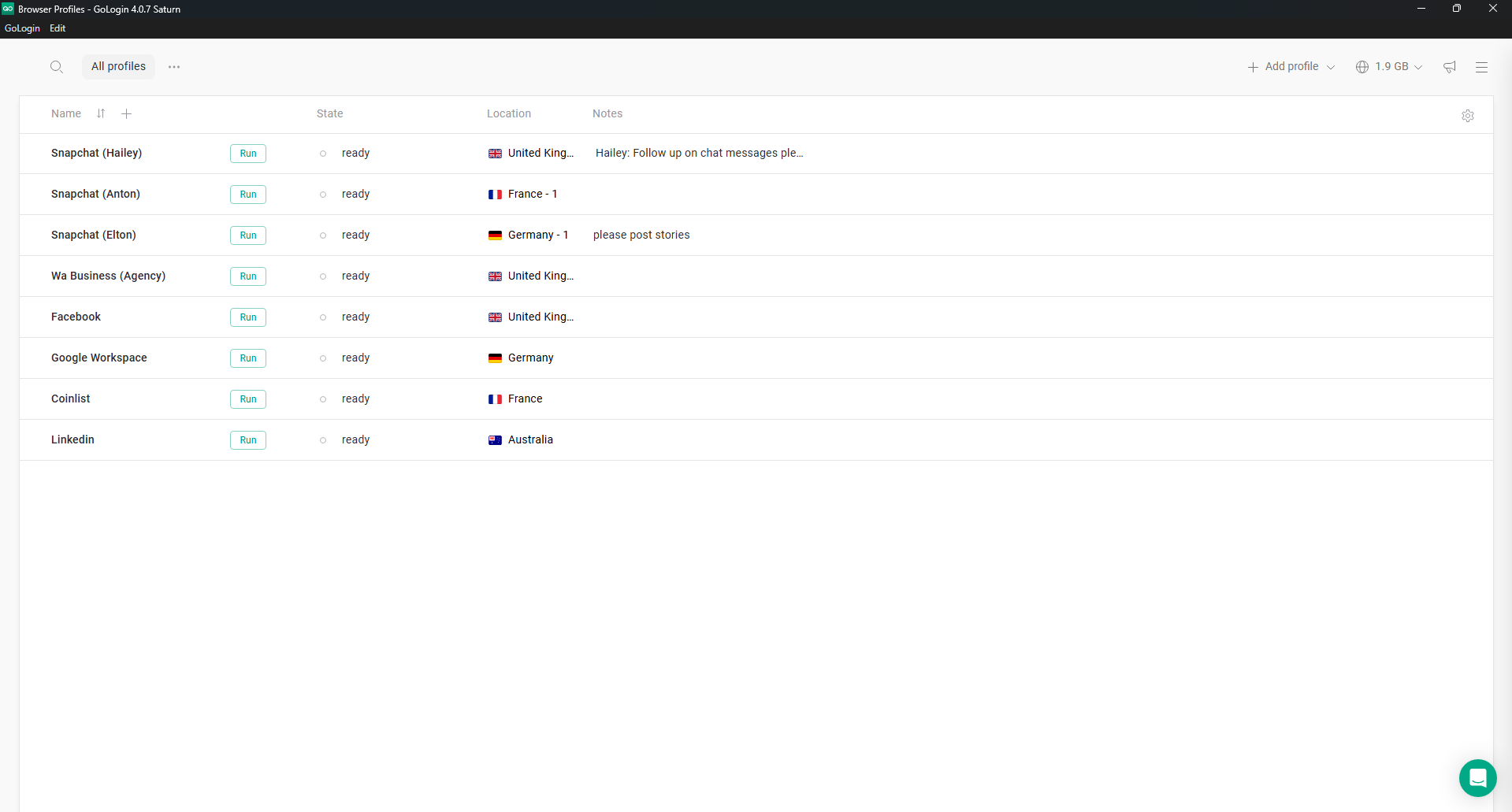
You can mask your IP or isolate your devices, but cloud phones or proxies would not fix the biggest bottleneck in Snapchat account sharing: You can’t run a Snapchat account simultaneously on two devices.
The safest and the most effective way to manage multiple Snapchat accounts concurrently is to use an antidetect browser with your proxies. An antidetect browser makes each browser profile look like a unique device.
When you create a Gologin browser profile, it gets its own isolated storage, cookies, and cache synced to the cloud. You can then assign a separate proxy IP to each profile and they all look like unique devices with their own IPs and fingerprints.
You can also share your Gologin profile with our team and the cookies, cache, and storage are also synced for them. It’s like they continue where you left off. All the members who have access to the profile are collaborating on the same device, linked to the same cache, cookies, and storage being synced in real-time. As a result, you don’t even need to share your Snapchat password with them. All they need is access to your Gologin profile.
Guide: Use Multiple Snapchat Accounts Simultaneously With Antidetect Browser
Here is a step-by-step guide to sharing a Snapchat account’s session with other people using Gologin.
Step #1: Download Gologin Desktop App
After buying proxies from Floppydata, download the Gologin app and sign up. Gologin looks like a normal Chrome browser, but more secure.
Step #2: Create Browser Profiles
When you’re signed up, create your first browser profile. Each profile you create acts as a unique device with its own IP address. Create a separate profile for each account.
Step #3: Assign Floppydata Proxies to Your Profiles
After profile creation, paste Floppydata proxies into your profiles. Assign a unique proxy to each profile so that they have a unique device and IP fingerprint.
Step #4: Manage Multiple Snapchat Accounts
You can now simultaneously open multiple Snapchat accounts (one in each profile). You can create multiple profiles with unique proxies and manage as many accounts as you want without the risk of getting banned.
Step #5: Share With Your Team
You can share your browser profile with your team members. They need to create a Gologin account as well and can access your profile from their own accounts, if invited. They don’t need to set anything up as proxies, device fingerprint, and login have already been configured from your side. All the activity that team members carry out in your profile gets synced for everyone in real time. Snapchat will not know that five people are logging in from different locations, as the browser profile is the same for everyone.
Conclusion
Running multiple Snapchat accounts is possible, but you have to make sure they don’t look spammy or linked. The best approach is to use proxies with cloud phones or antidetect browsers to isolate activity. This is the safest way to protect your accounts, device, and ensure safe account sharing between teams. Since Snapchat does not allow concurrent sessions of the same account, the Gologin antidetect browser, with its account-sharing policy, is the best way, if paired with Floppydata proxies.
Explore Floppydata’s proxy plans.
FAQ
Can I run multiple Snapchat accounts at once?
Yes - Snapchat lets you have more than one account, but you need separate phone numbers and unique IP/device fingerprints to avoid blocks or security flags.
Why use proxies when managing multiple Snapchat accounts?
Proxies give each account its own IP address. This helps Snapchat treat them as distinct users, lowering the risk of bans or login verification issues.
What setup is recommended for safely managing multiple Snapchat accounts?
Use an anti-detect browser or separate browser profiles with dedicated residential/mobile proxies per account, enable MFA, and keep consistent IP patterns.